The Arizona Corporation Commission allows searches of its business database by name or entity ID. The available information is located on the entity card and includes ownership details, statutory agent information, and contact details (including mailing addresses). The database will also include a ‘document history’ section that provides access to recent filings made by the business.
Business Entity Search
State of Arizona

Business Entity Search
1. Go to the Arizona Corporations Commission website.
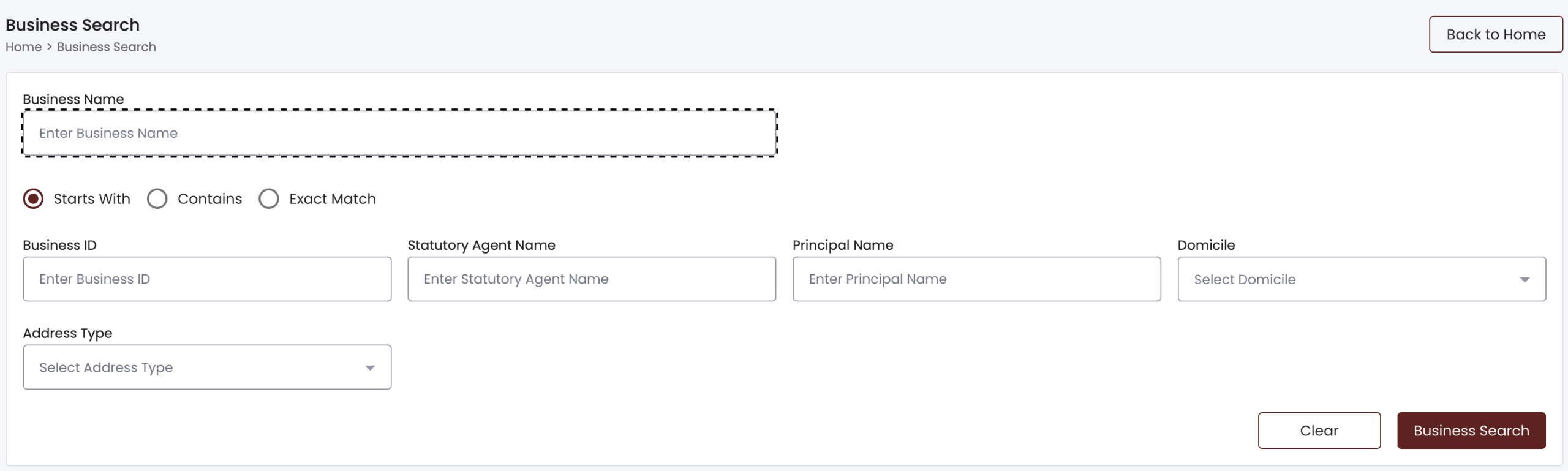
2. Use the Search Options
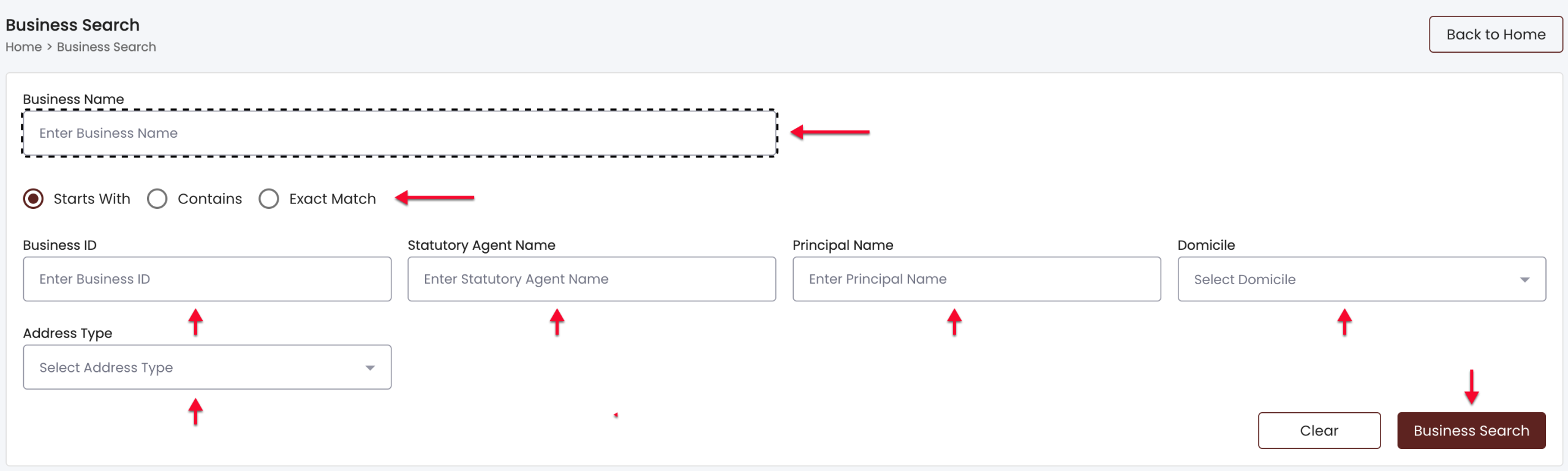
Type an entity’s name (or a phrase) in the search box, select the appropriate radio button, then select “Business Search.” Optionally, supply additional criteria in order to tighten the search:
- Business ID
- Statutory Agent Name
- Principal Name
- Domicile
- Address Type
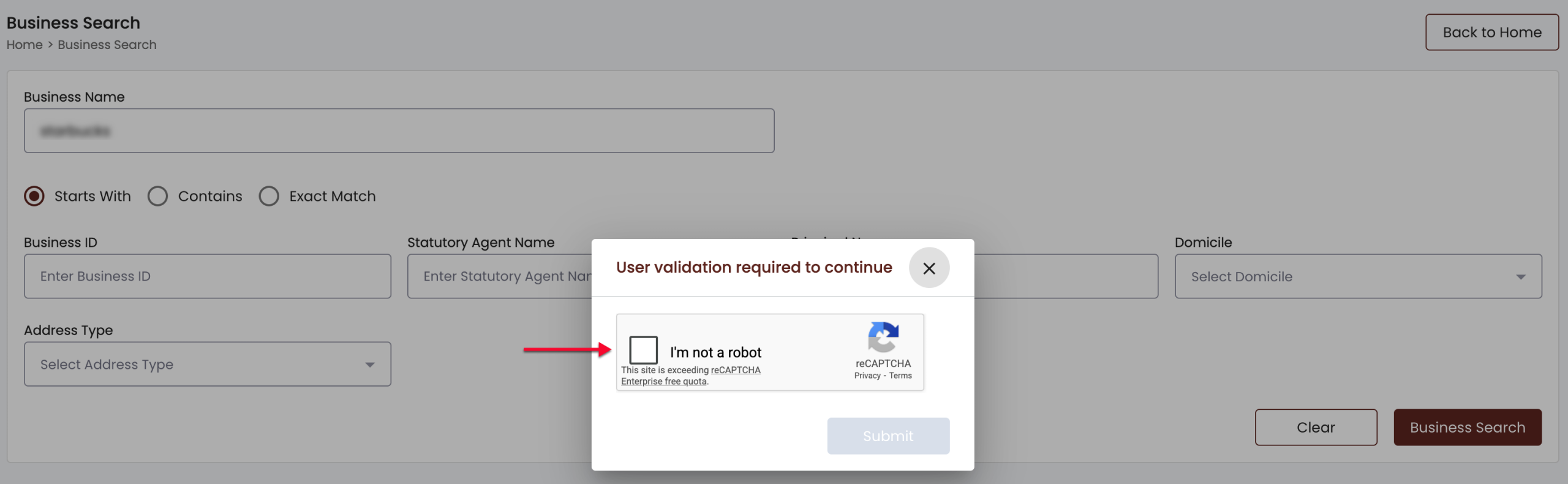
3. Verify Your Intention
This database is available to the public, but secures the integrity of the user. Thus, verify that you are human by selecting the “I’m not a robot” button and clicking “Submit” to proceed.
4. Select the Entity from the Search Results
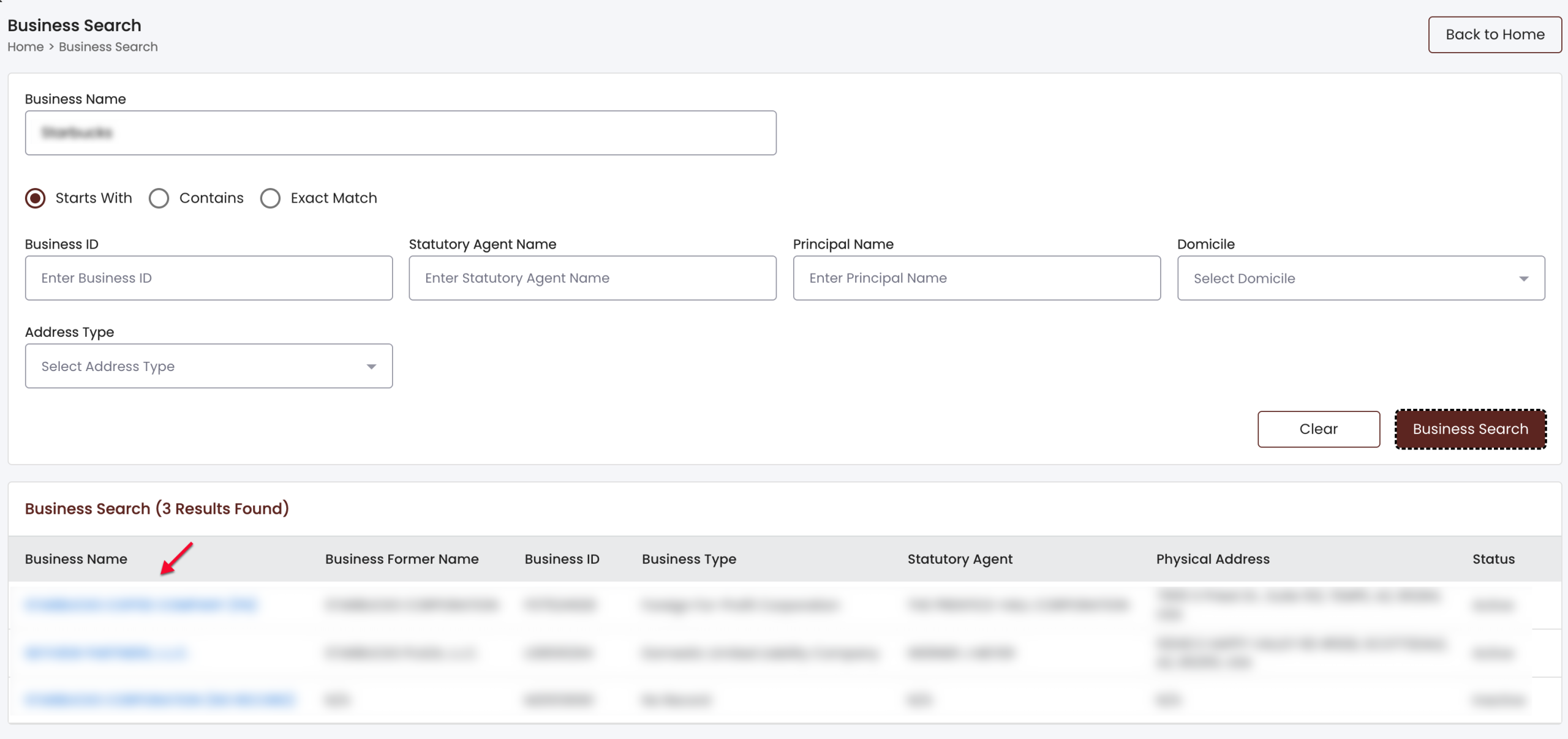
Once the verification process is complete, a table displays the results. Review the columns, locate the appropriate “Business Name,” then select it from the first column:
- Business Name
- Business Former Name
- Business ID
- Business Type
- Statutory Agent
- Physical Address
- Status
5. View the Entity Details Page
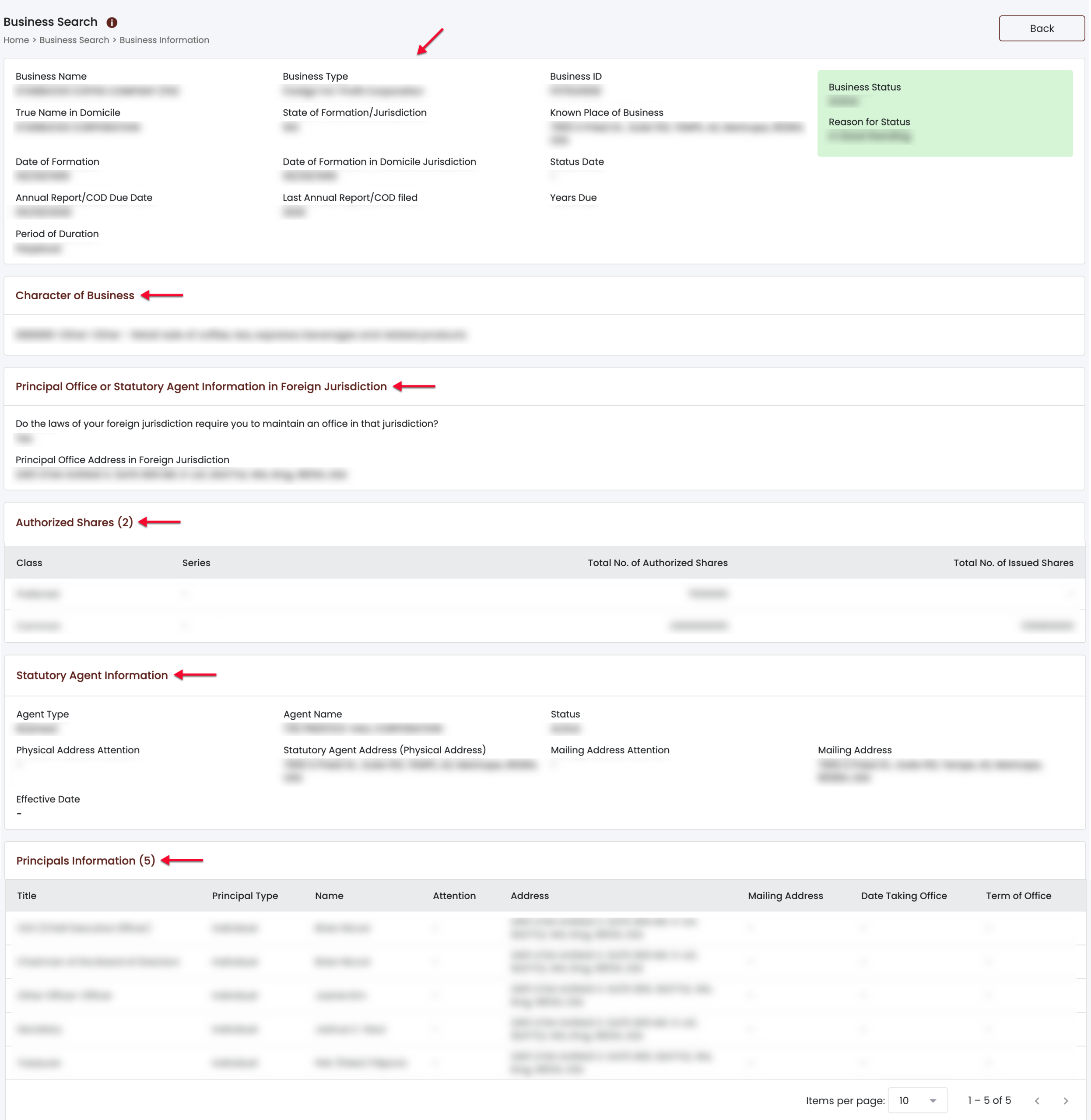
The entity information page provides a wealth of information, beginning with the business’s basic information. Additionally, several sections supplement this area with specific information:
- Business Name, Business Type, and Business ID, Business Status and the Reason for Status
- True Name in Domicile, State of Formation/Jurisdiction, Known Place of Business
- Date of Formation and Date of Formation in Domicile Jurisdiction, Status Date
- Annual Report/COD Due Date, Last Annual Report/COD Filed, and Years Due
- Period of Duration
The next several sections explicitly provide the remaining public information regarding the entity. Review these areas, then in the final section, notice that additional tabs can be selected:
- Character of Business
- Principal Office or Statutory Agent Information in Foreign Jurisdiction
- Authorized Shares information
- Statutory Agent Information and Principals Information
6. Investigate Specific Information Regarding the Entity
The bottom of the details page displays the Filing History tab, which specifically reports the entity’s past filing information. Review the table columns, then select the next area accordingly:
- Filing Number
- Filing Date Effective Date
- Filing Type, Filing Status
- View Document (Select document image to view the paperwork reported in that row, and allows you to View Document)

Select the Name History tab in order to access a report on the previous names of the entity. Each row presents the Business Name in addition to that name’s:
- True Name in Domicile
- Filing Number
- Filing date
- Filing Description
- Effective Start Date
- End Date
- Reservation/Registration ID

The next viewable tab (Stat. Agent History) provides the entity’s statutory agent’s documentation. Review this information before continuing to the next area:
- Filing Number
- Filing Date
- Agent Name
- Effective Date

Select the Service History tab to view the past document history between the government and the entity. This is arranged by Filing Date and provides viewable documents in the last column:
- Filing Date
- Work Order Number
- Filing Type
- Status
- View Document

Any changes in operation or management can be reviewed in the Restructuring History tab. A table presents any paperwork on file with the state in several columns:
- Filing Number
- Filing Date
- Effective Date
- Filing Type
- View Document (if available)

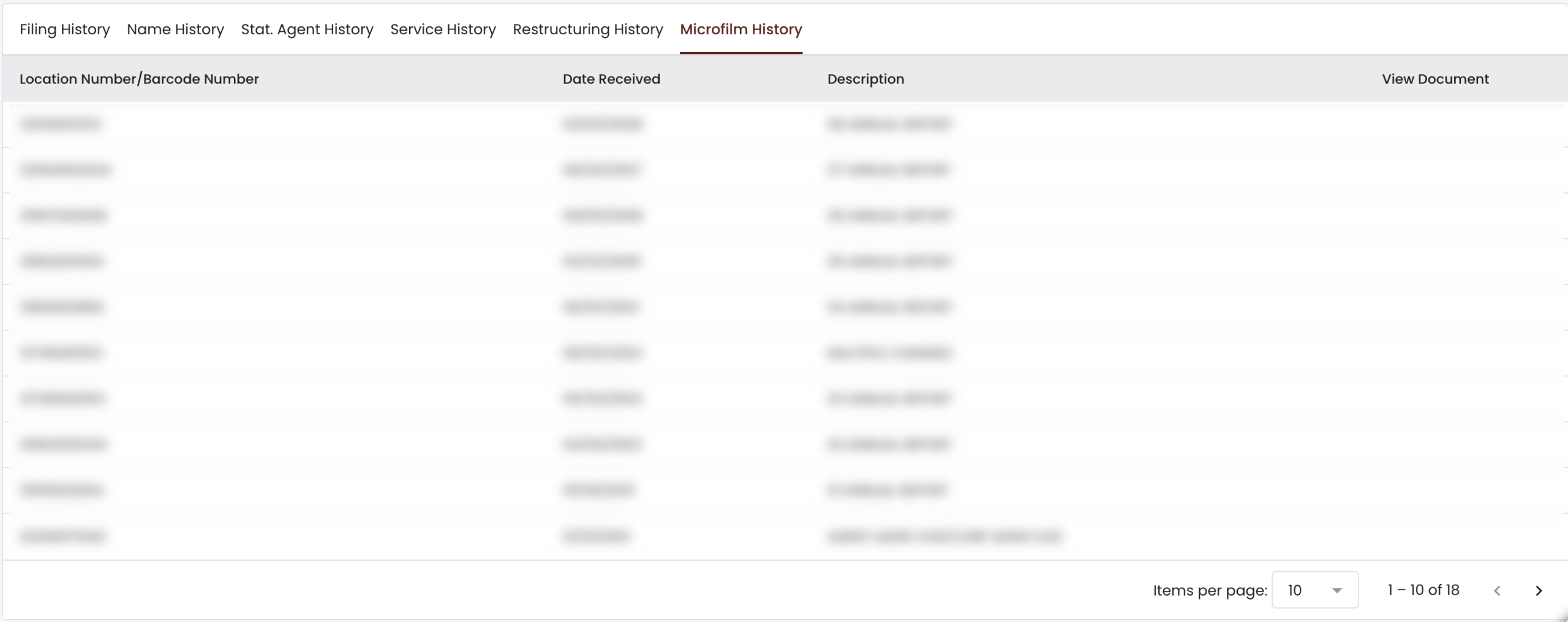
Some documents on file with the state for this entity are available for viewing on microfilm. Select the final tab (Microfilm History) to view them, and the final column to view documents.
- Location Number/Barcode Number
- Date Received
- Description
- View Documents