The Indiana Secretary of State allows the public to use the InBiz business entity search page to find information about a specific organization, contractor, and other entities registered to operate as a business in the State of Indiana. Potentially, many businesses can fall within a User’s request. A filter is available to narrow the search results. The business entity search will return the registered Indiana entities that match the criteria entered by the user.
Business Entity Search
State of Indiana

Business Entity Search
1. Access The Indiana Secretary Of State INBiz Business Entity Search Page
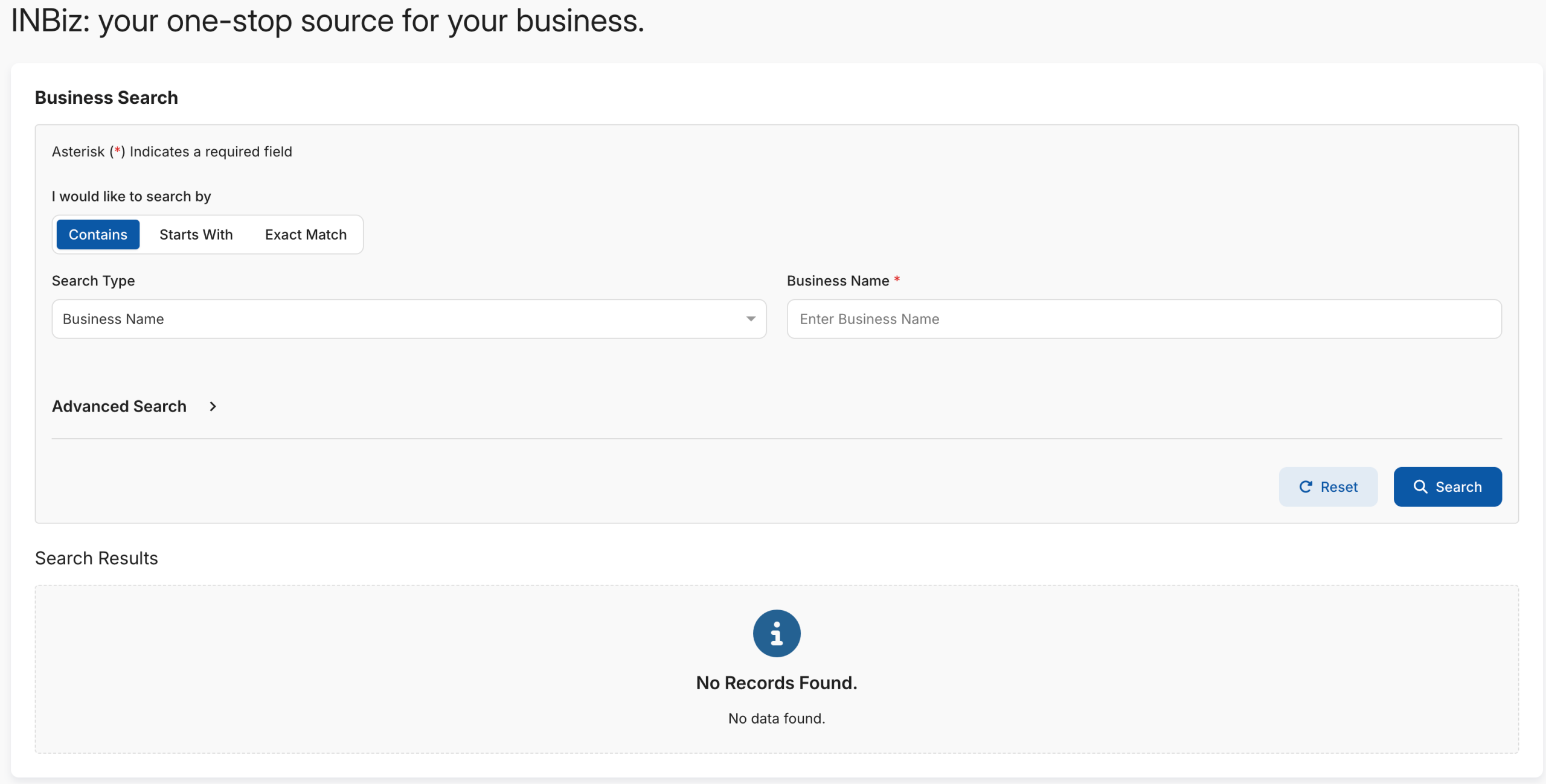
2. Apply the Correct Search Method
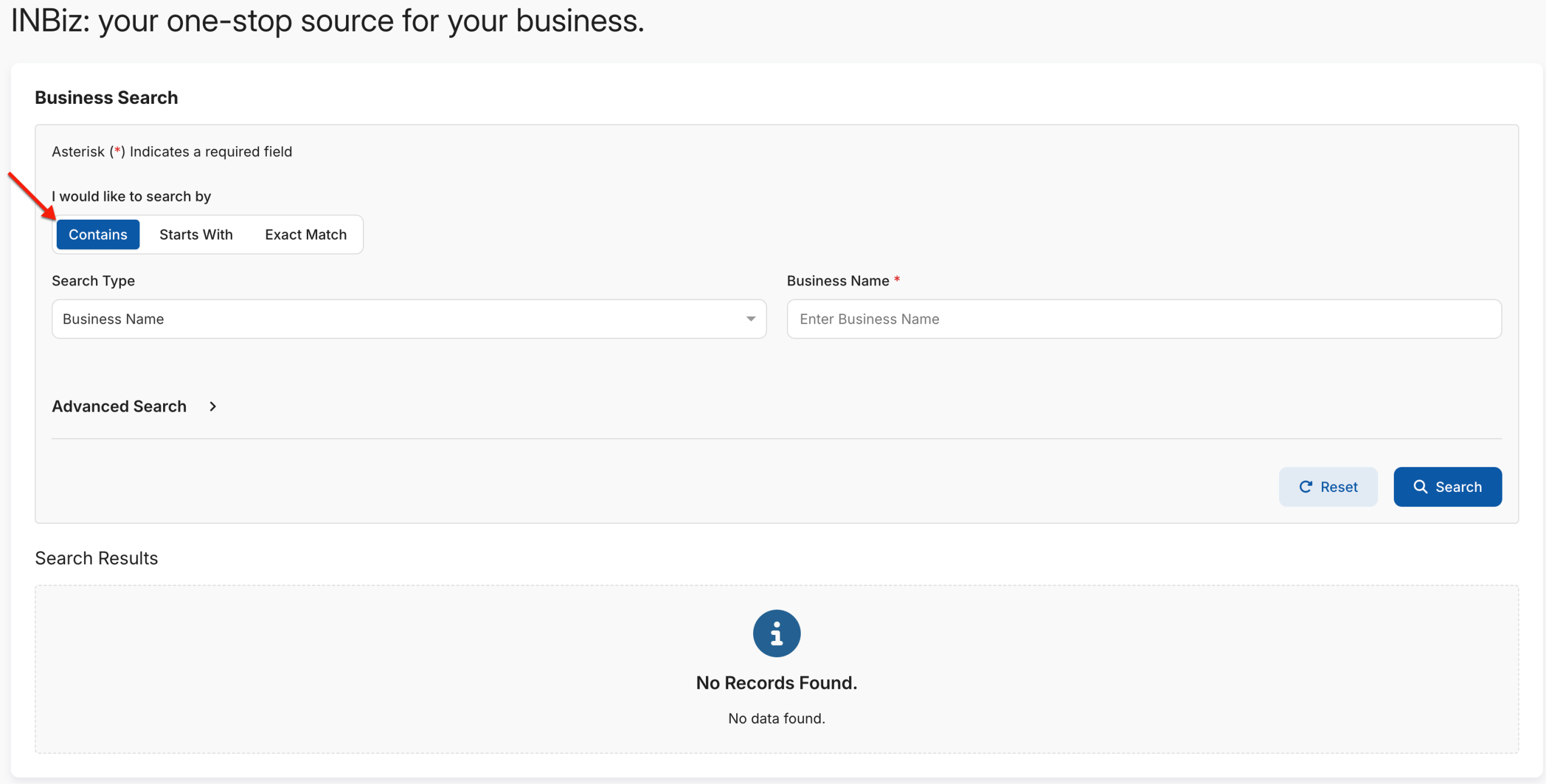
Review the search options, then set the search logic. To do so, click on “Contains,”“Starts With,” or “Exact Match.” For example, select “Contains” when using partial names as criteria.
- I Would Like to Search By
- Contains
- Starts With
- Exact Match
- Search Type
- Business Name
- Advanced Search
- Reset
- Search
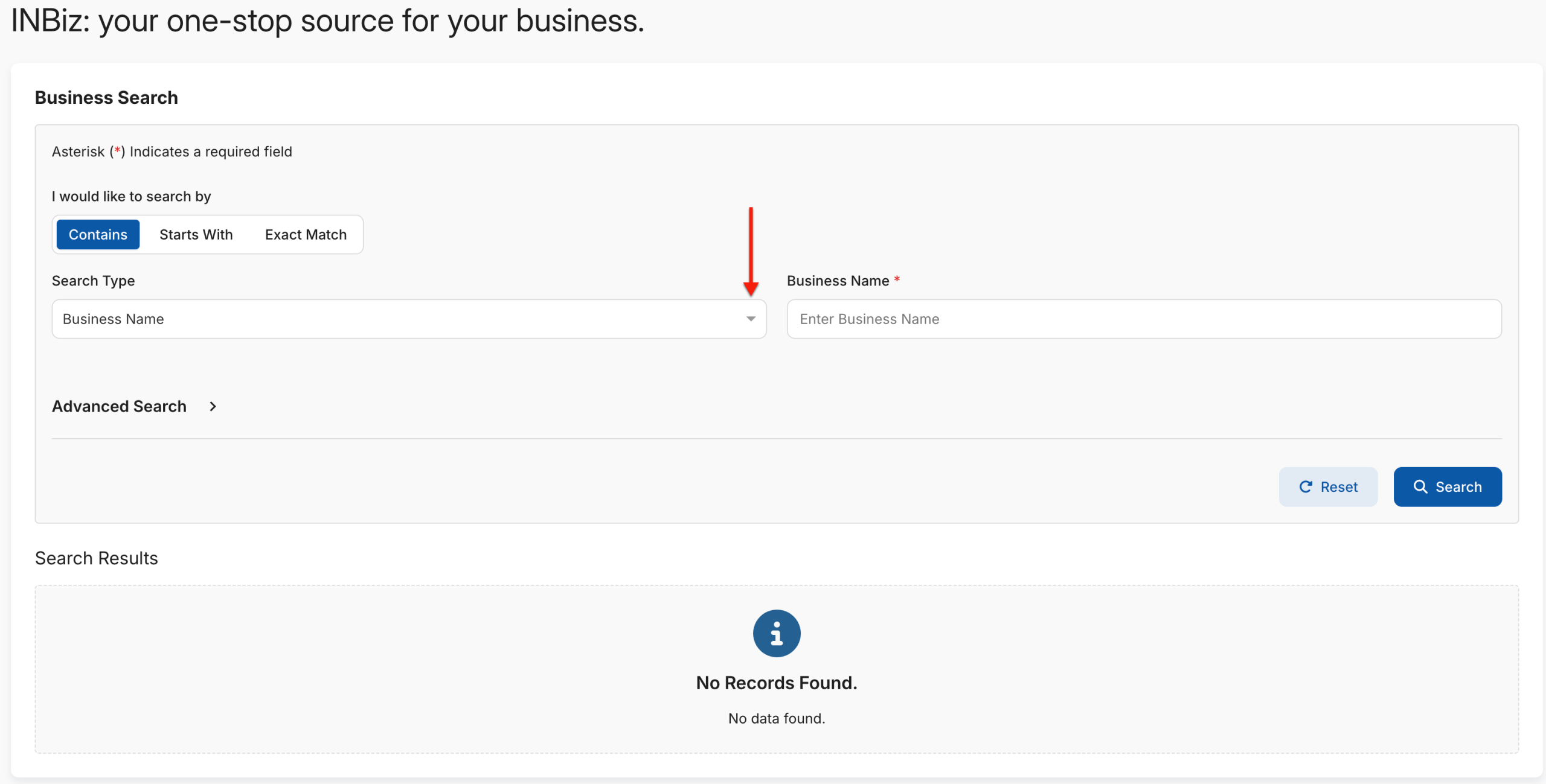
3. Set the Search Type
The query defaults to a business name search. If not, select “Business Name” from the drop-down menu.
4. Name an Entity to Find
Supply the “Business Name” text box with the criteria. Type the search target’s partial or full name in this field. Remember the query will treat this entry in accordance with the search logic.

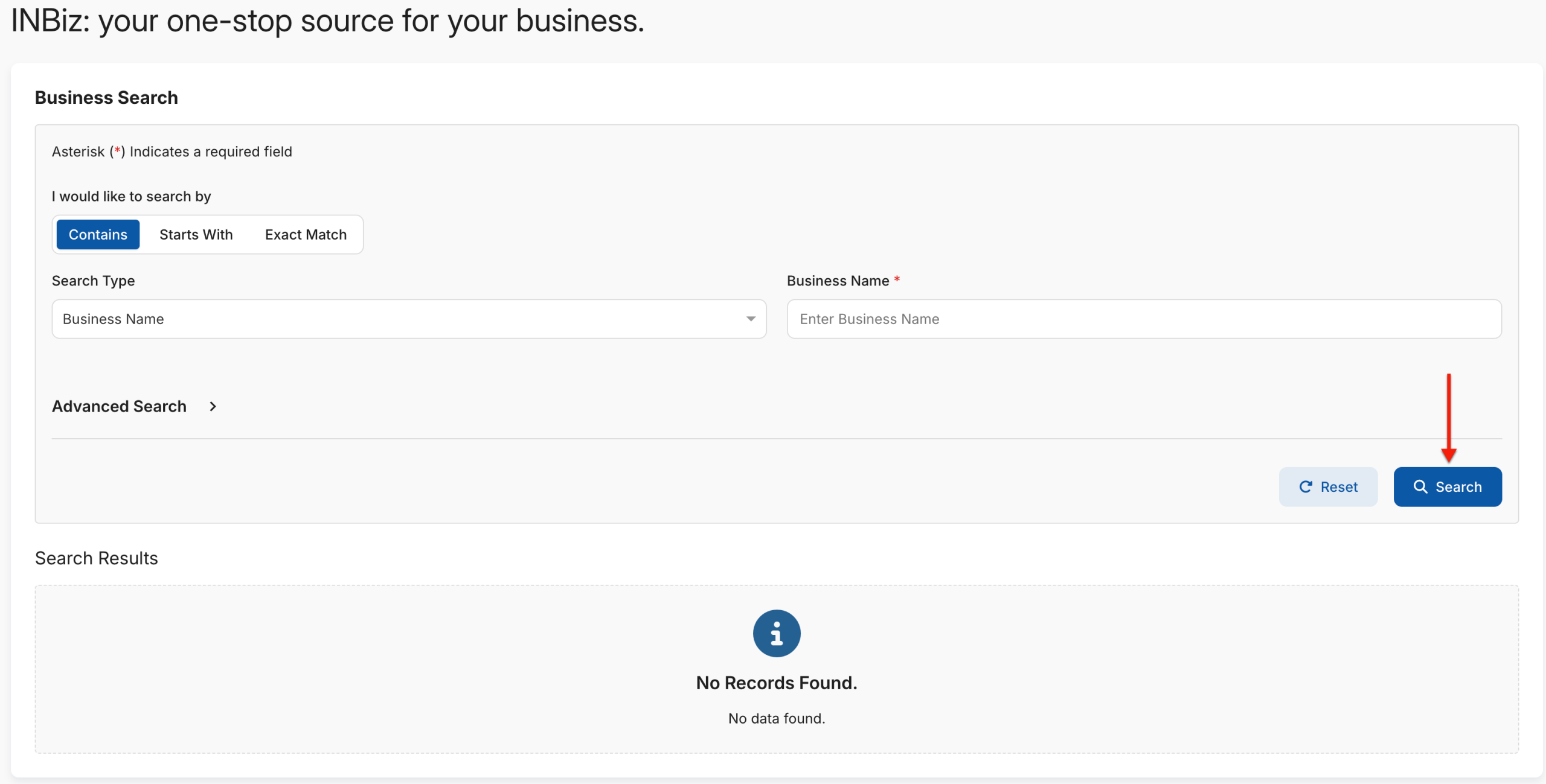
5. Prompt the Indiana Query
You may start the search immediately by clicking “Search” and continuing in step 14. If you have more information, continue with an advanced search below.
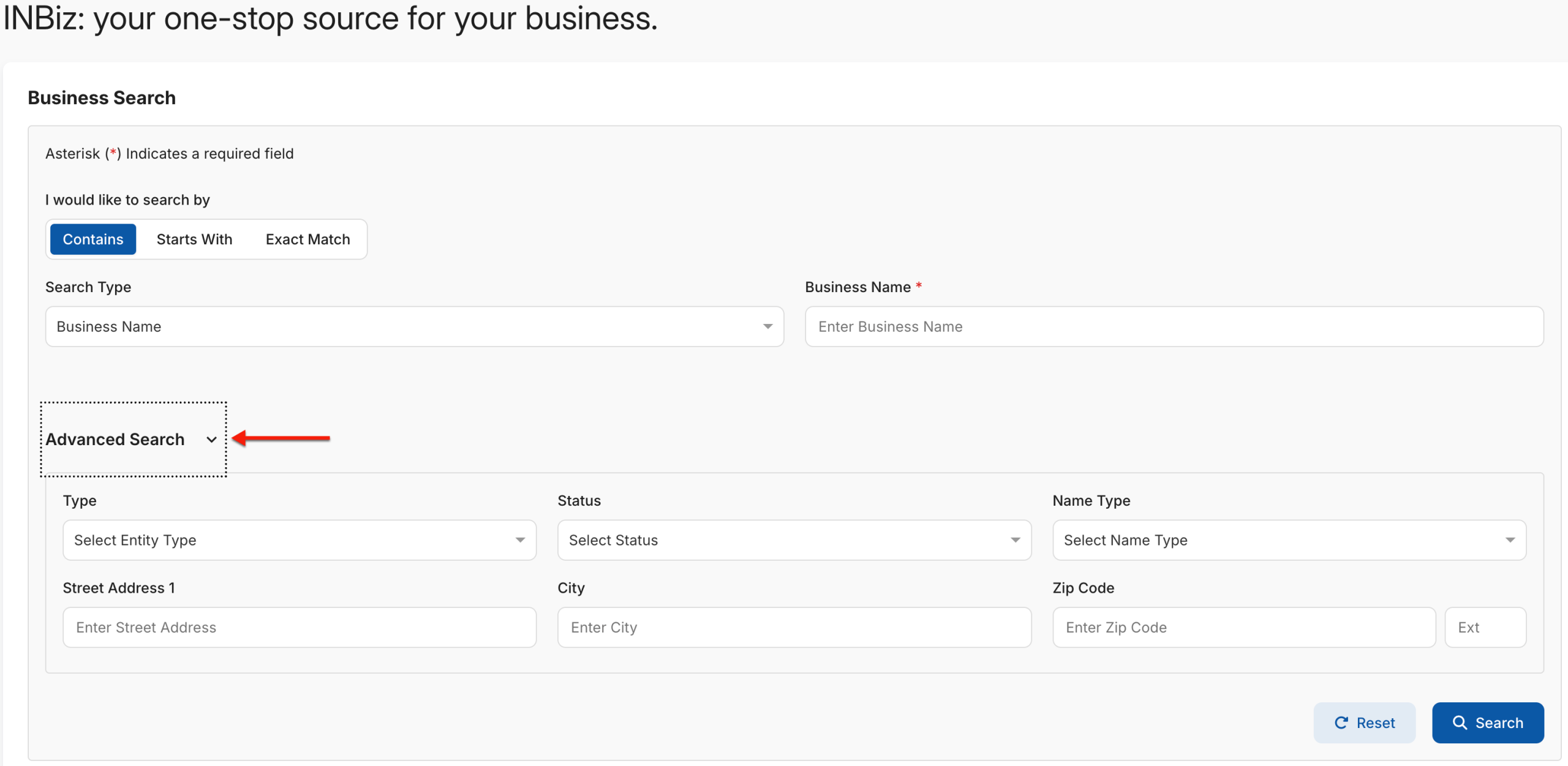
6. Open the Advanced Search
Select “Advanced Search” in order to access this area with its options. Look through the filters available to apply to the criteria above.
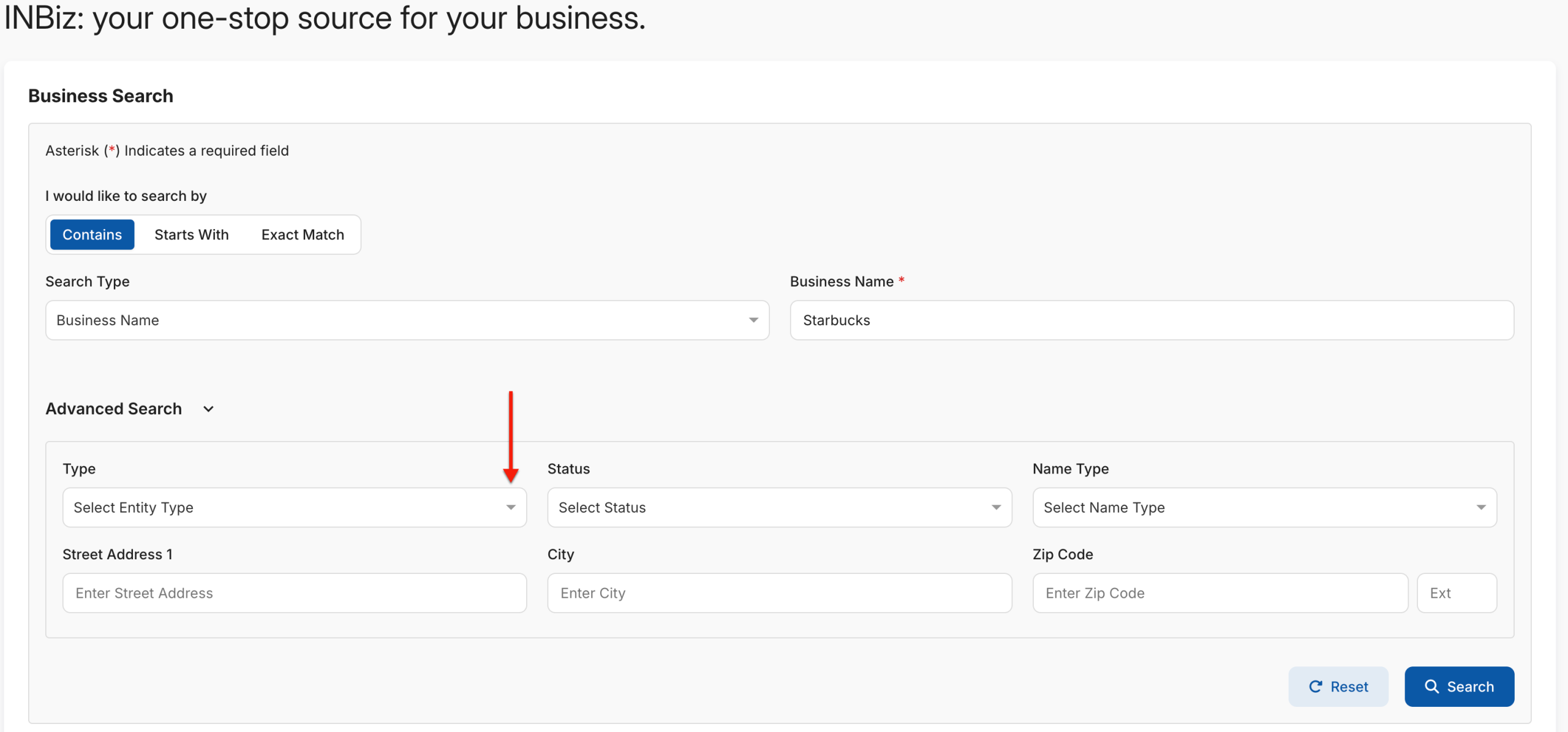
7. Filter Out Irrelevant Entity Types
Narrow the results by applying the first filter in this area. Select the kind of entity we seek from the drop-down menu (e.g., corporation, LLC) in order to disregard any other type.
- Type
- Status
- Name Type
- Street Address 1
- City
- Zip Code
- Reset
- Search
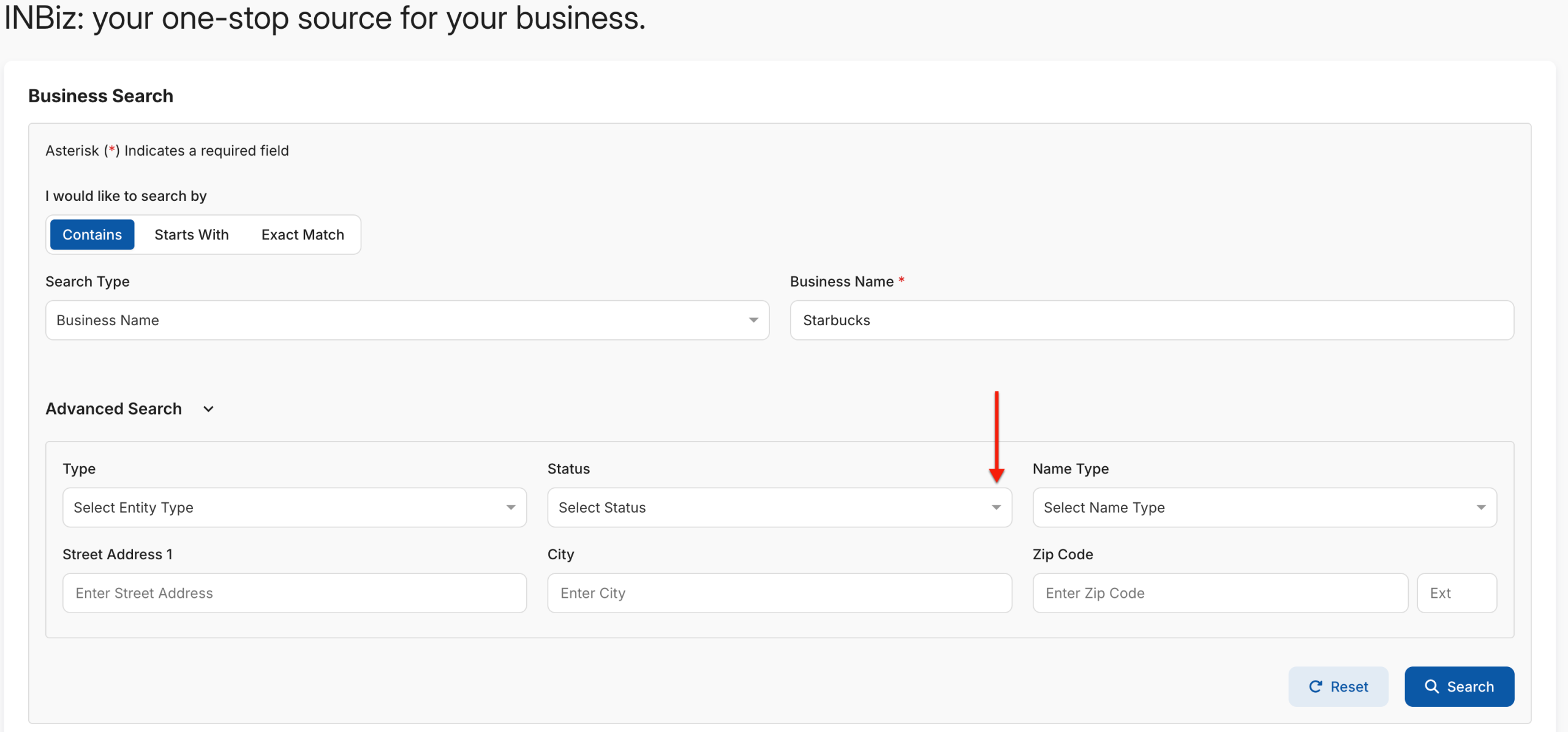
8. Look for Entities with a Specific Status
An entity’s standing in the eyes of the state is a significantly powerful filter. If its status is known, then select it from the drop-down menu.
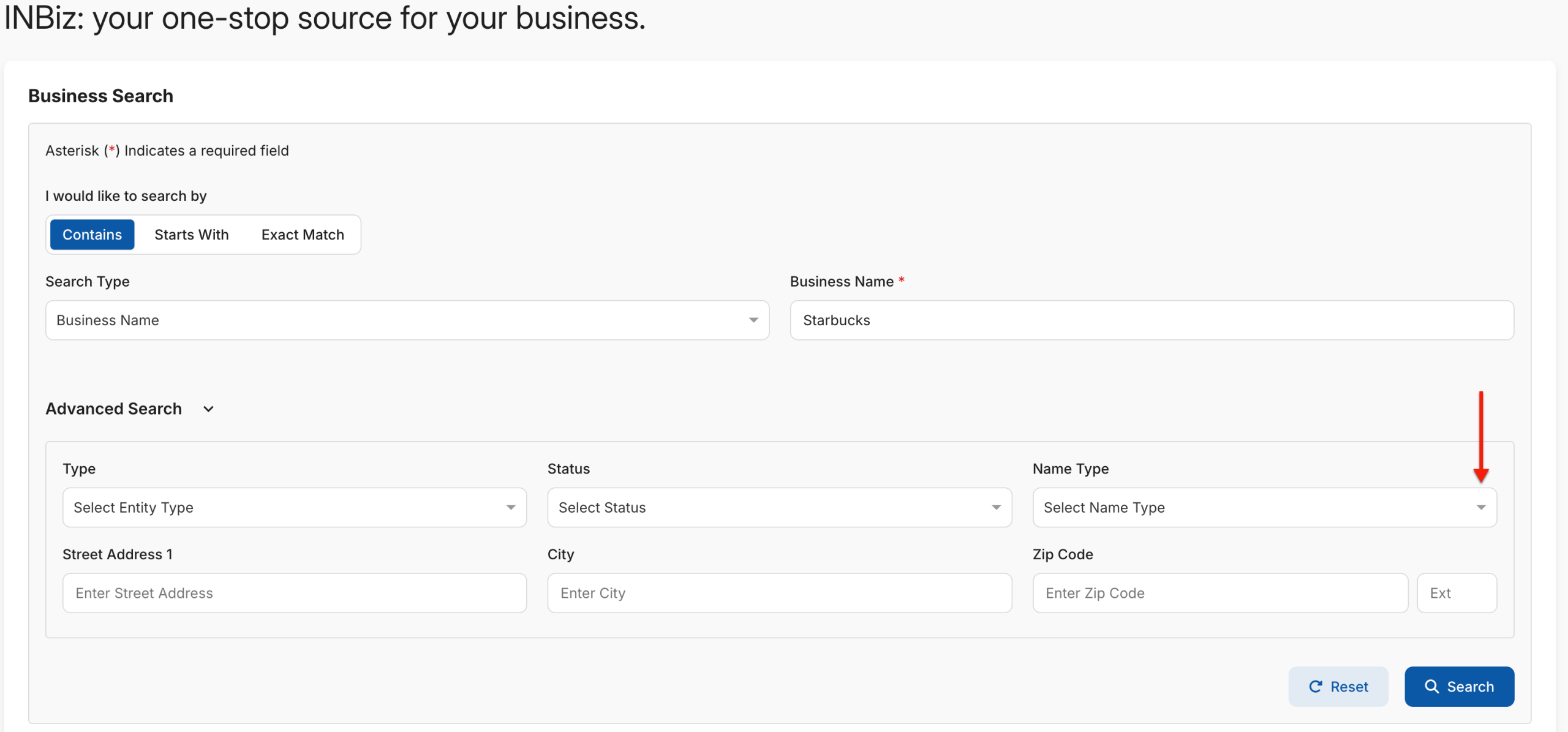
9. Define the Name Type
Specify the name status of the entity using the “Name Type” filter. To do so, select it from the drop-down (e.g., legal name, reserved name).
10. Include the Entity’s Address
Naturally, an entity’s name and its address narrow the results since both limit the number of matches. Input the address in the fields provided if this information is available.
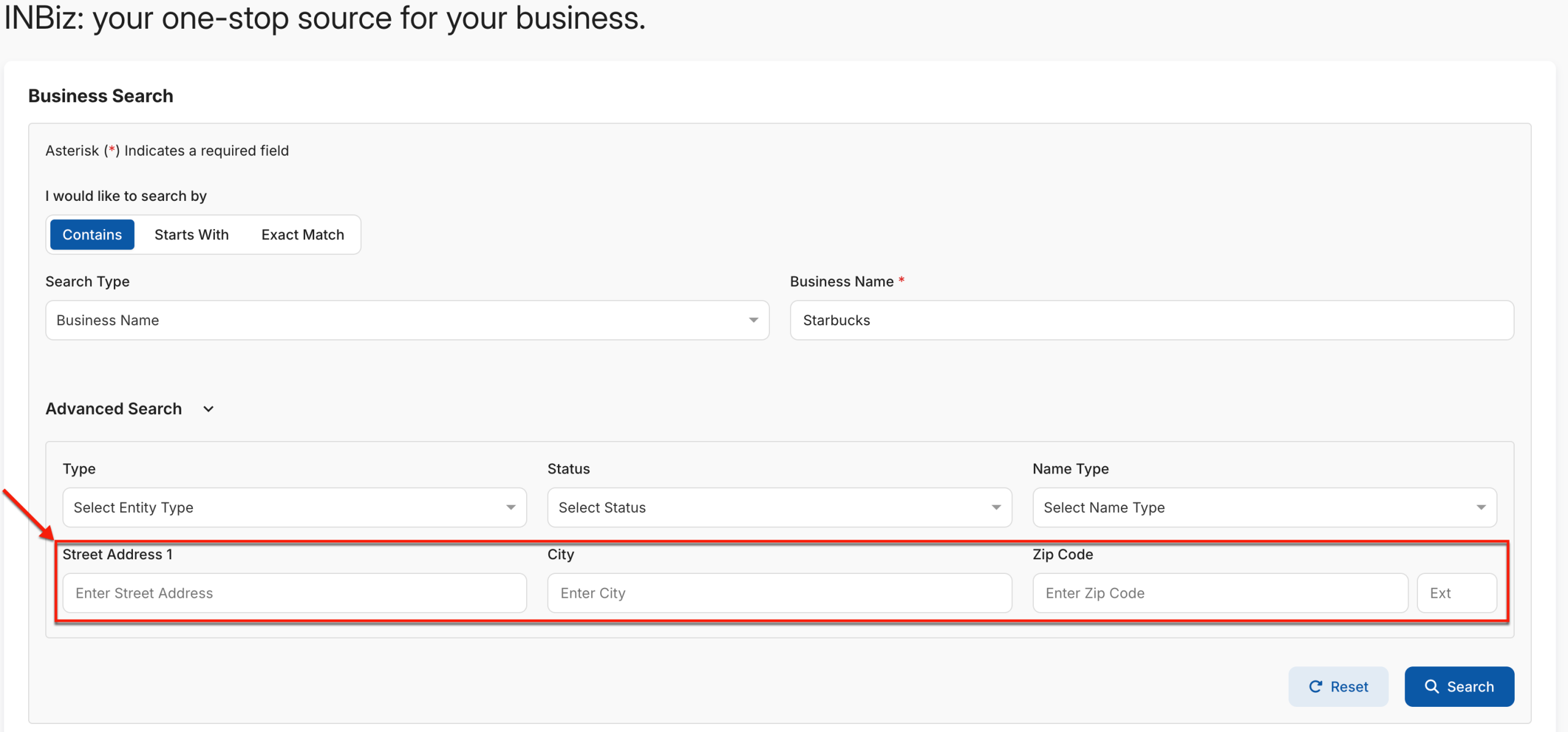
12. Execute the Advanced Search
Locate the “Search” button, then select it to run the advanced search. Upon selection, the query displays all matching results in the area below the search tool.
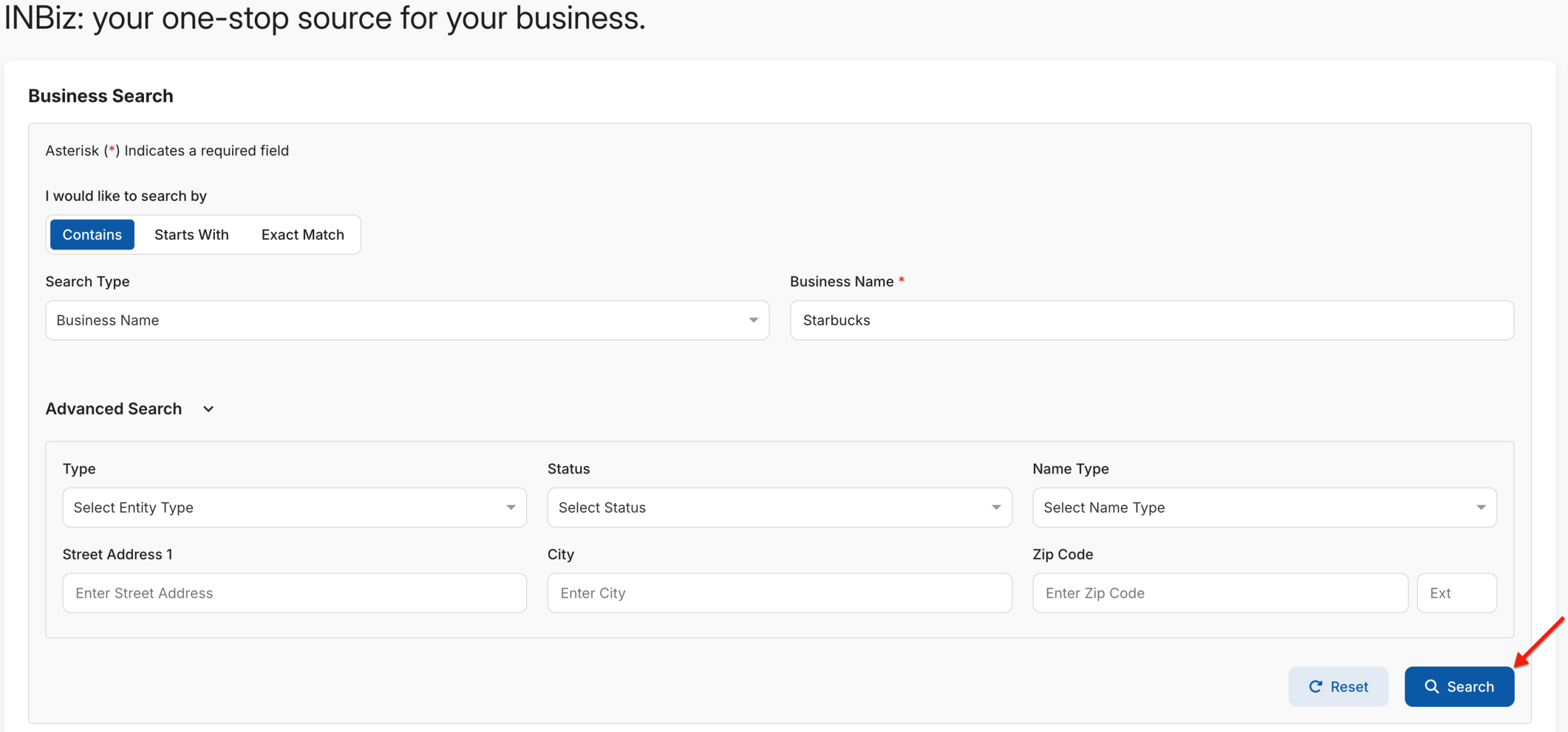
13. Review the Indiana Business Search Results
Entities matching the criteria appear directly below the search area. This allows easy access for an additional search. Read through the summary information on display.
- Business ID
- Business Name
- Name Type
- Entity Type
- Principal Office Address
- Registered Agent Name
- Status
- Filing Date
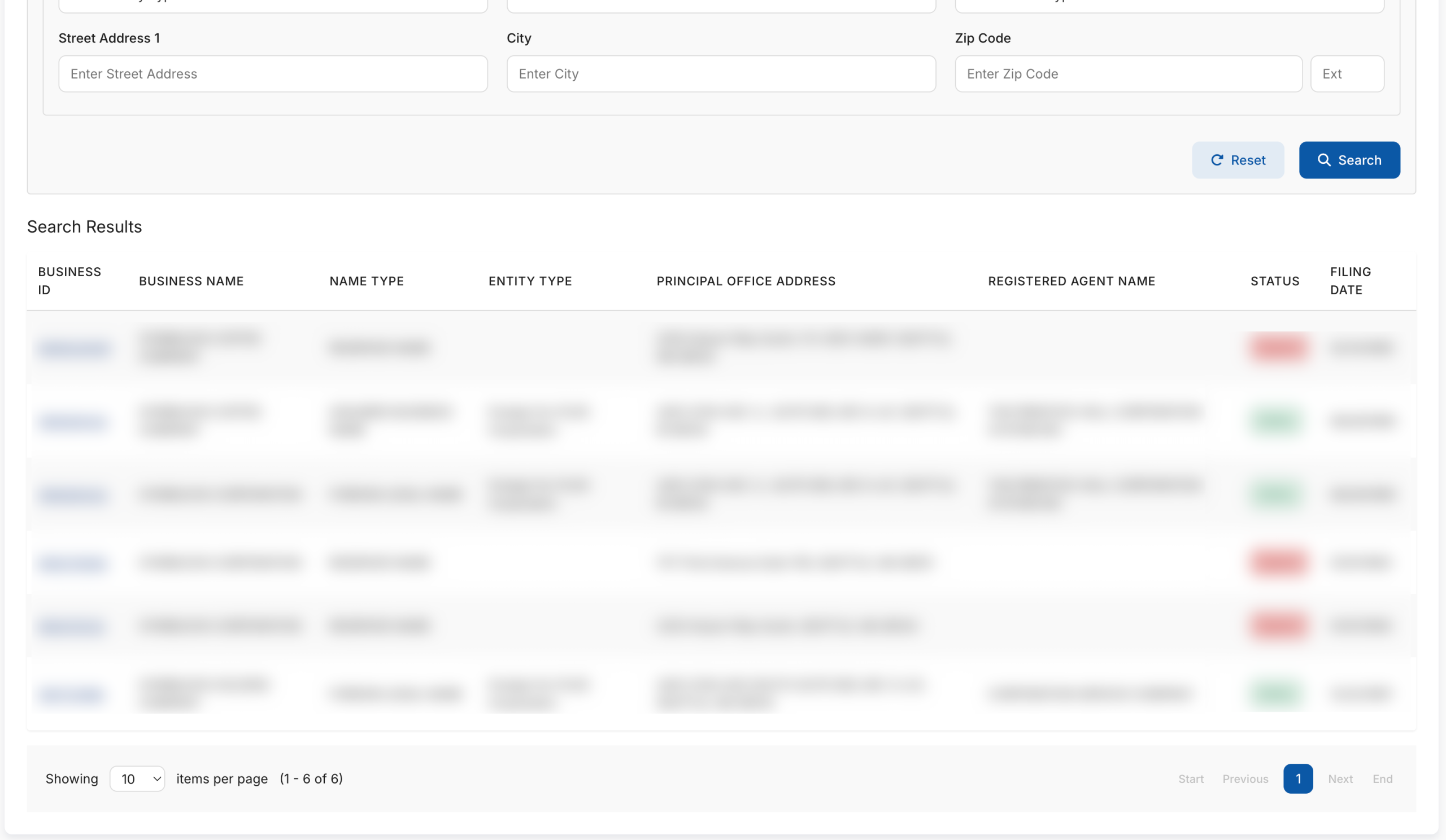
14. Select a Business Entity
Determine which record is the best match then click its “Business ID” number. Find this item in the first column of that record.
15. Examine Business Details
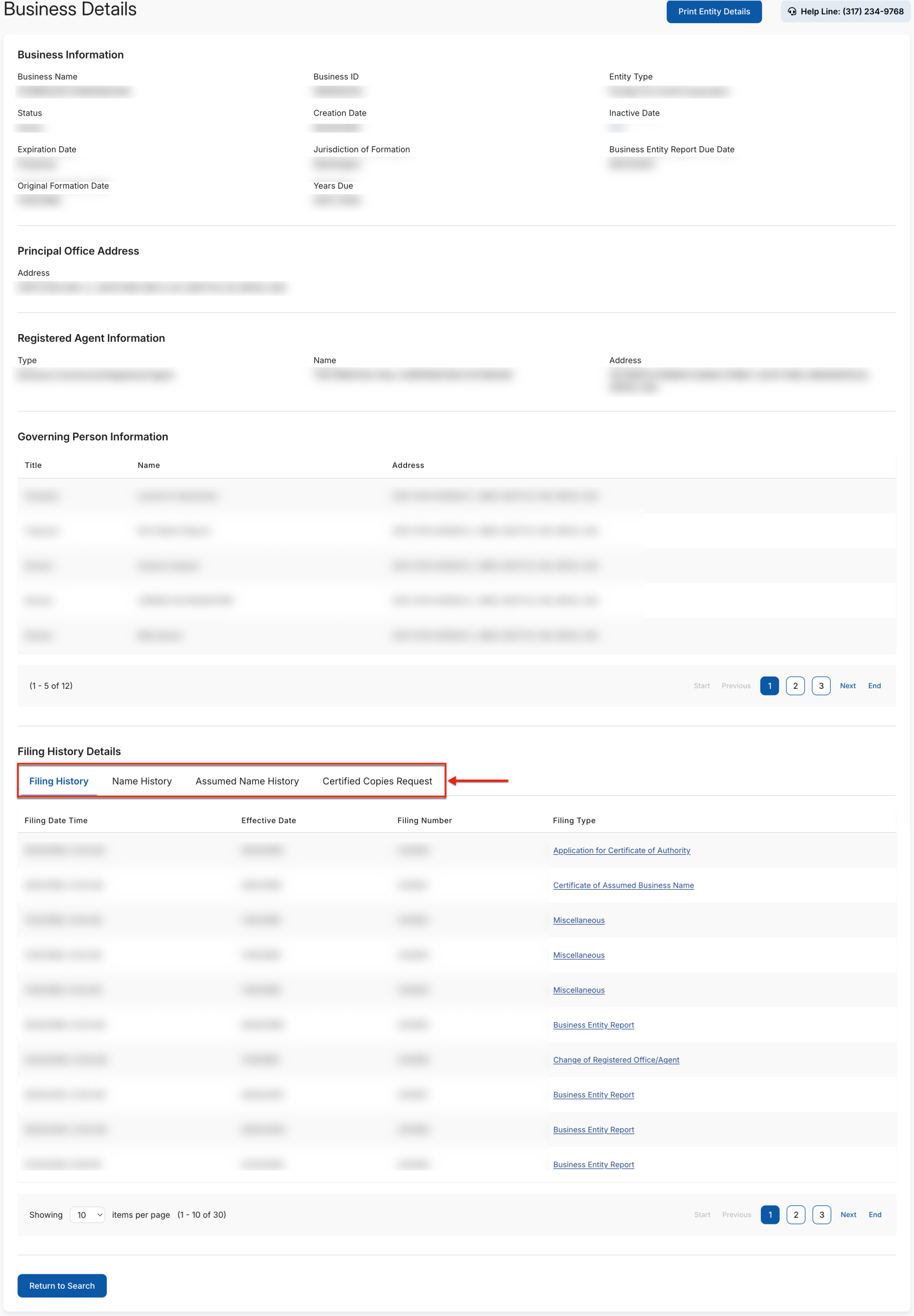
Review the business information in the first area to confirm this is the entity of interest. If so then continue reviewing each section. Notice that “Filing History” has several subsections.
- Business Information
- Business Name
- Business ID
- Entity Type
- Status
- Creation Date
- Inactive Date
- Expiration Date
- Jurisdiction of Formation
- Business Entity Report Due Date
- Original Formation Date
- Year’s Due
- Principal Office Address
- Address
- Registered Agent Information
- Type
- Name
- Address
- Governing Person Information
- Title
- Name
- Address
- Filing History Details
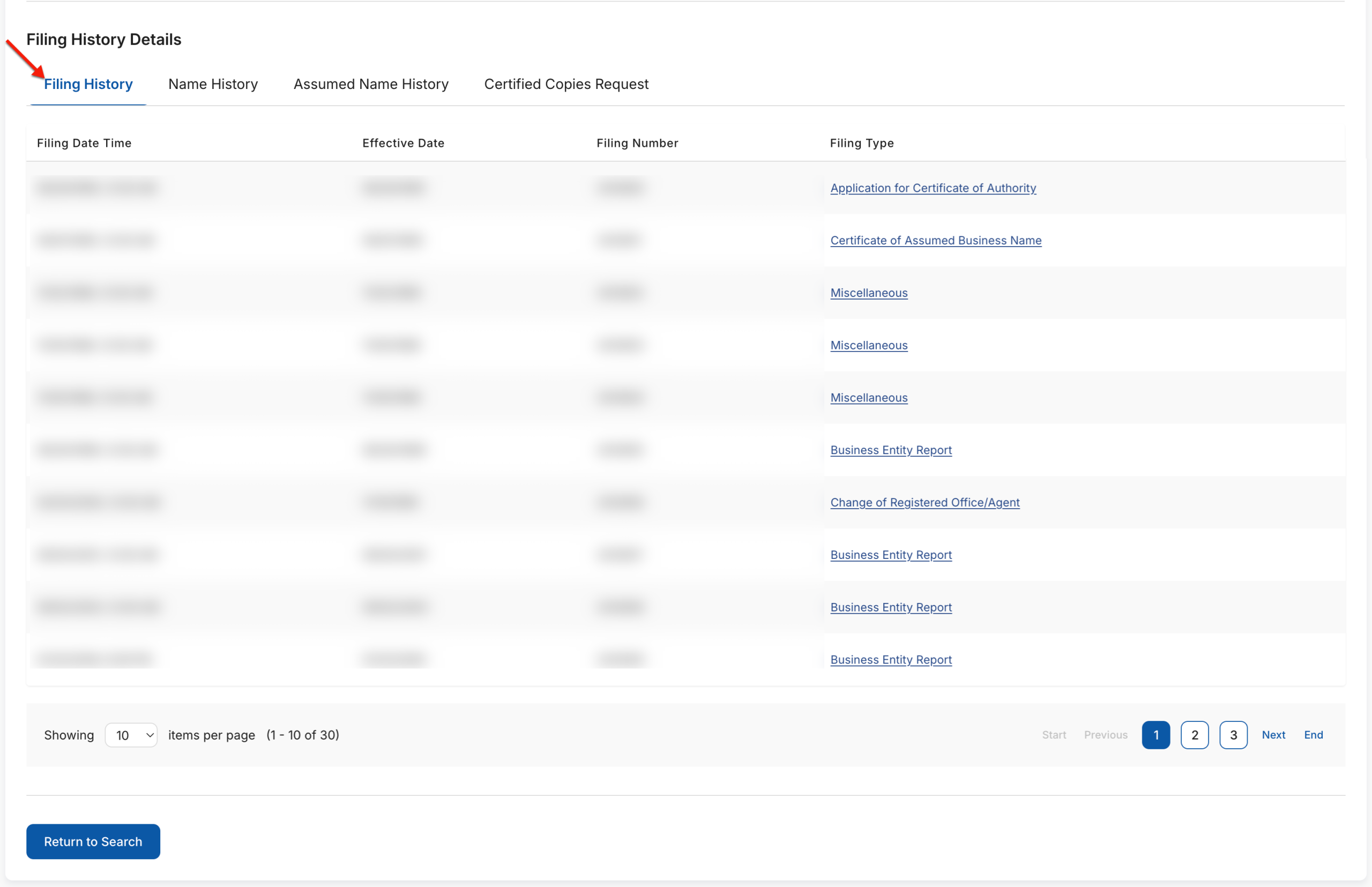
- Filing History
- Name History
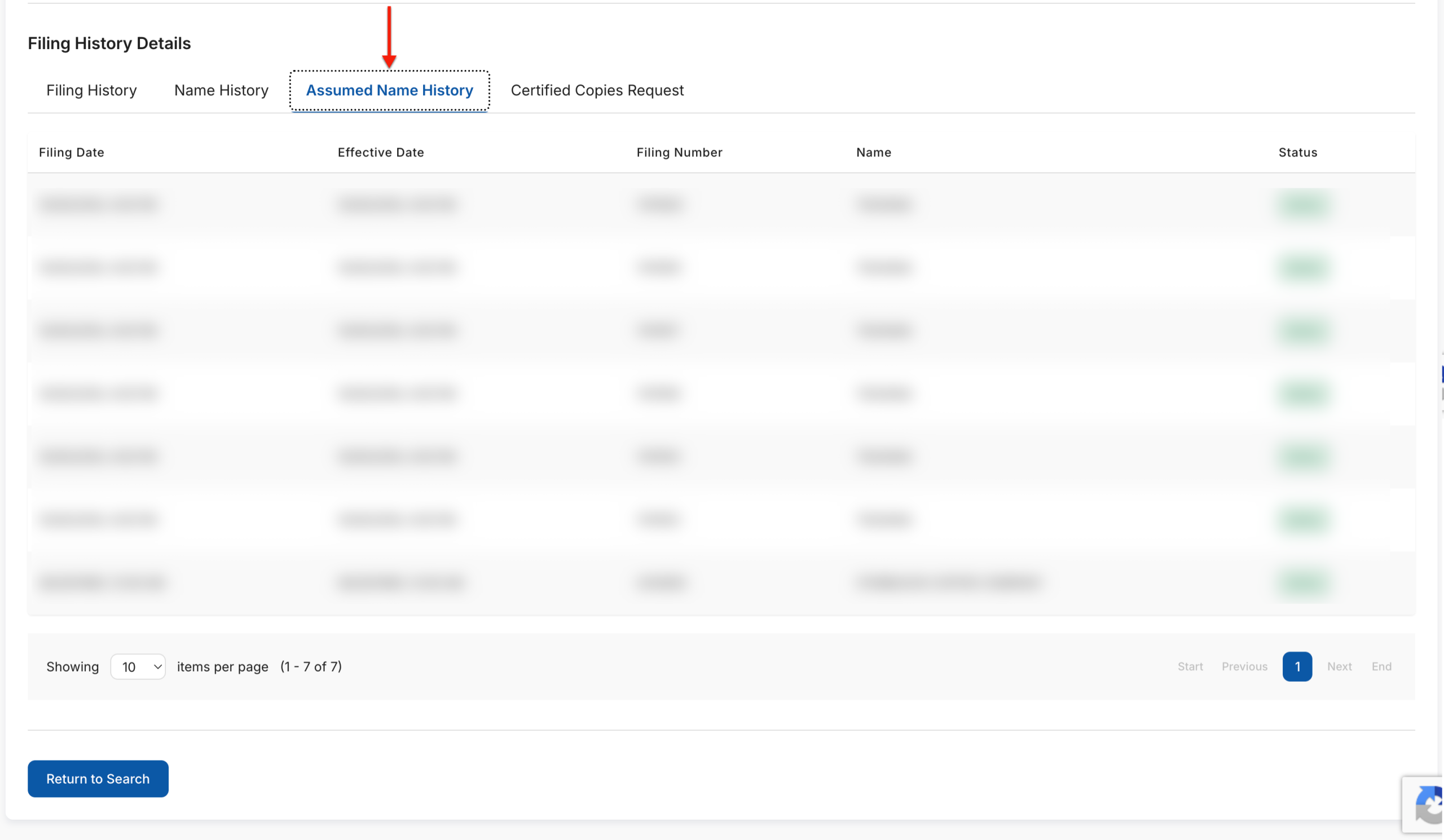
- Assumed Name History
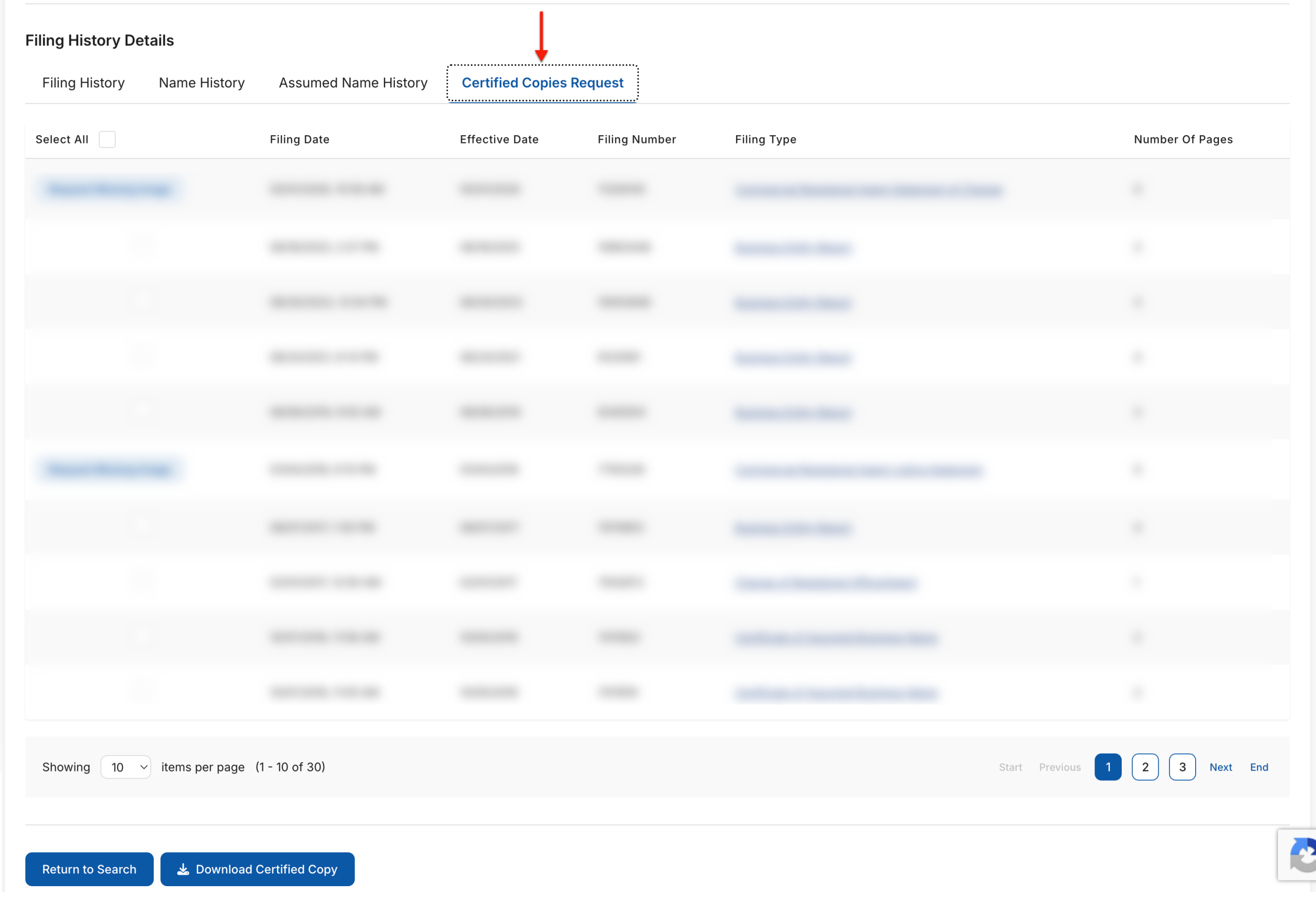
- Certified Copies Request
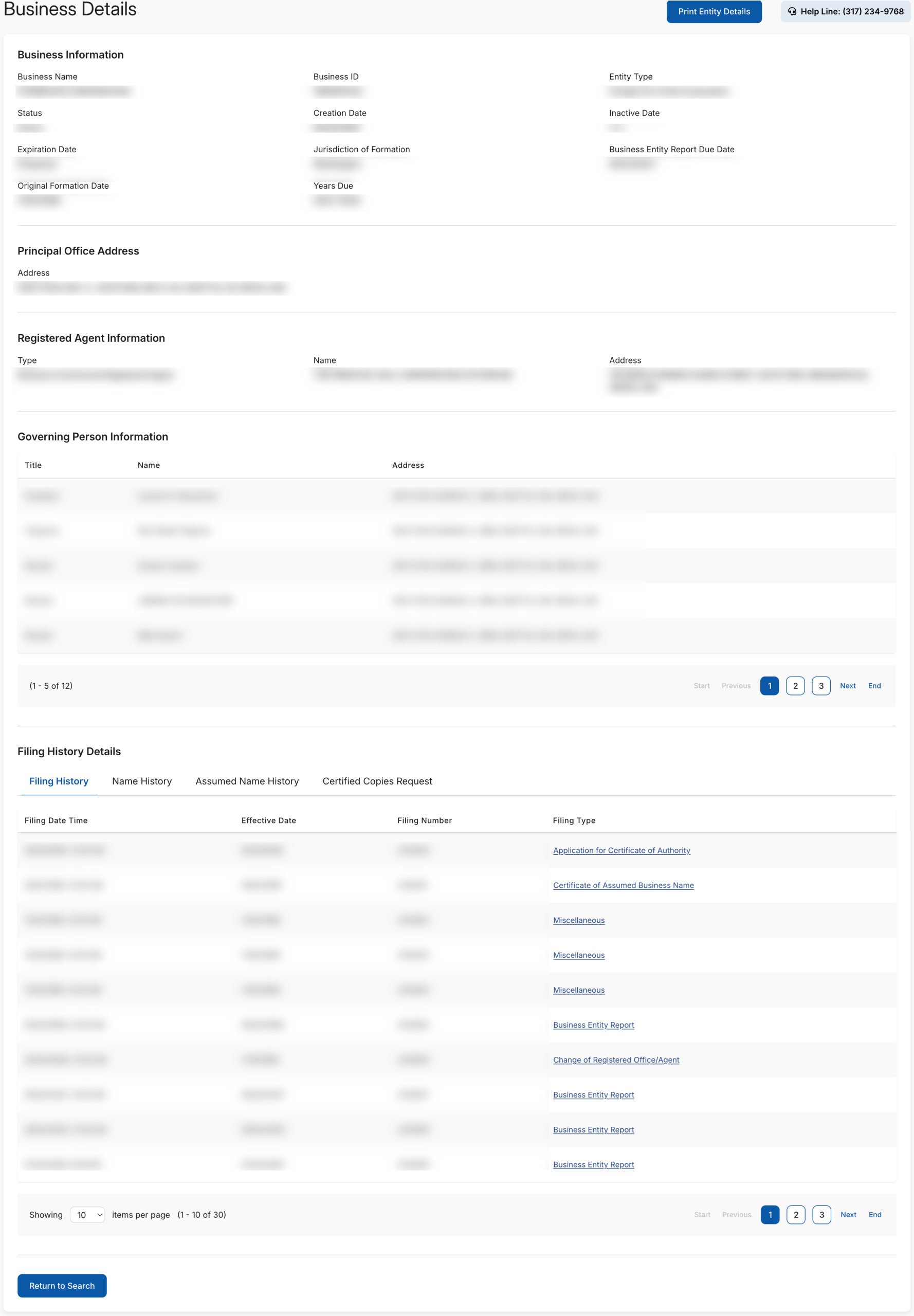
16. Explore Filing History Details
Notice that the business’s past filings displayed at the bottom of the page include several sections. To investigate a topic further, click the section name.