The District of Columbia Secretary of State’s BOSS website provides a business search engine to online visitors through its online business center. To access this free service, users must set up a free account. Afterward, online users can look up the name and history of a D.C. business entity and then view the results on their screen.
Business Entity Search
State of District of Columbia

Business Entity Search
1. Log In for the District of Columbia BOSS Search Tool

2. Access the Search Tool from the Dashboard
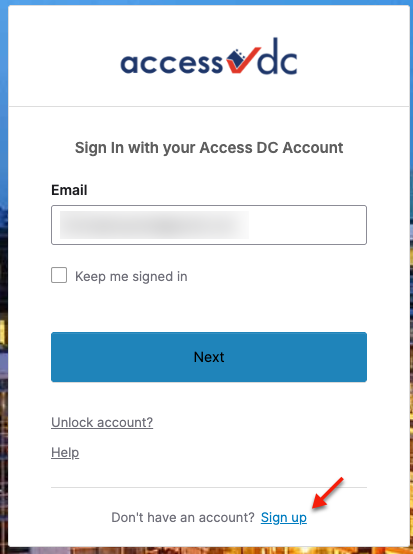
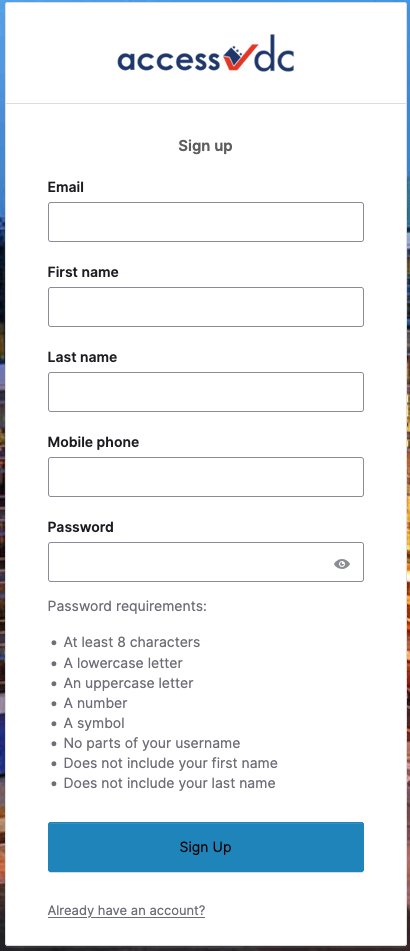
Access the BOSS system by selecting “Sign in with Access DC” to log in. If you do not have an account, then create an Access DC account (see image). Complete the application process (see image) to obtain your account, then sign in to the system.
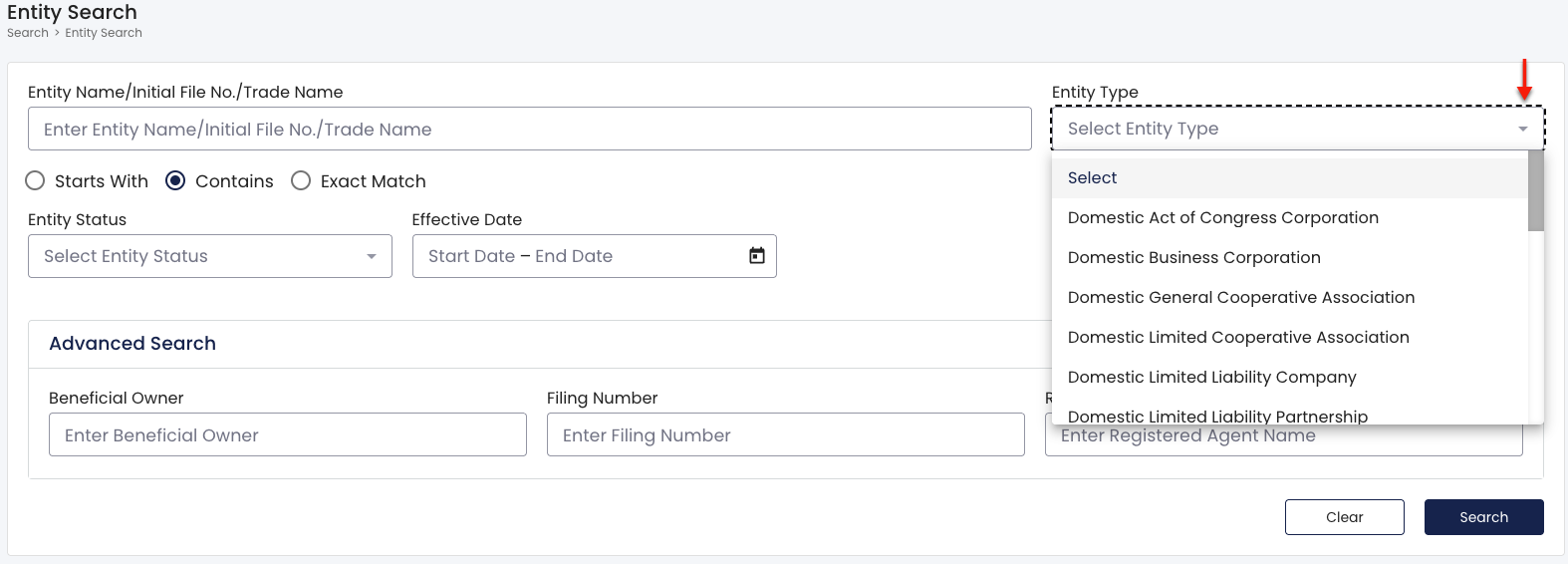
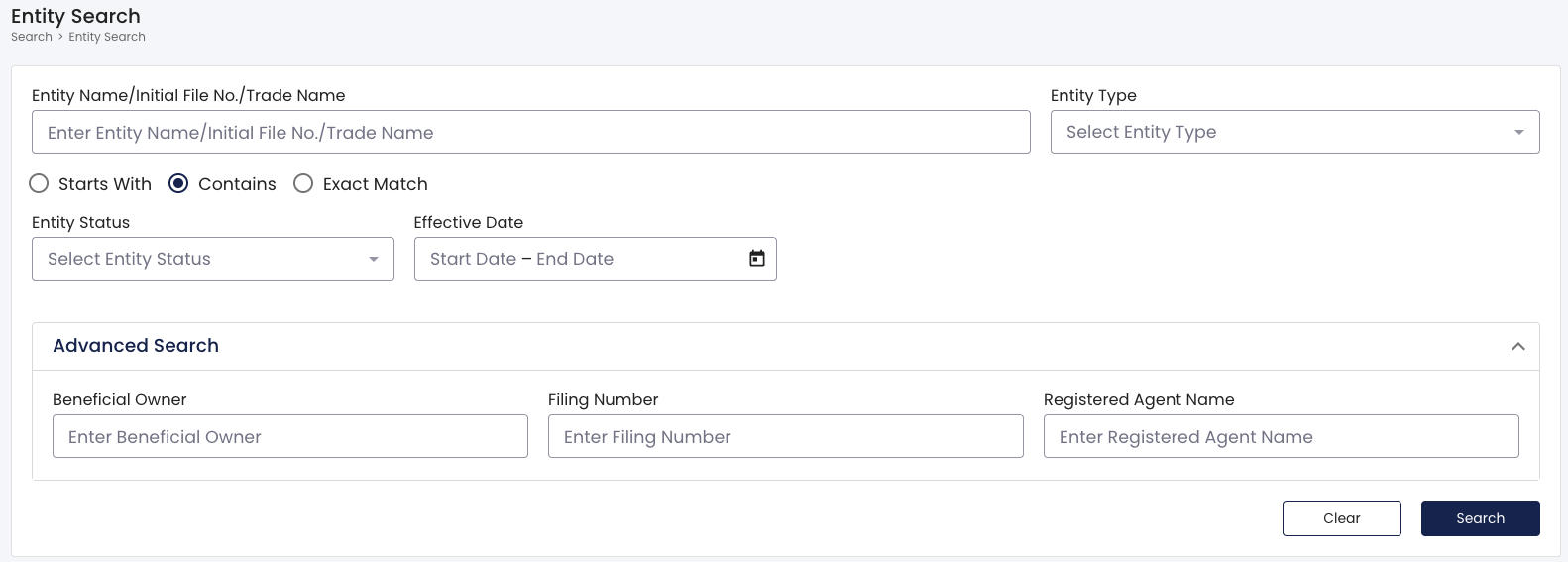
Locate “Business Search” from your dashboard or “Search” in the sidebar. Select either in order to access the search tool (see image), then review the options.
- Entity Name/Initial File No./Trade Name
- Entity Type
- Starts With
- Contains
- Exact Match
- Entity Status
- Effective Date
- Advanced Search
- Beneficial Owner
- Filing Number
- Registered Agent Name
- Clear
- Search
3. Produce the Search Item
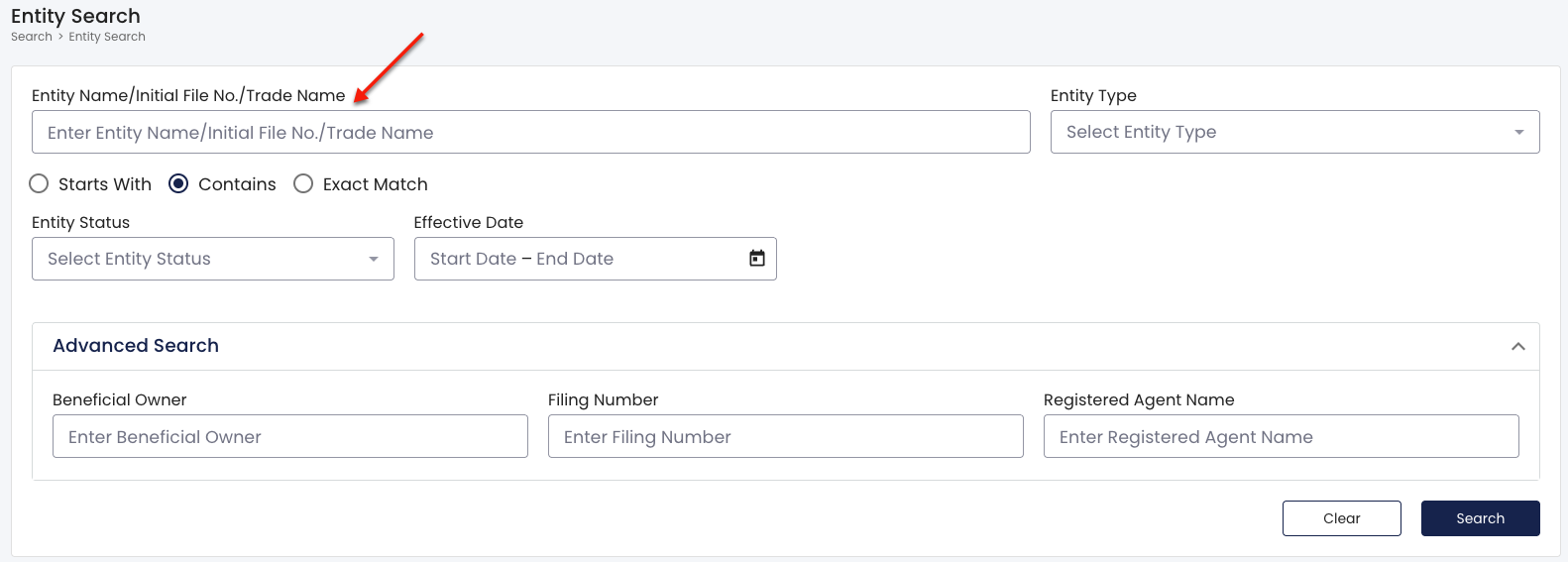
Refer to your research, then locate the first text box. Type in the name or number the search tool must locate. Partial and full names, file numbers, and trade names are all acceptable criteria.
4. Relate the Search Item to the Target Entity
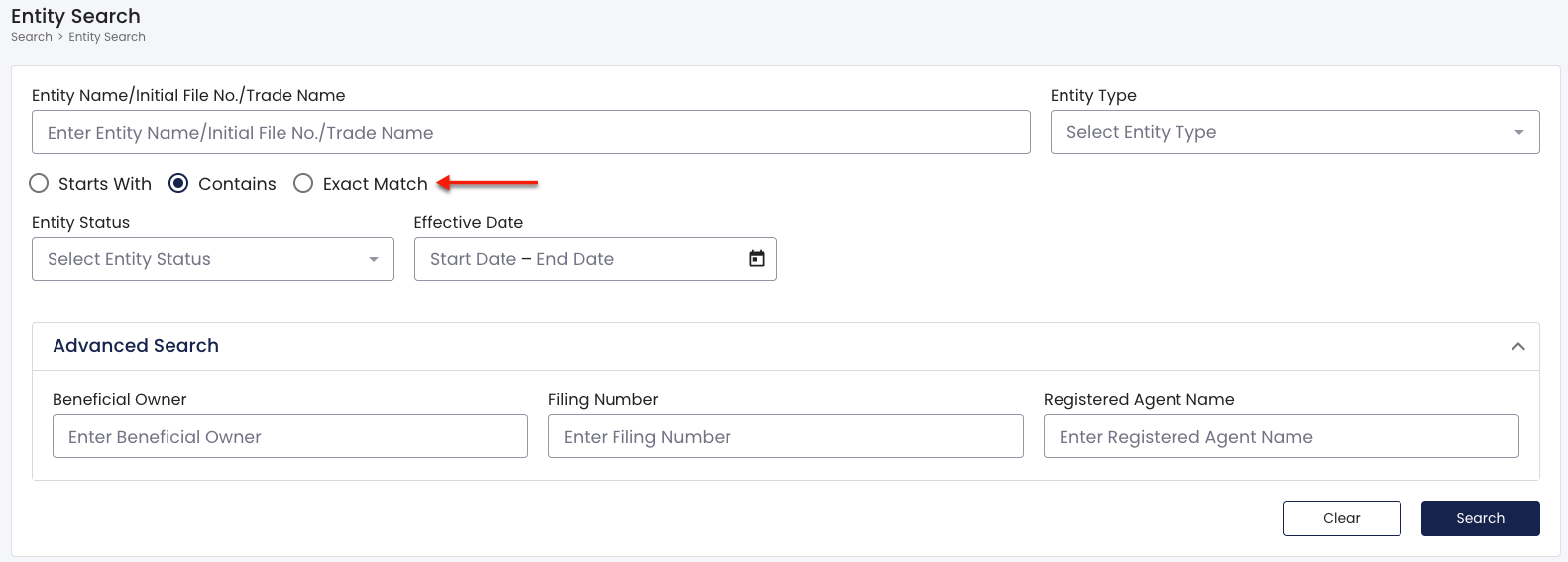
Refine the search criteria with additional parameters using the radio buttons. Indicate how the criteria relates to the target record or name by choosing the appropriate radio button.
- Starts With
- Contains
- Exact Match
5. Restrict Results to a Specific Entity Type
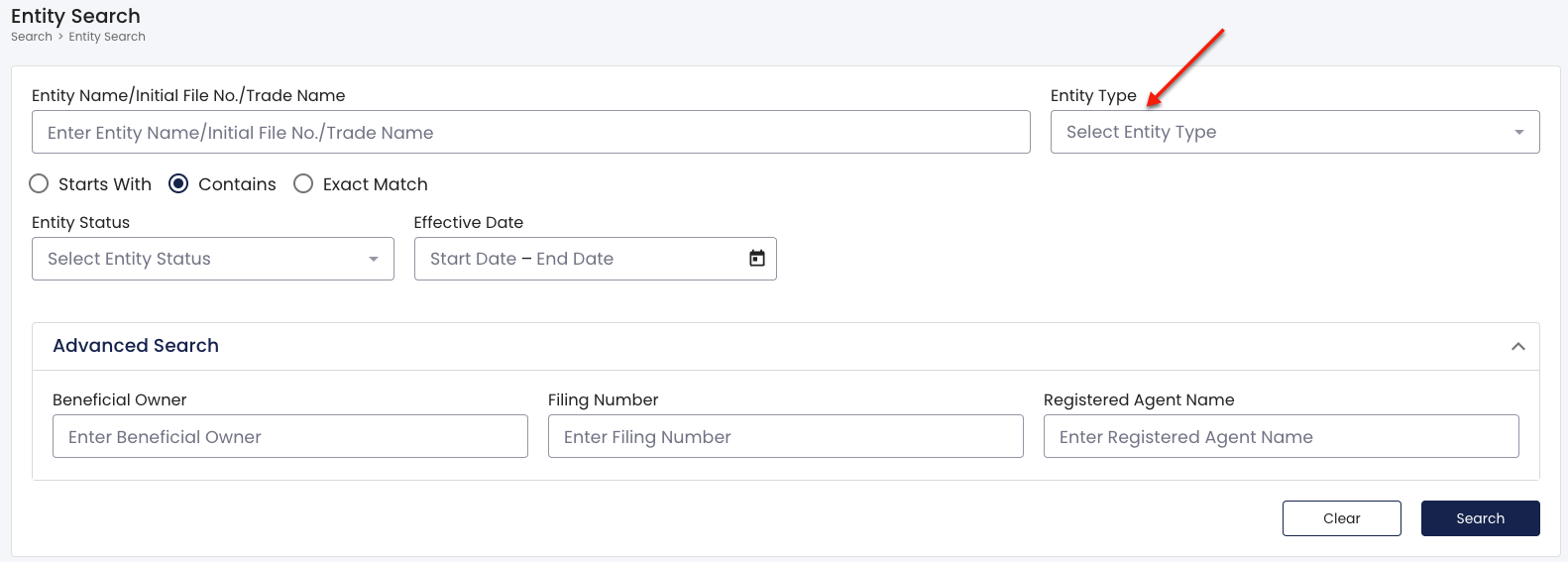
Continue to the “Entity Type” drop-down menu (see image). This filter is especially useful because it requires results to display only entities matching your selection.
Select the only type of entity the query must display in the results from this drop-down menu. Note that this will exclude all other entity types from the results.
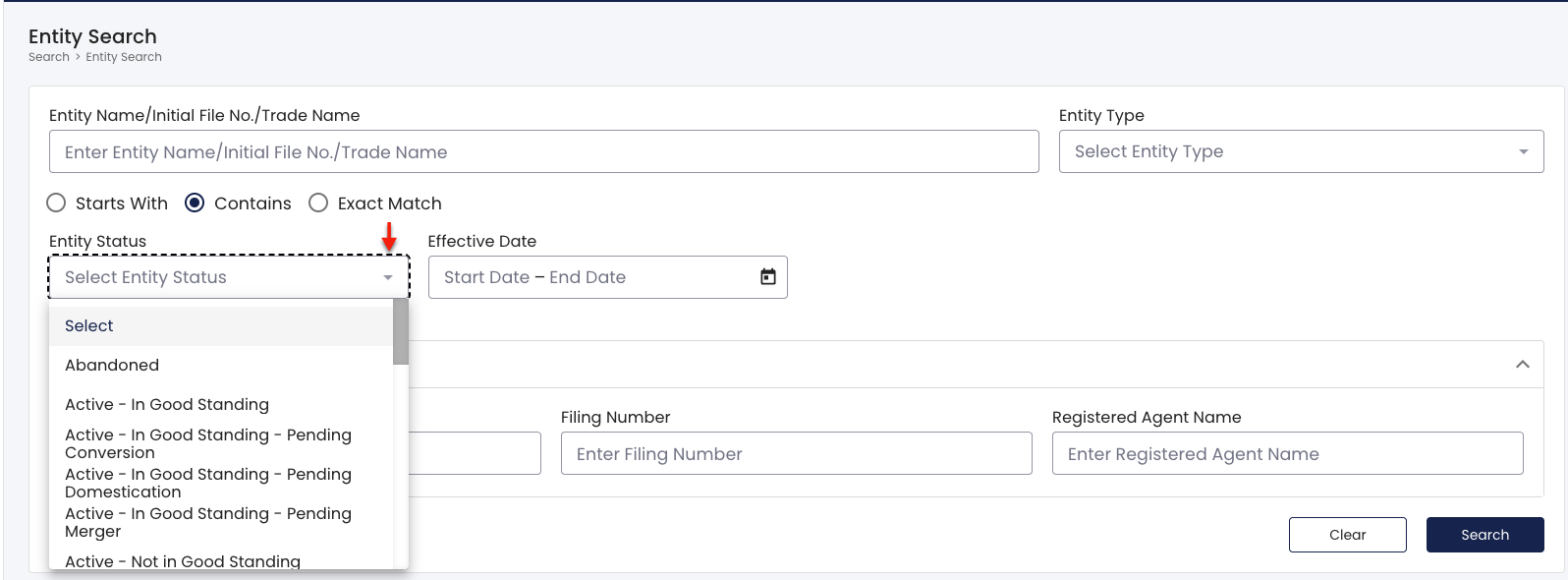
6. Focus the Search by Entity Status
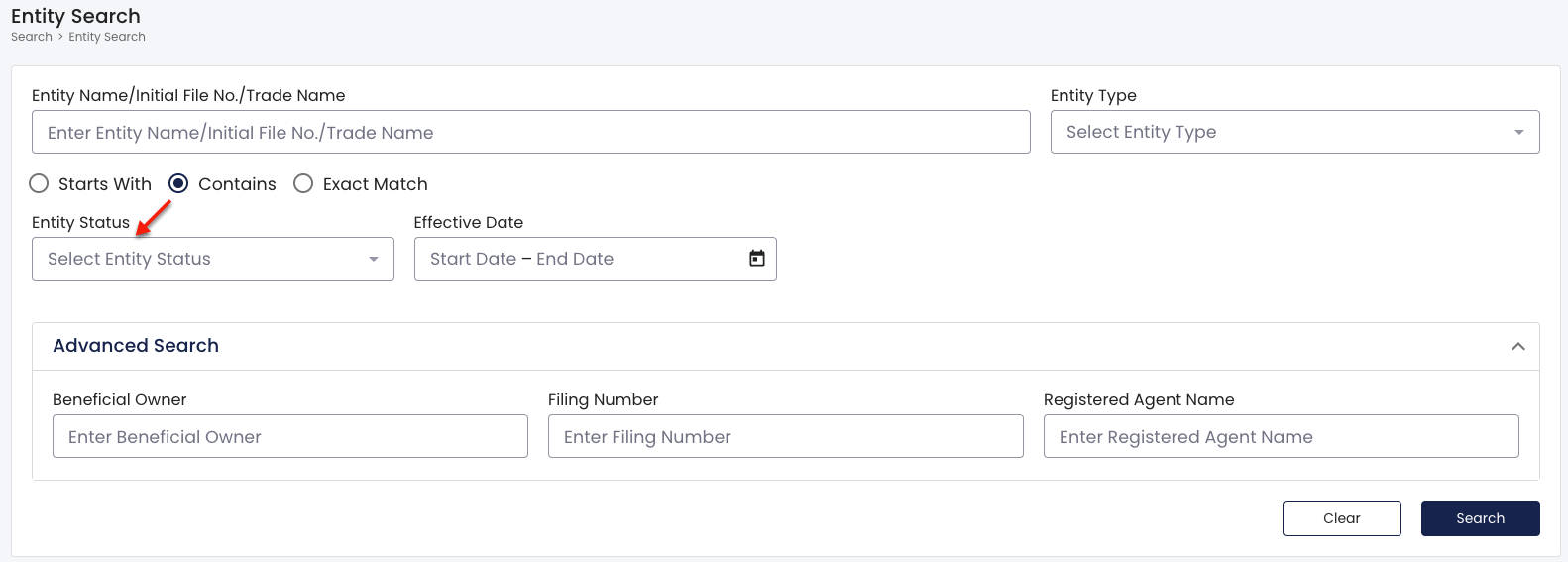
Tighten the search criteria by filtering entities with an unwanted status using the “Entity Status” drop-down menu. Target entities with a specific status by choosing only one (see image).
7. Attach a Date Range Filter
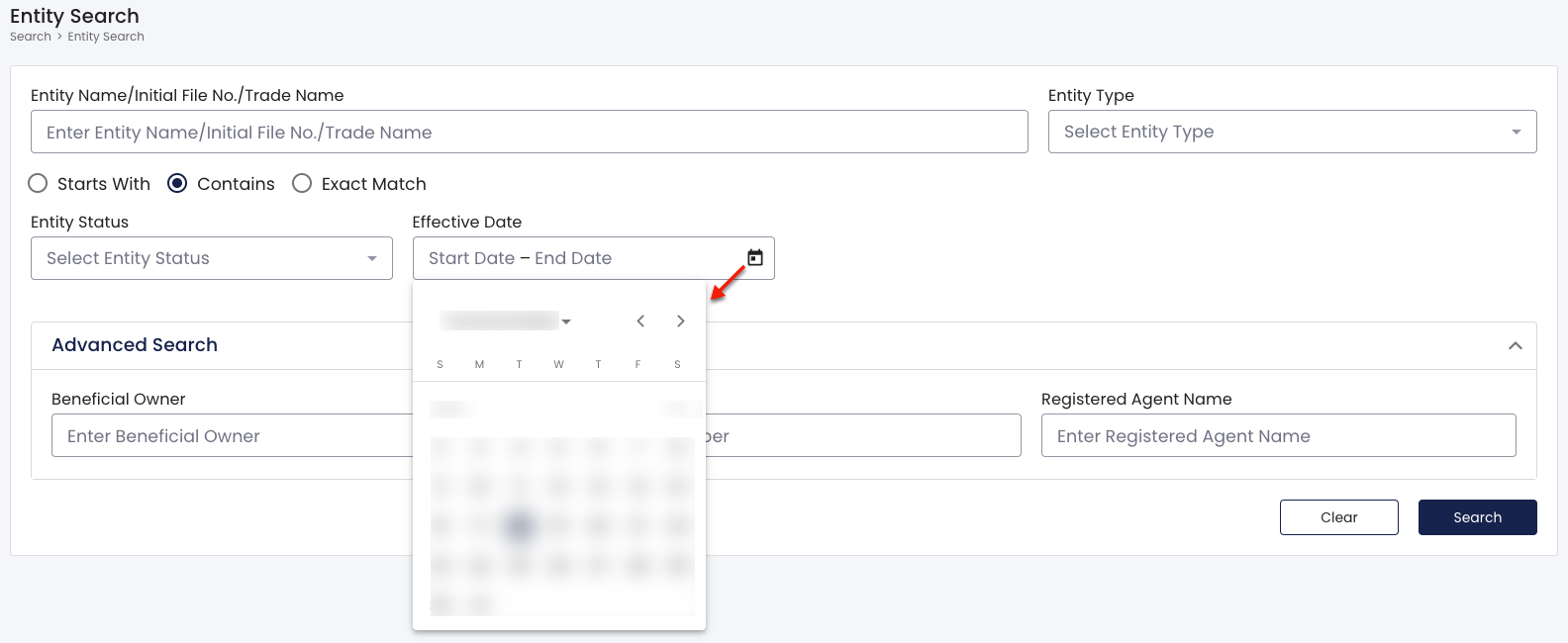
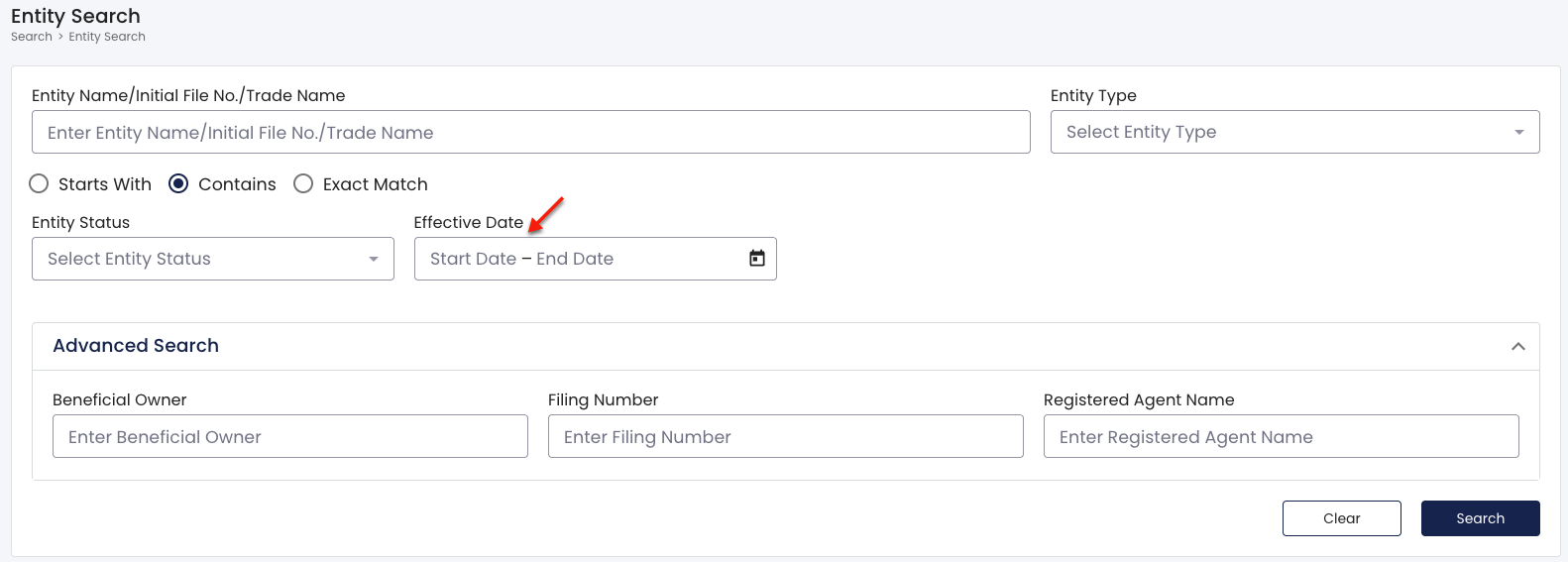
Locate the calendar tool, “Effective Date.” In order to see entities with an effective date in a specific date range, click on this tool.
Select the dates (see image) you wish to use as a date range when the entity’s paperwork went into effect from the calendar.
8. Take Advantage of Advanced Options
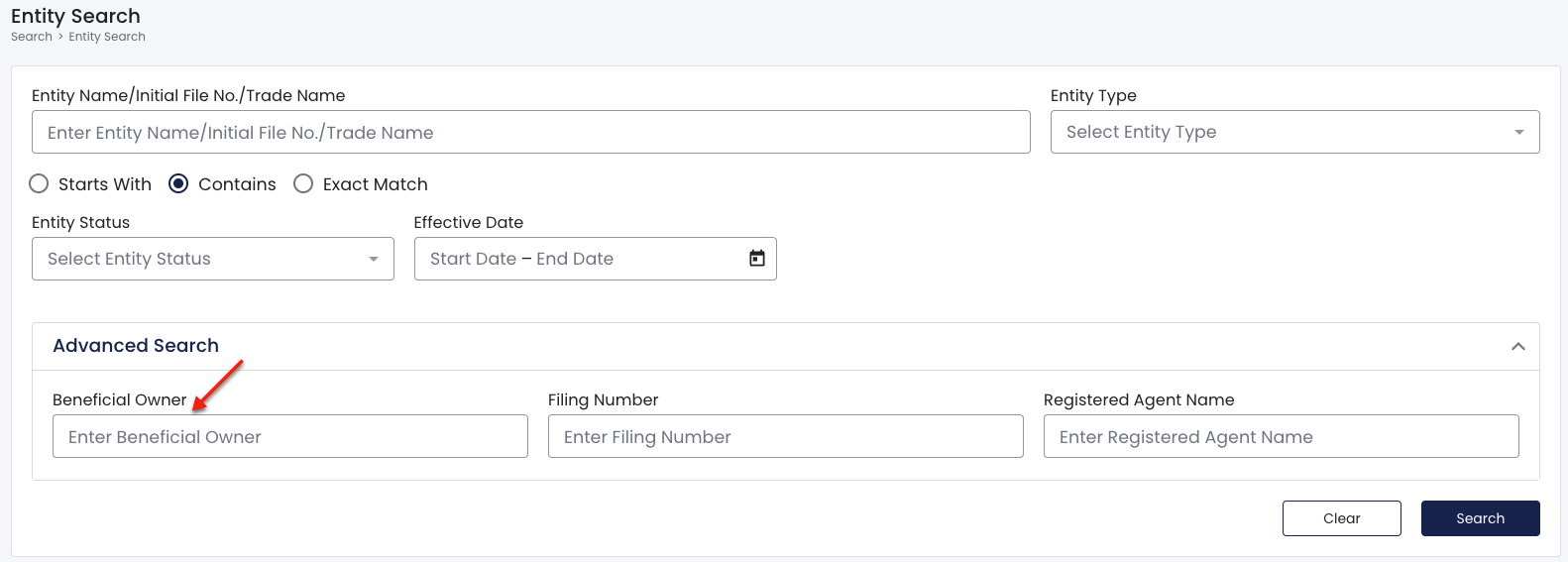
Find the “Advanced Search” area to locate an entity using its beneficial owner. Input the entity’s beneficial owner name in the first box. Partial names are also acceptable.
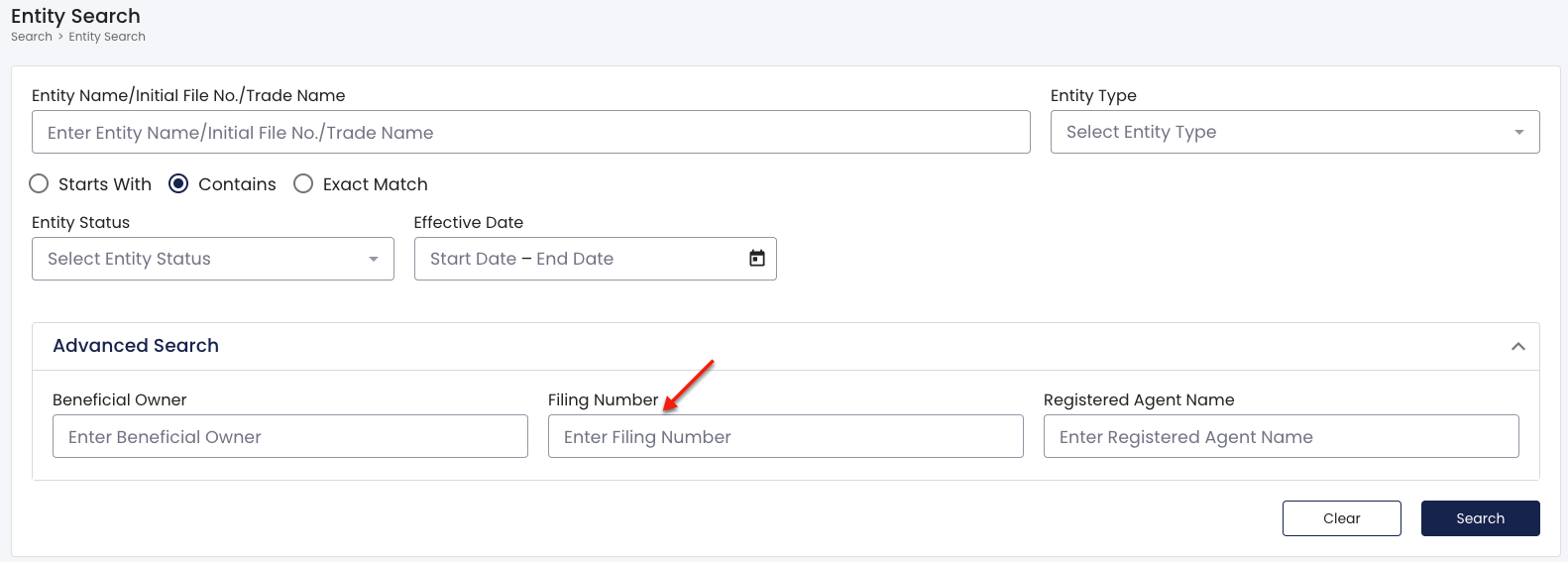
Notice the advanced search area also accepts filing numbers. This helps improve accuracy when searching by name. Enter the filing number where appropriate.
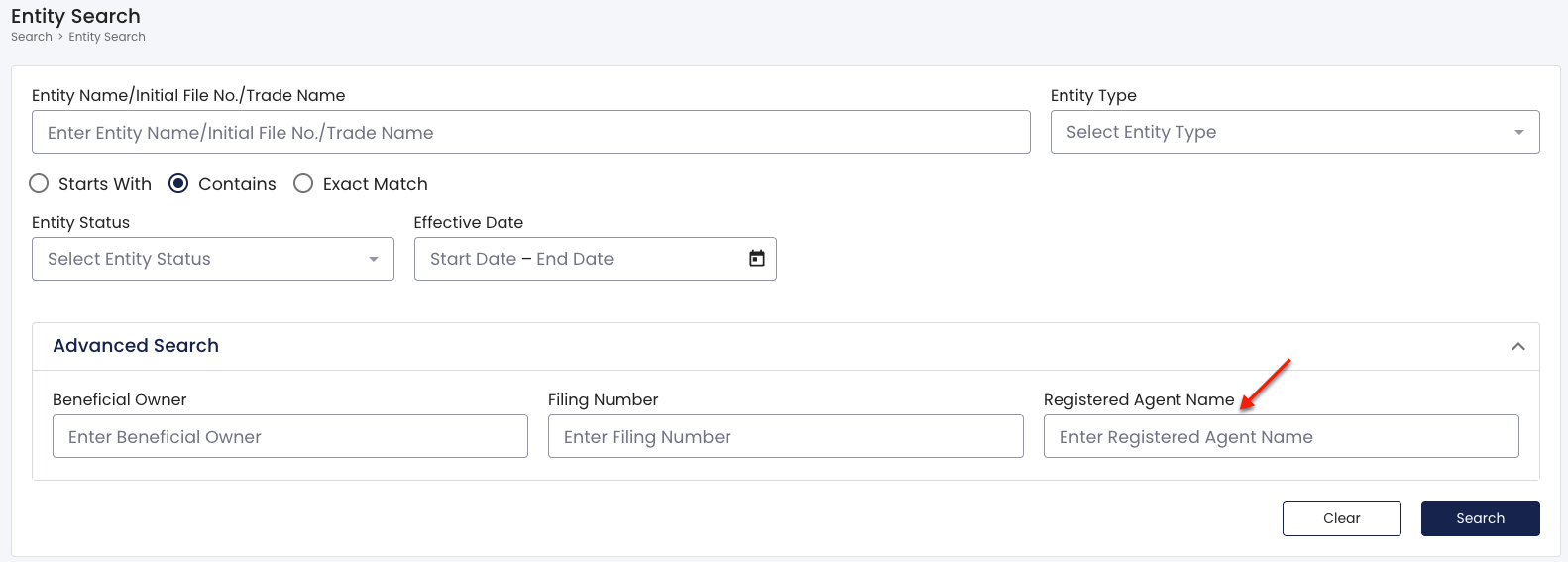
Additionally, you can require results to only display entities with a specific “Registered Agent.” Enter the name of the target entity’s registered agent in the final text box.
9. Initiate the Search Tool
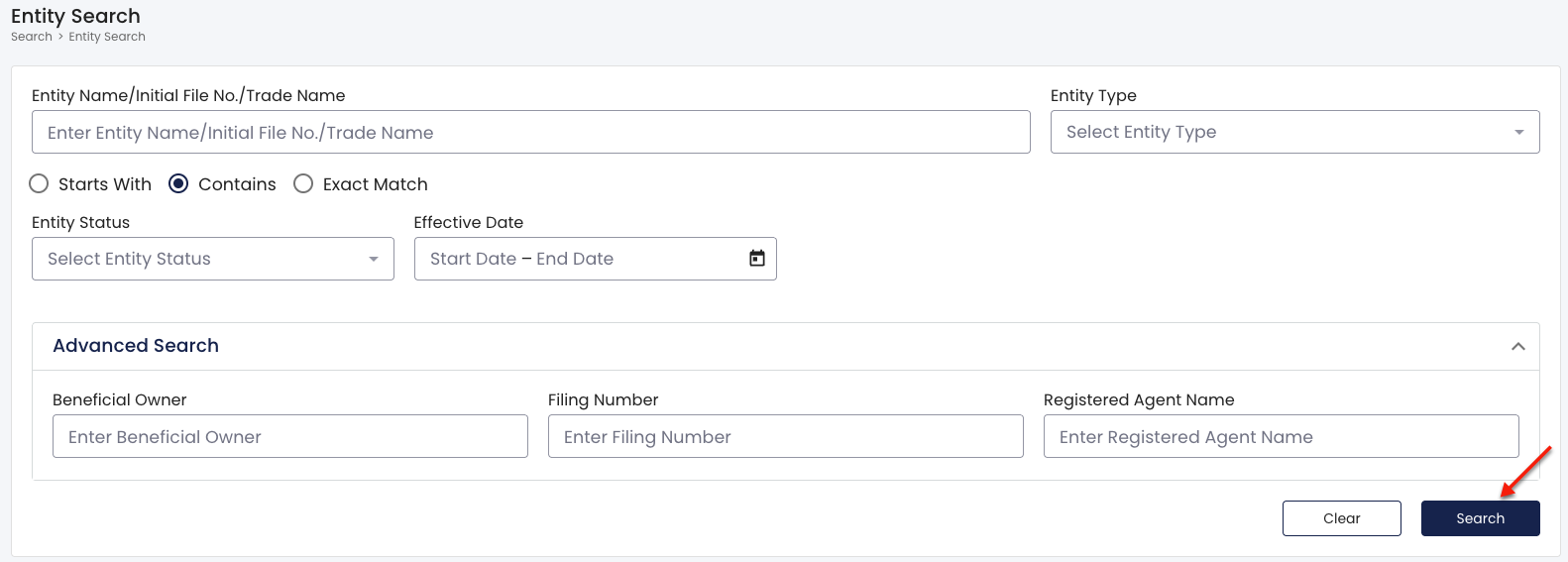
Once you verify the query information is accurate, select the “Search” button in the lower right. This directs the tool to look for the target entity and display the search results.
10. Select an Entity from the Search Results
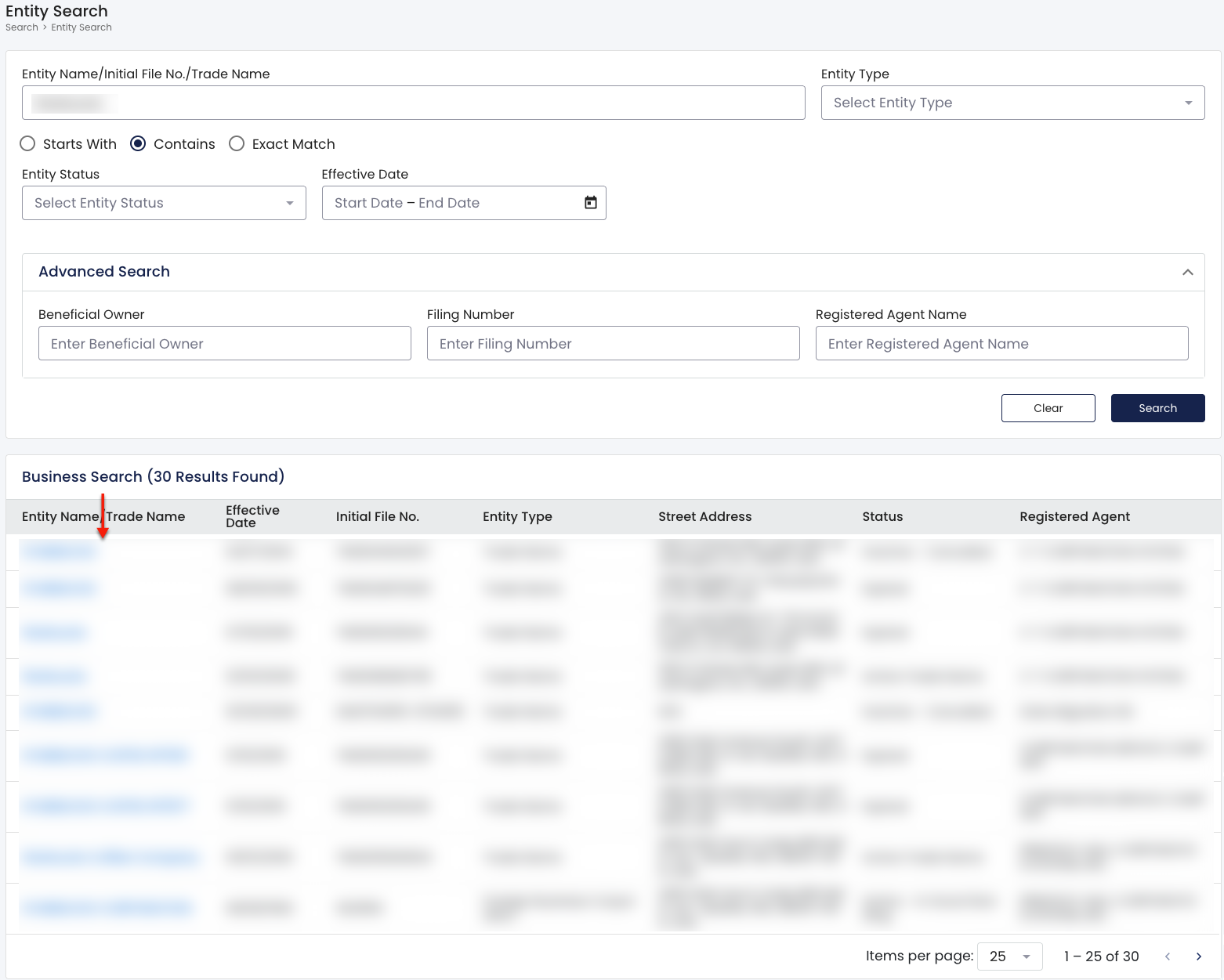
Review the search results in the table generated below the search area. Several columns, beginning with the Entity Name/Trad Name column, display vital entity information.
- Entity Name/Trade Name
- Effective Date
- Initial File No.
- Entity Type
- Street Address
- Status
- Registered Agent
To investigate an entity, select its name from the first column.
11. Explore the Entity’s Public Information
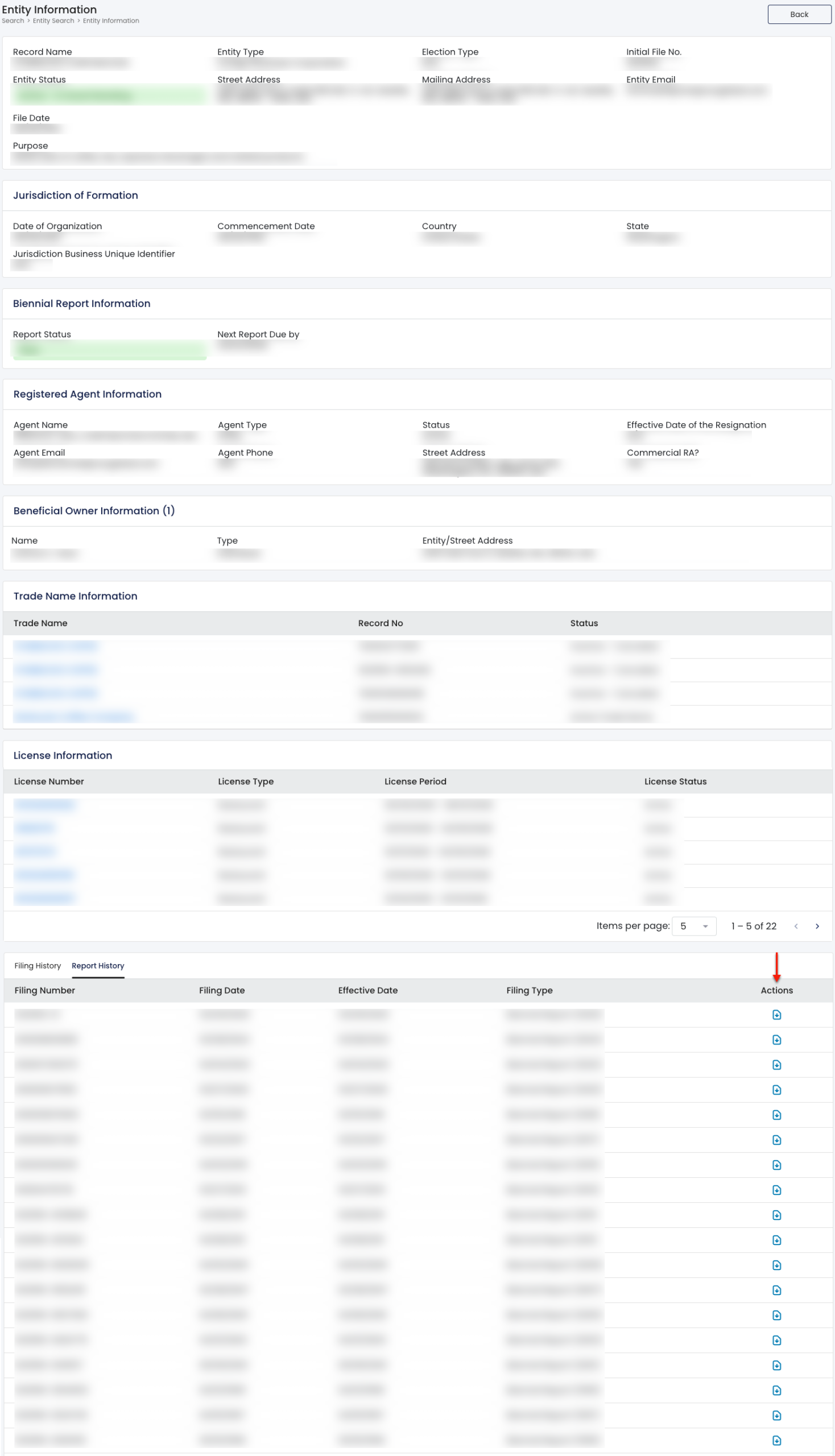
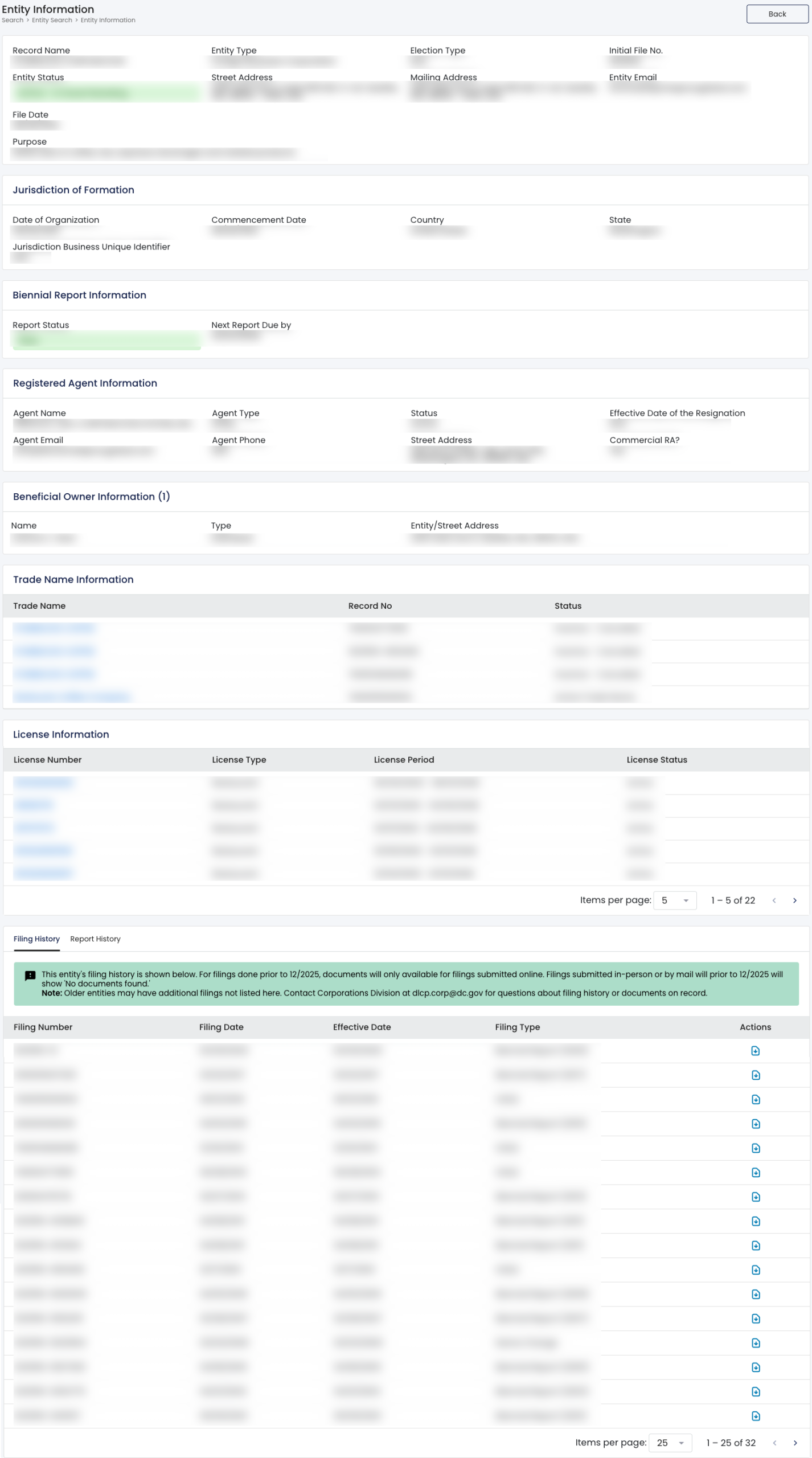
Look over the “Entity Information” page, presenting a business’s details in several sections. While most sections display entity details, others deliver additional details on request.
- Record Name
- Entity Type
- Election Type
- Initial File No.
- Entity Status
- Street Address
- Mailing Address
- Entity Email
- File Date
- Purpose
- Jurisdiction of Formation
- Date of Organization
- Commencement Date
- Country
- State
- Jurisdiction Business Unique Identifier
- Biennial Report Information
- Report Status
- Next Report Due By
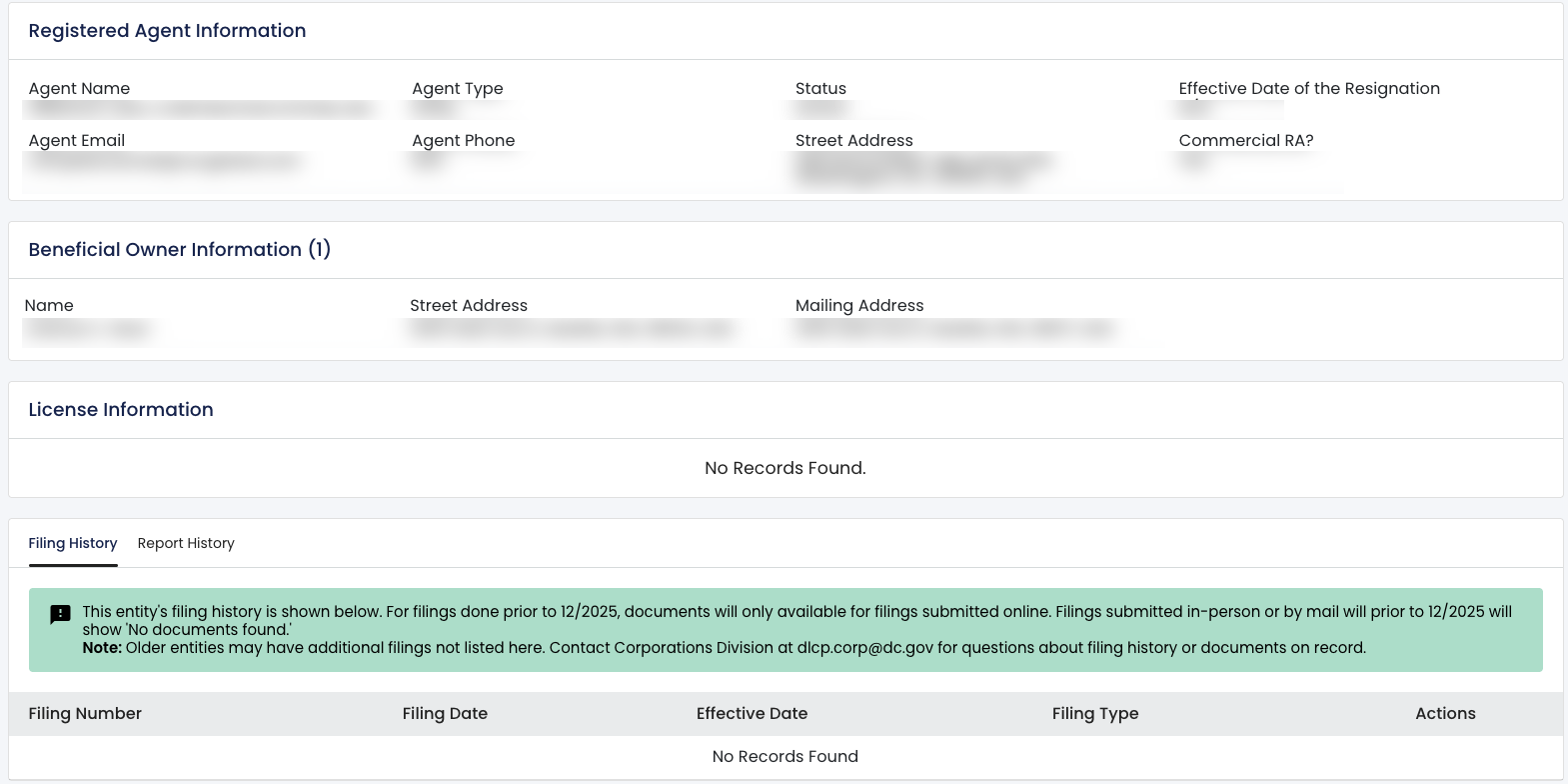
- Registered Agent Information
- Agent Name
- Agent Type
- Status
- Effective Date of the Resignation
- Agent Email
- Agent Phone
- Street Address
- Commercial RA?
- Beneficial Owner Information
- Name
- Type
- Entity/Street Address
- Trade Name Information
- Trade Name
- Record No.
- Status
- License Information
- License Number
- License Type
- License Period
- License Status
- Filing History
- Filing Number
- Filing Date
- Effective Date
- Filing type
- Report History
- Actions
12. Access Additional Trade Name Information
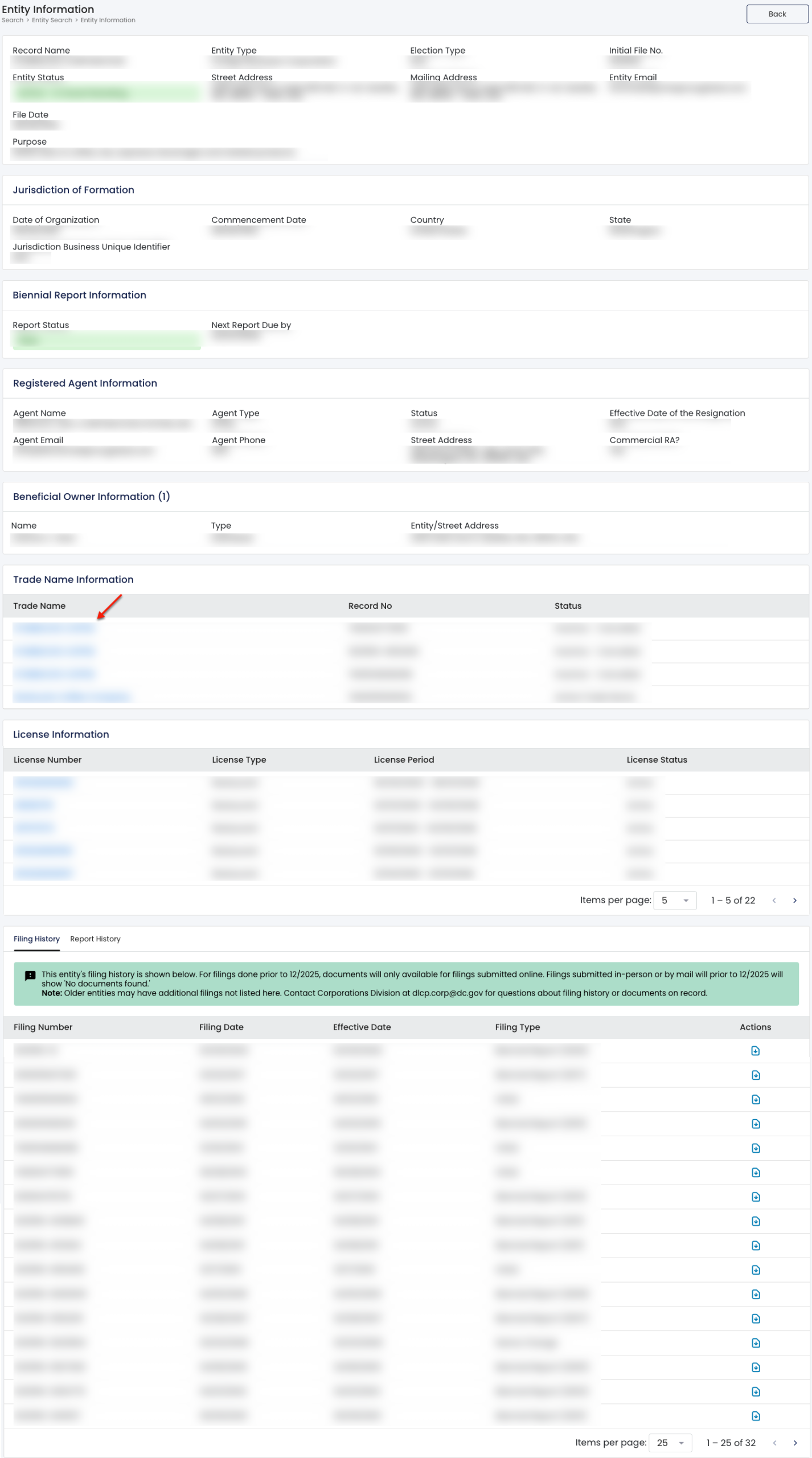
An entity’s trade name information is also available. Locate the “Trade Name Information” table, then select a name from the first column for more information (see image).
- Trade Name Information
- Trade Name
- Record Number
- Status
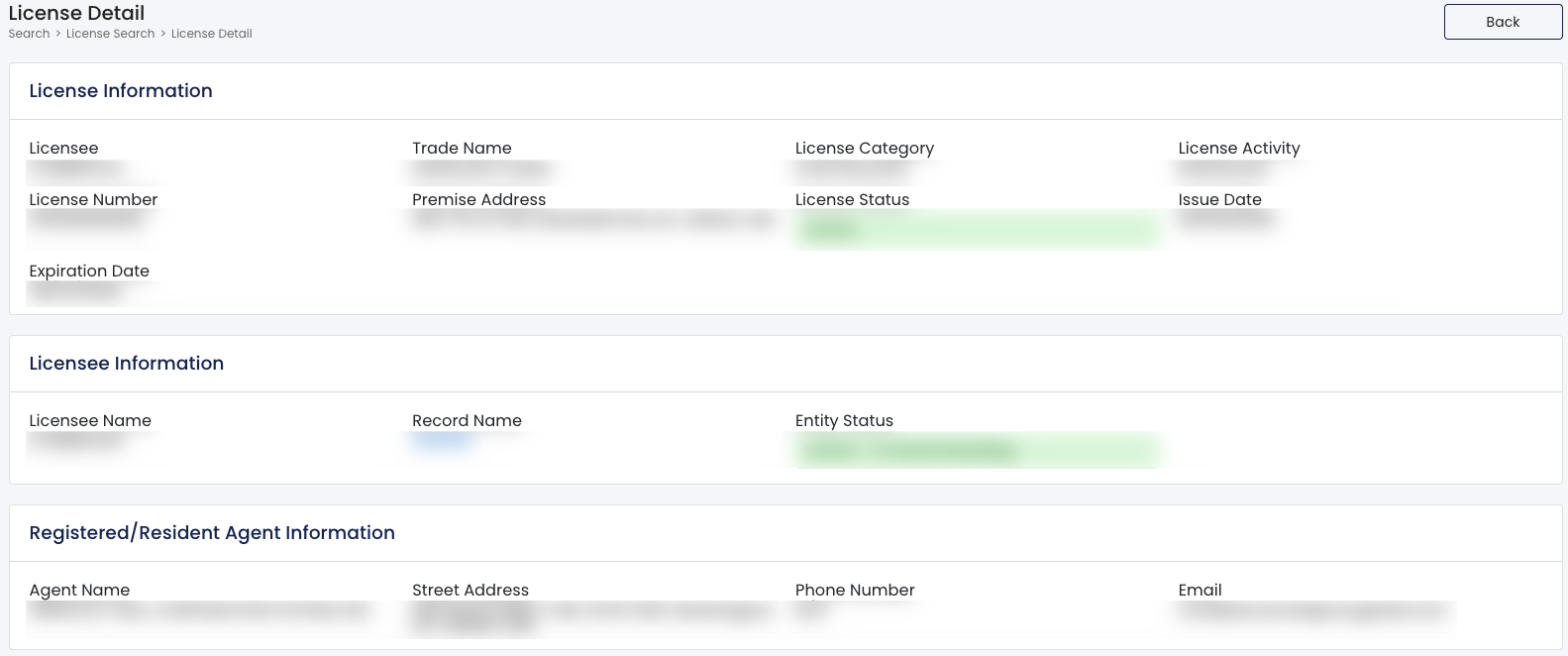
13. Obtain Entity License Information
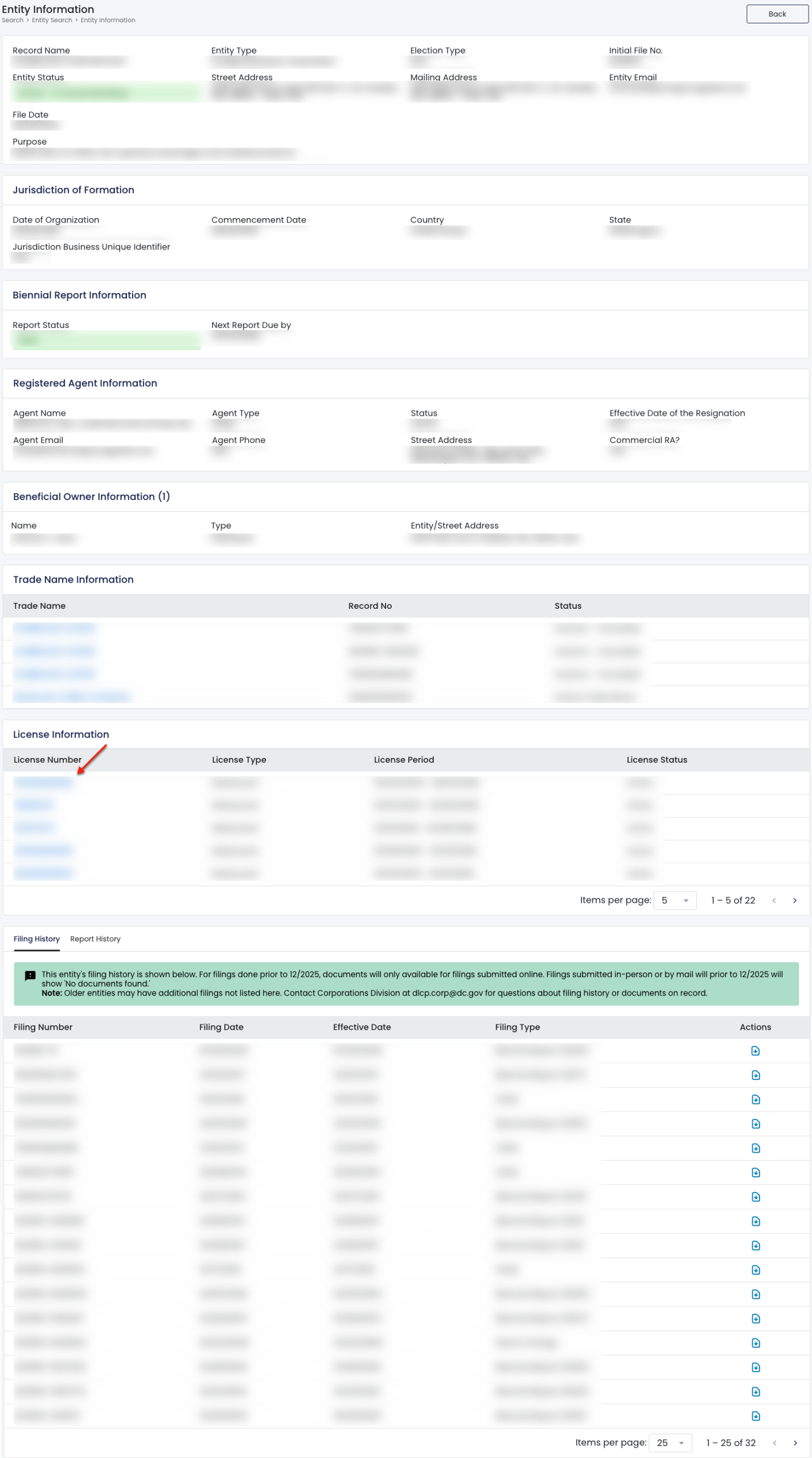
To view an entity’s licensing information, continue to the next table. Locate the license number from the first column, then select it to view the license information (see image) for that period.
- License Information
- License Number
- License Type
- License Period
- License Status
14. Look Through the Entity’s Filing Information
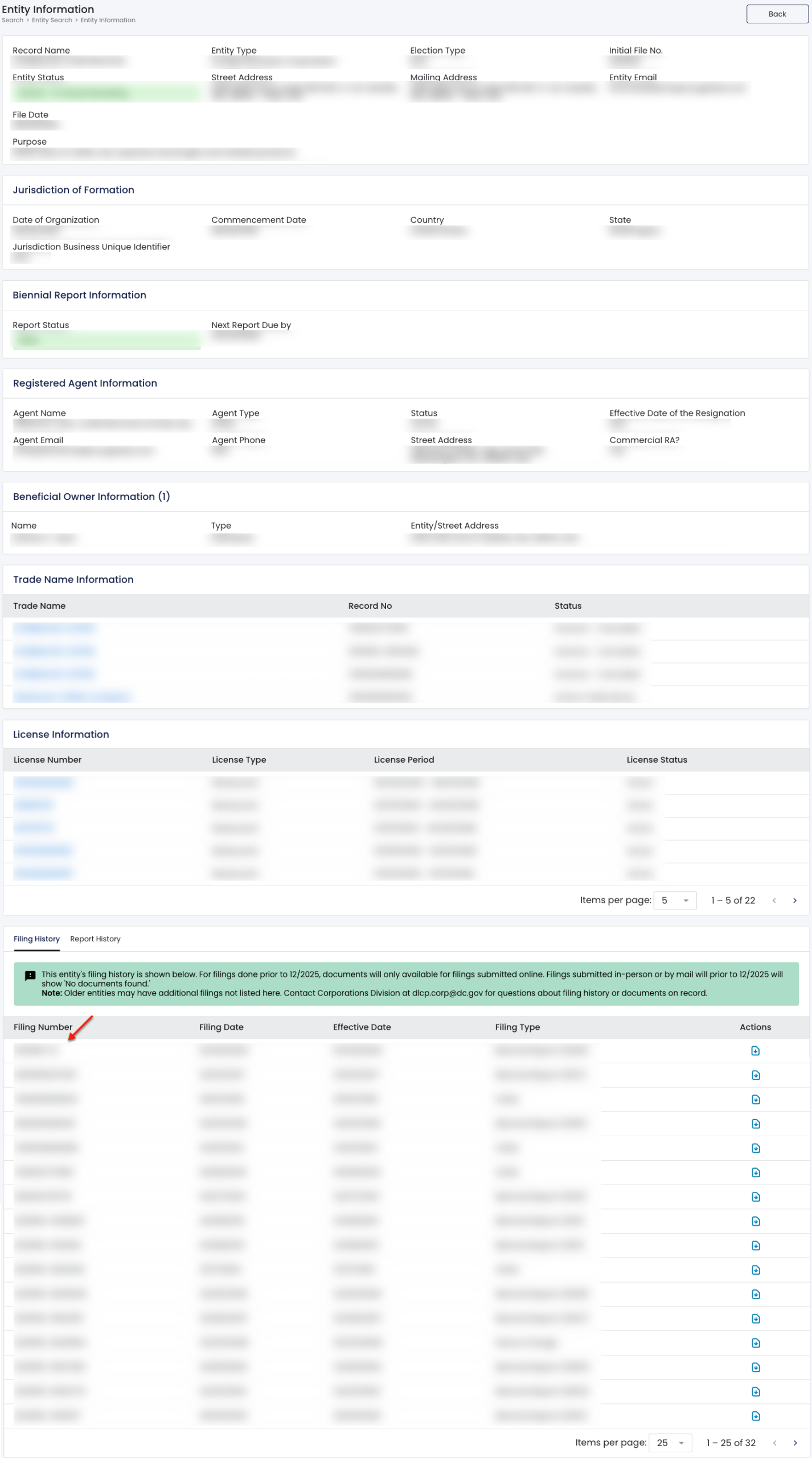
Locate the final area. By default, the “Filing Information” tab displays some of the entity’s filing records. In order to view a filing, select the page icon under “Actions” in that row.
- Filing History
- Filing Number
- Filing Date
- Effective Date
- Filing Type
- Actions
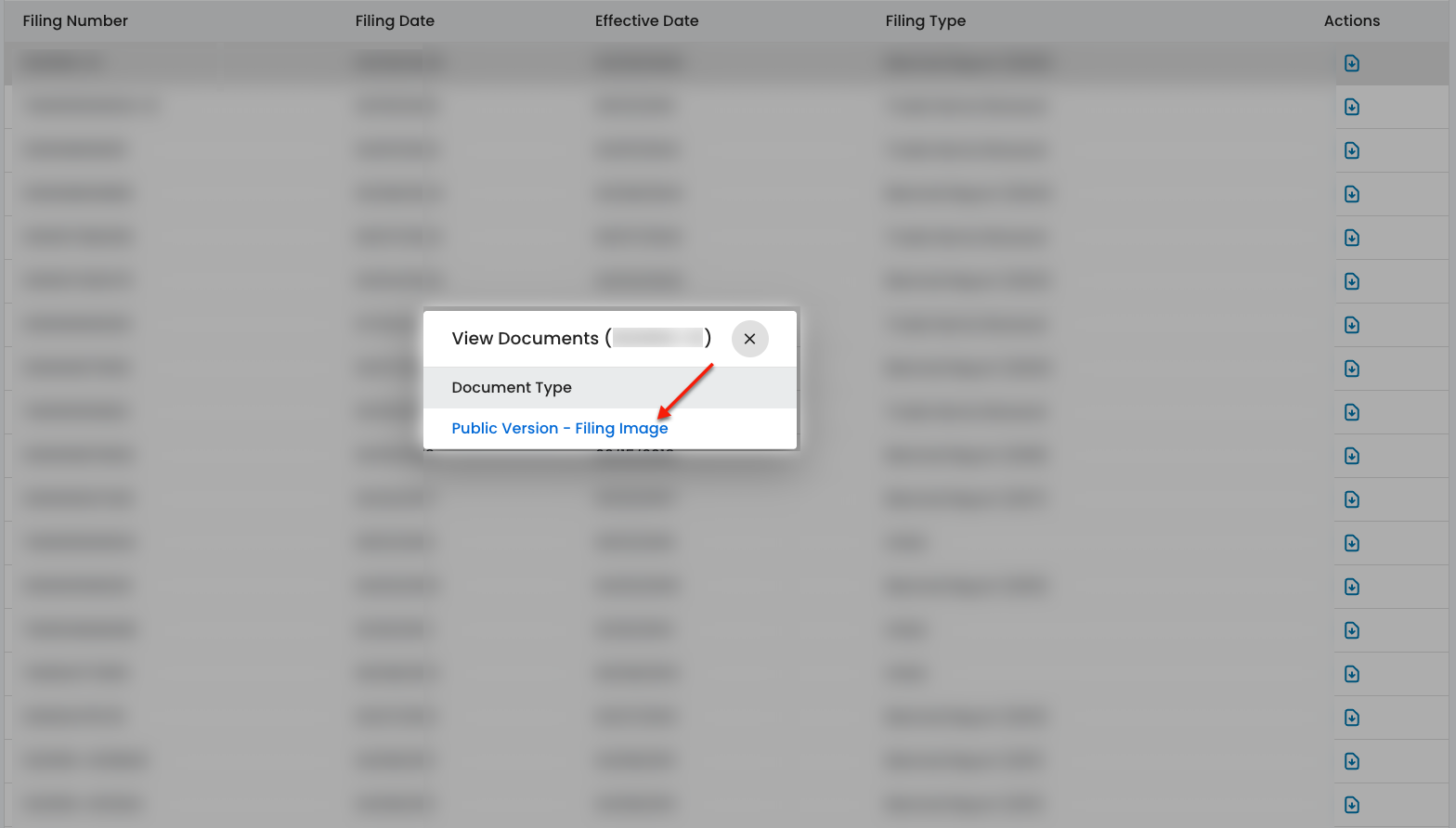
Confirm that you wish to view the PDF scan of the filing by selecting its document type. This automatically opens the PDF in a new tab unless your browser has different settings.
15. Explore Entity Report History
Investigate the entity’s history by selecting the “Report History” tab. Use this table to view the business entity’s reports on file.
- Report History
- Filing Number
- Filing Date
- Effective Date
- Filing Type
- Actions
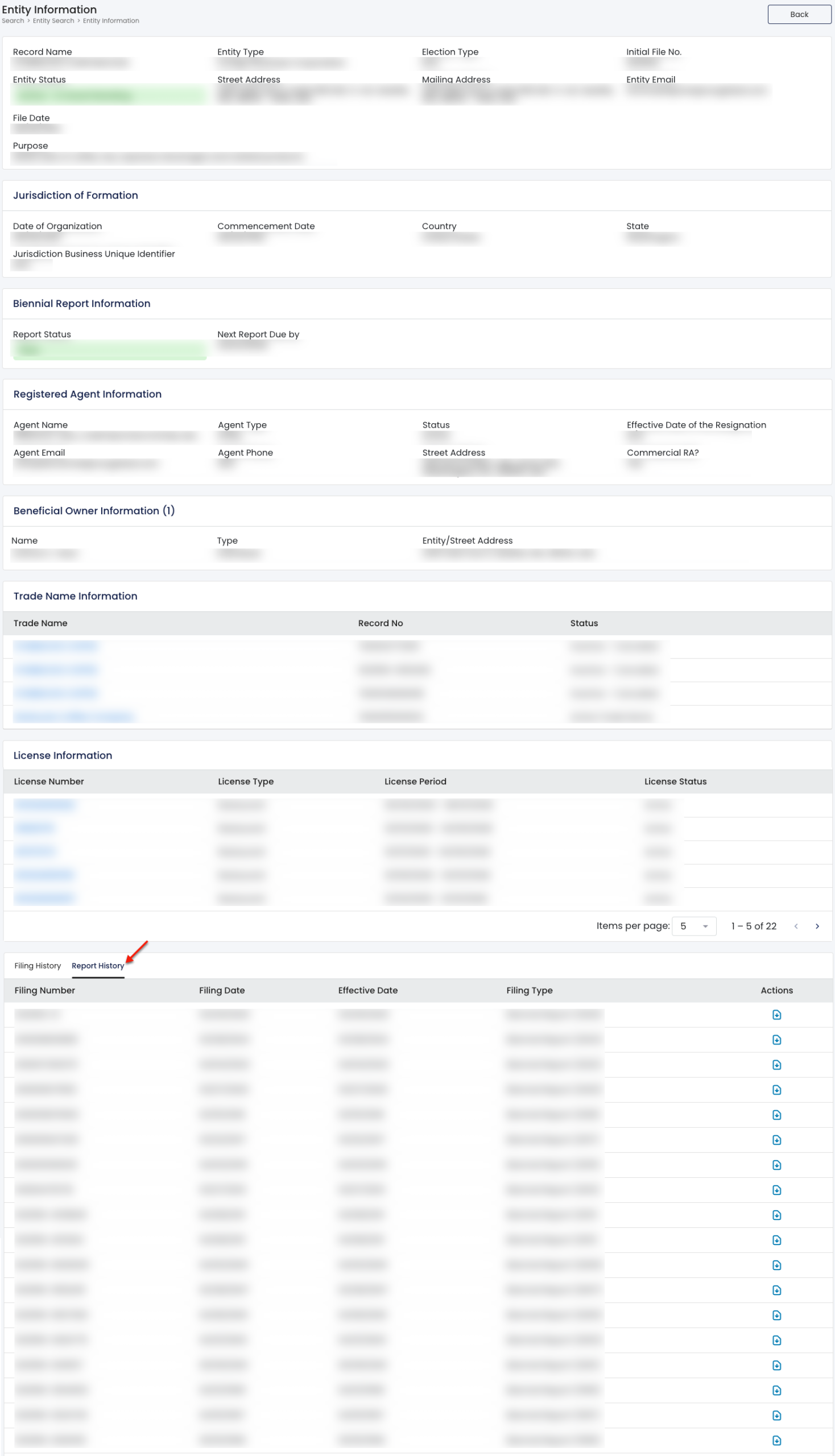
This table also provides additional information. To view an entity report, select the page icon from the “Actions” column.