The South Carolina UCC search is an efficient way to find a lien filing, obtain copies, and, if desired, certify copies using the name of the debtor or secured party. The query comes with filters that can be employed to narrow the number of matching results. The Secretary of State provides this service so that the public can access information online.
UCC Search
1. Visit the South Carolina UCC Name Search Page
Open the South Carolina UCC search page. Keep your references handy since, some filters will help you control the number of results.
2. Read Through Query Tool Options
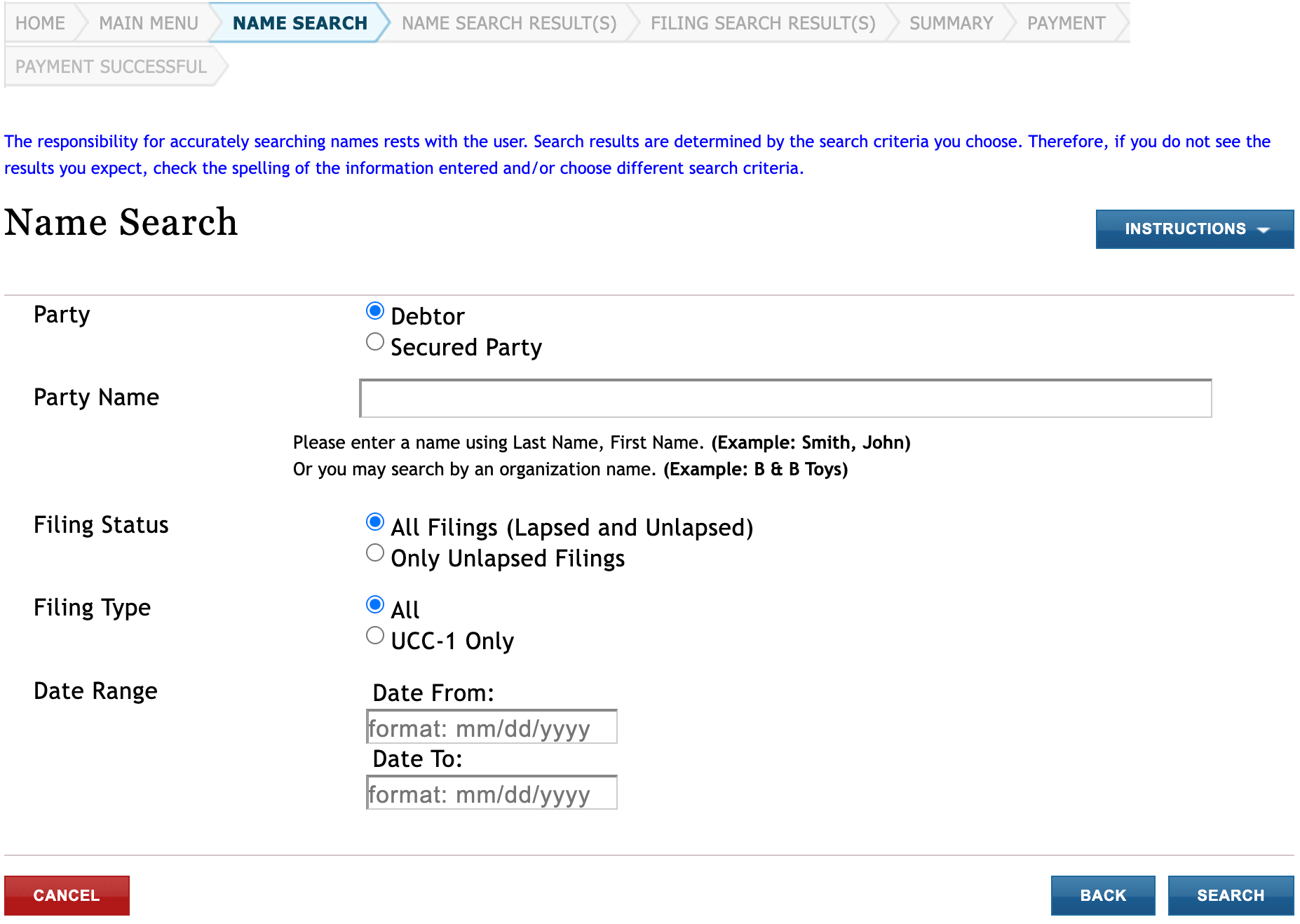
Review the additional information the tool accepts. While only a name is necessary to find the target business, filtering out unnecessary matches often promotes an efficient search.
- Party
- Debtor
- Secured Party
- Party Name
- Filing Status
- All Filings (Lapsed and Unlapsed)
- Filing Type
- All
- UCC-1 Only
- Date Range
- Date From
- Date To
- Cancel
- Back
- Search
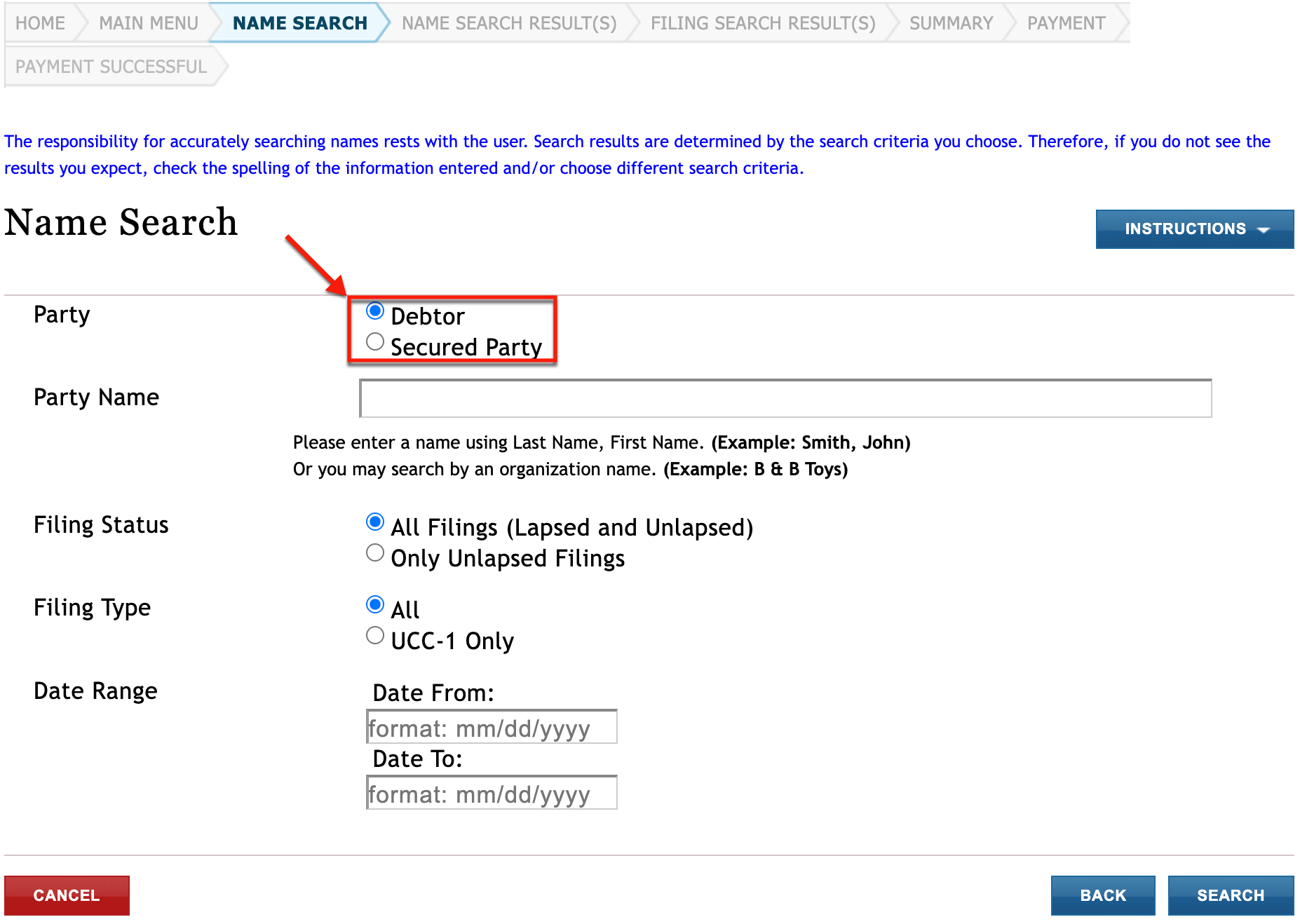
3. Define the Party Type
Start the process by making sure the “Debtor” radio button is selected. In this example, we seek a business under a lien rather than the secured party.
4. Submit the Party Name
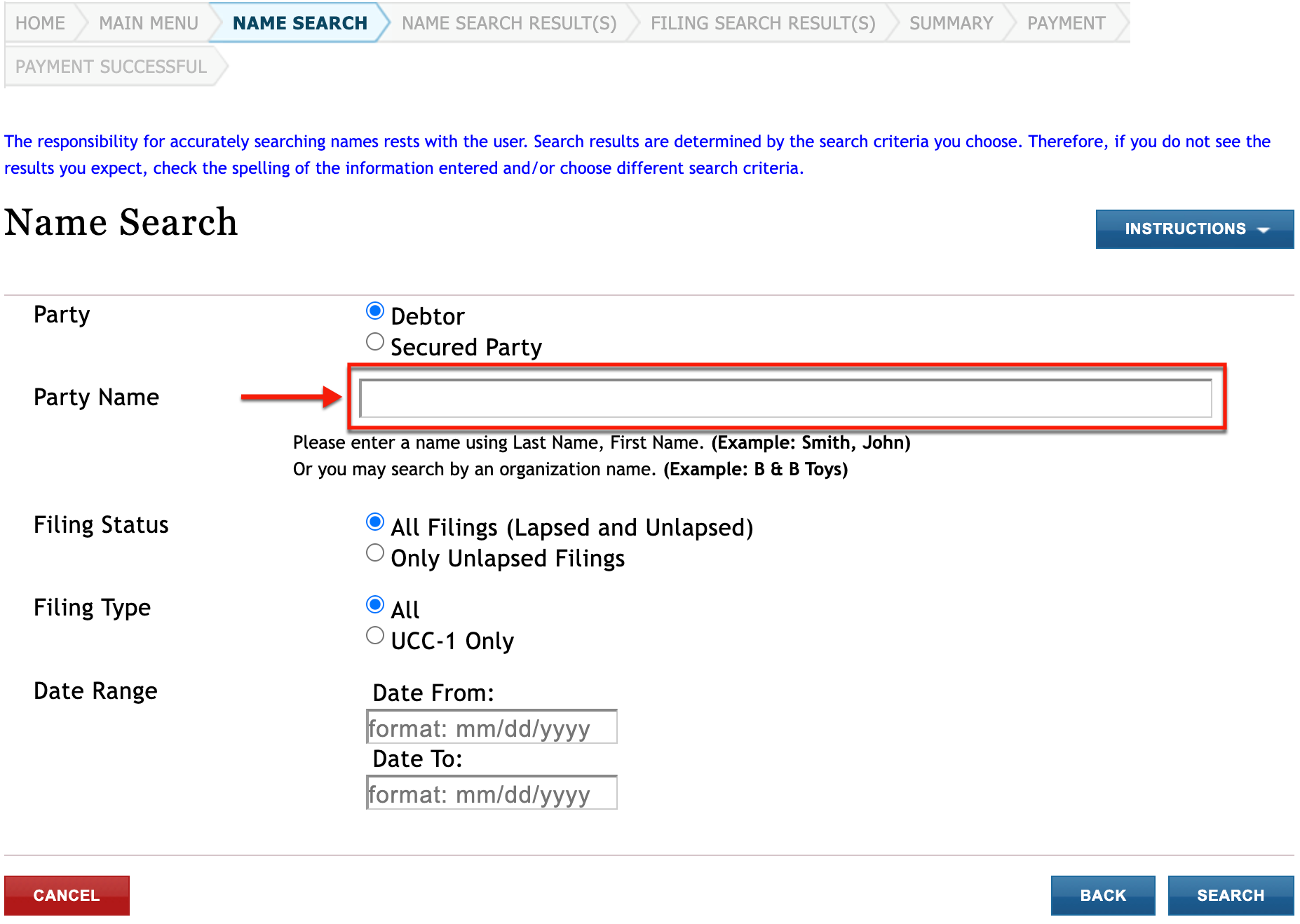
Locate the “Party Name” text box and enter the full name of the debtor. Generally, this is either an individual or a business. In our case we shall supply the name of a business.
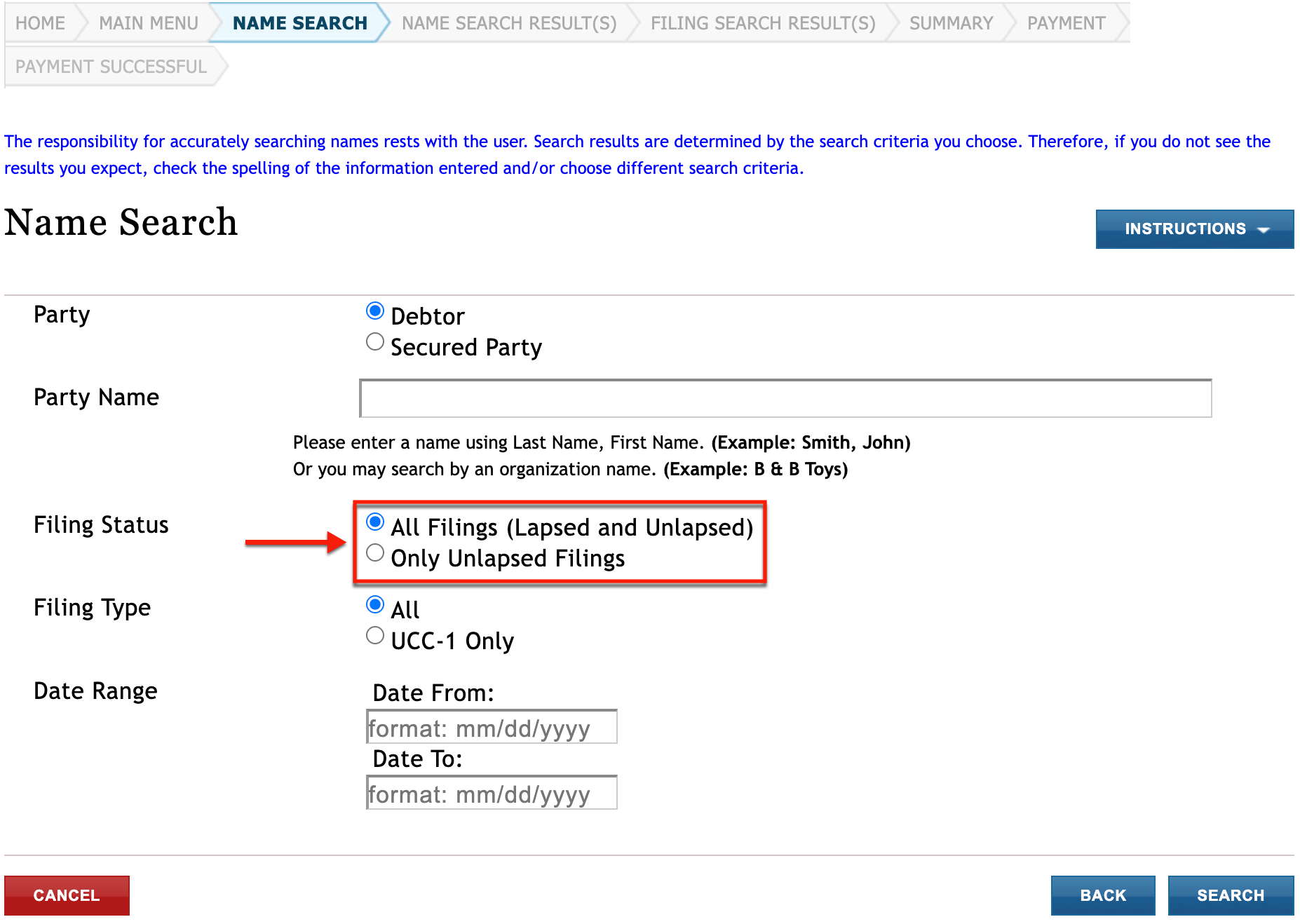
5. Set the Filing Status
Tighten the query results using the lien’s current standing. If unknown, select the first “Filing Status” option. However, if the lien is definitely active, select “Only Unlapsed Filings.”
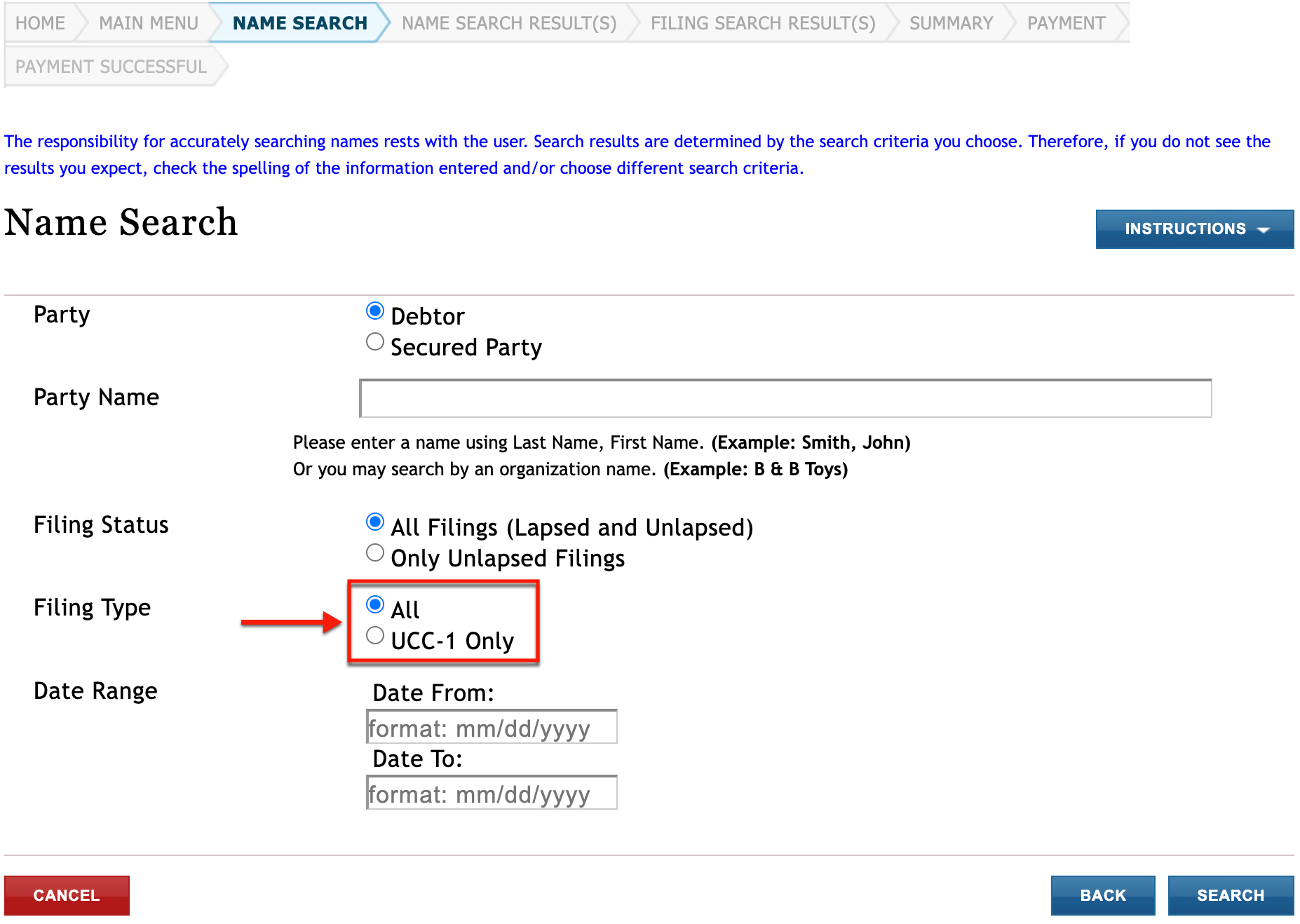
6. Define Filing Type Preferences
Select “All” from “Filing Type” to see every kind of lien the debtor is under. However, to exclude all liens but a UCC-1, then select the second radio button.
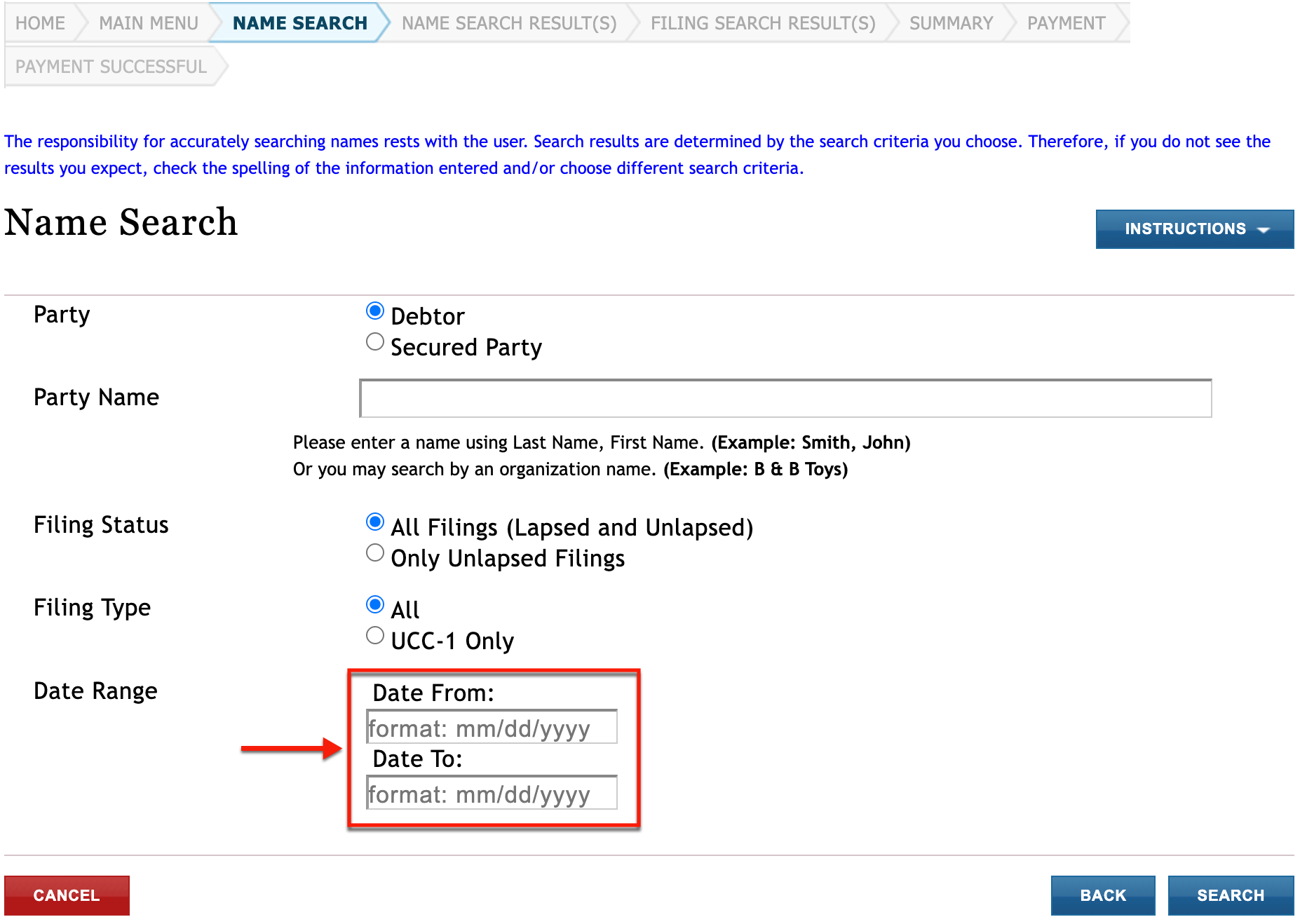
7. Attach a Period for the Filing Date
A filter is available for filing dates even when the date is an estimate. Use the “Date From” and “Date To” fields to frame the period the filing date falls into.
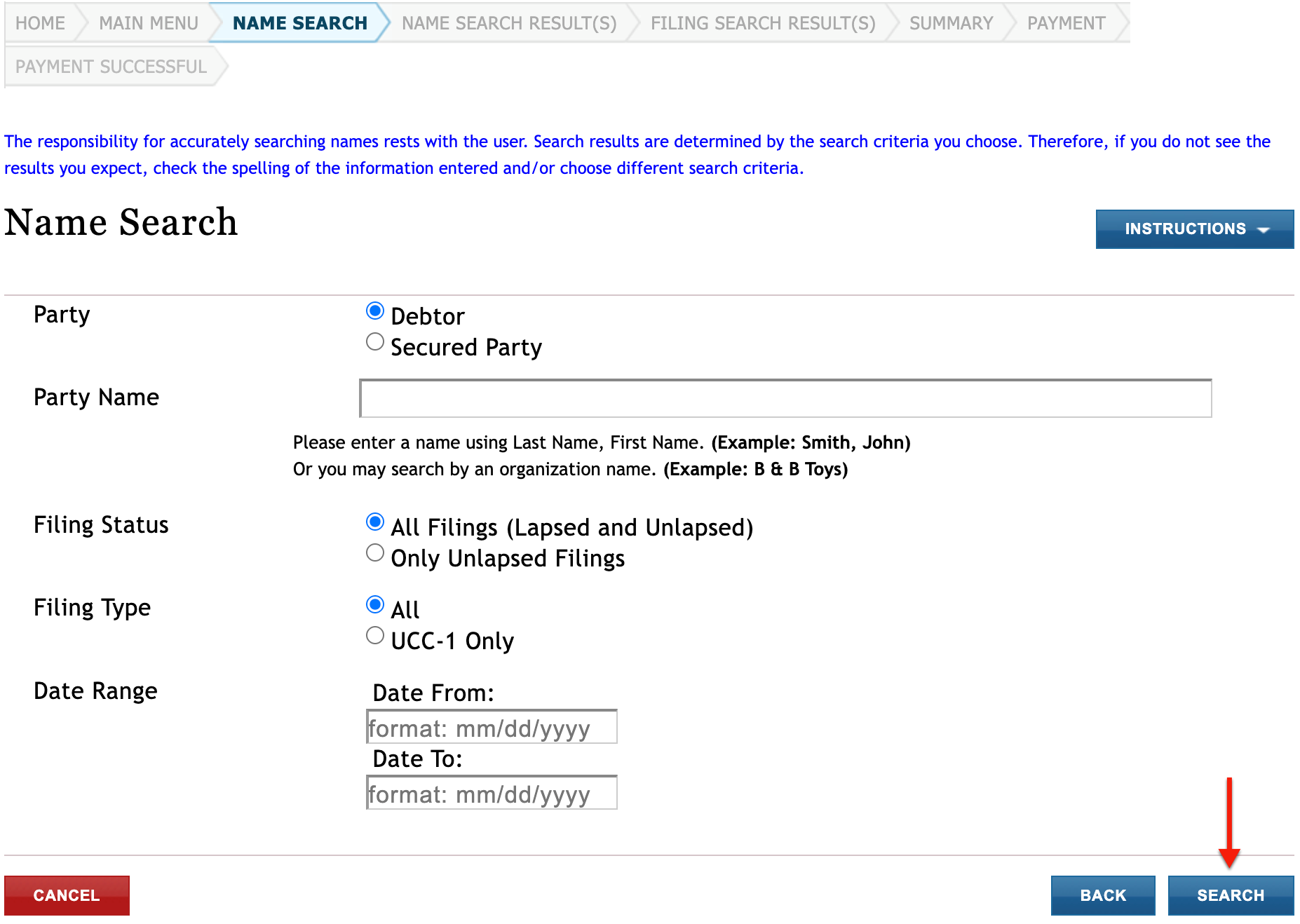
8. Initiate the South Carolina UCC Search
Use the “Search” button to submit the criteria and any applicable filters. While this navigates away from this area, you may return any time should another search be necessary.
9. Receive the Matching Results
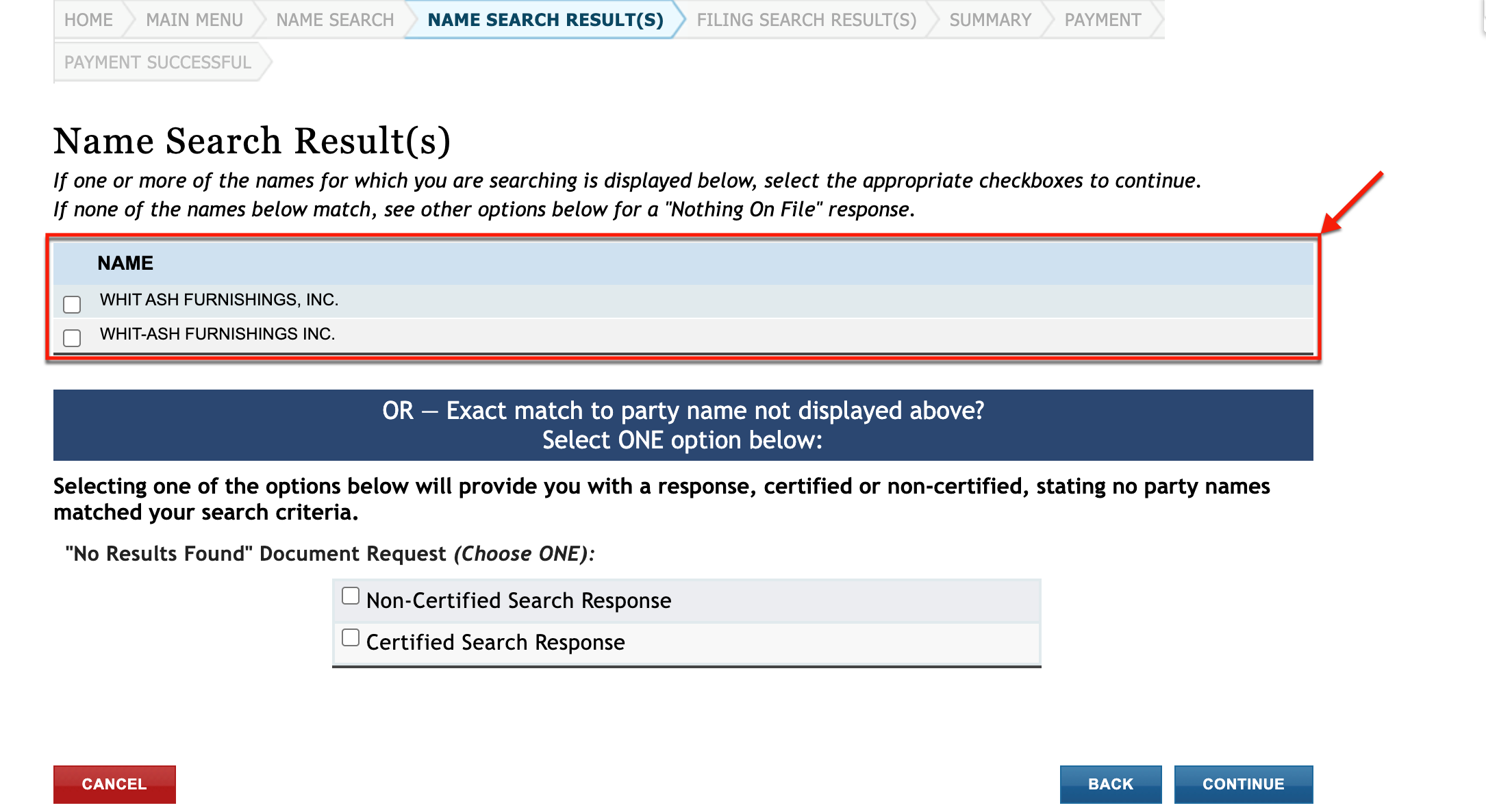
Direct your attention to the resulting table containing entities with the matching lien records. In order to view one (or more), select the corresponding check box, then proceed to step 11.
- Name Search Results
- Name
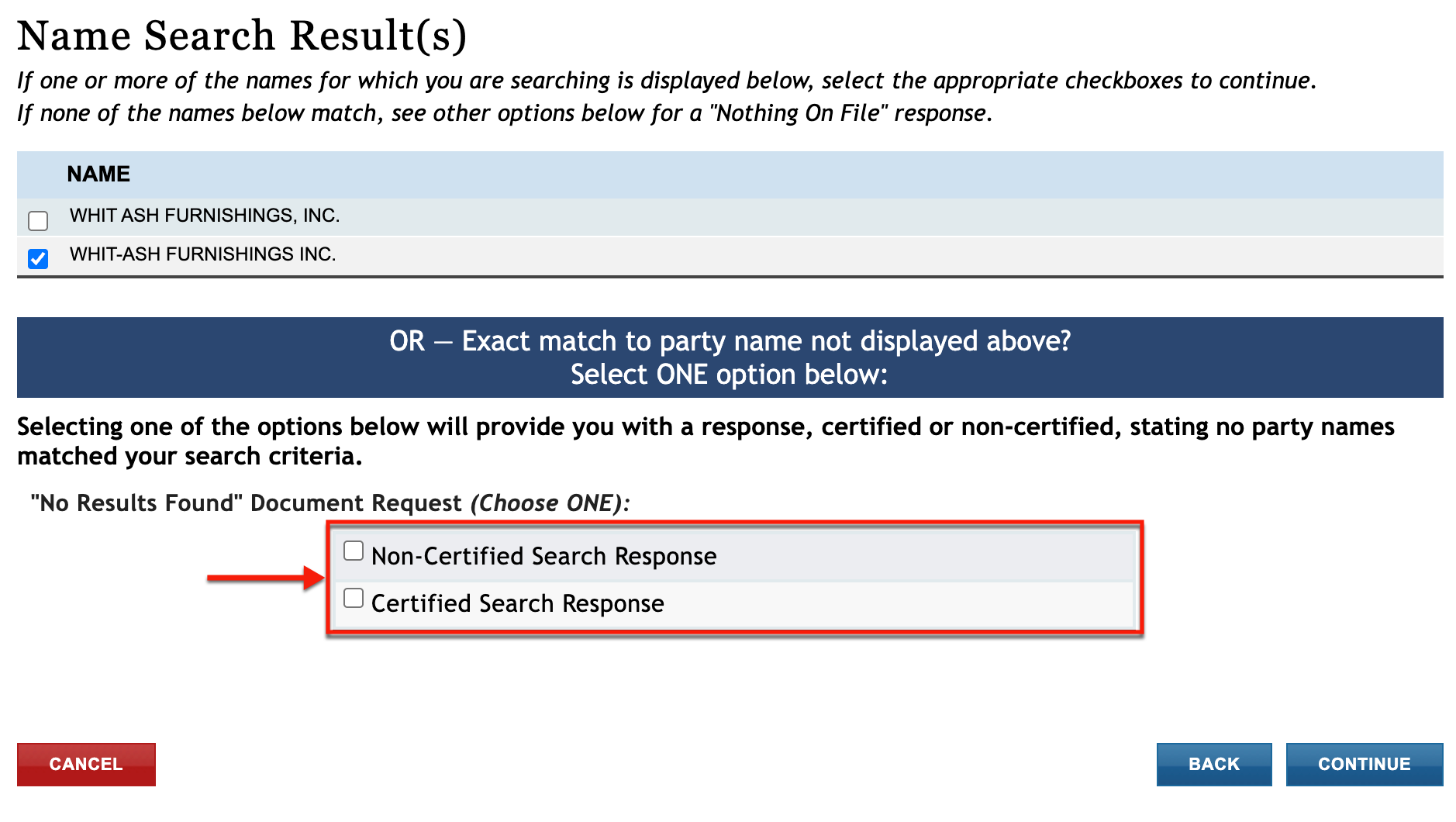
- ”No Results Found” Document Request
- Non-Certified Search Response
- Certified Search Response
- Cancel
- Back
- Continue
10. Optionally Document an Unsuccessful Search
Document or certify an unsuccessful search by selecting either “Non-Certified Search Response” or “Certified Search Response.” Note, this is only applicable for an unsuccessful search.
11. Continue to the Record
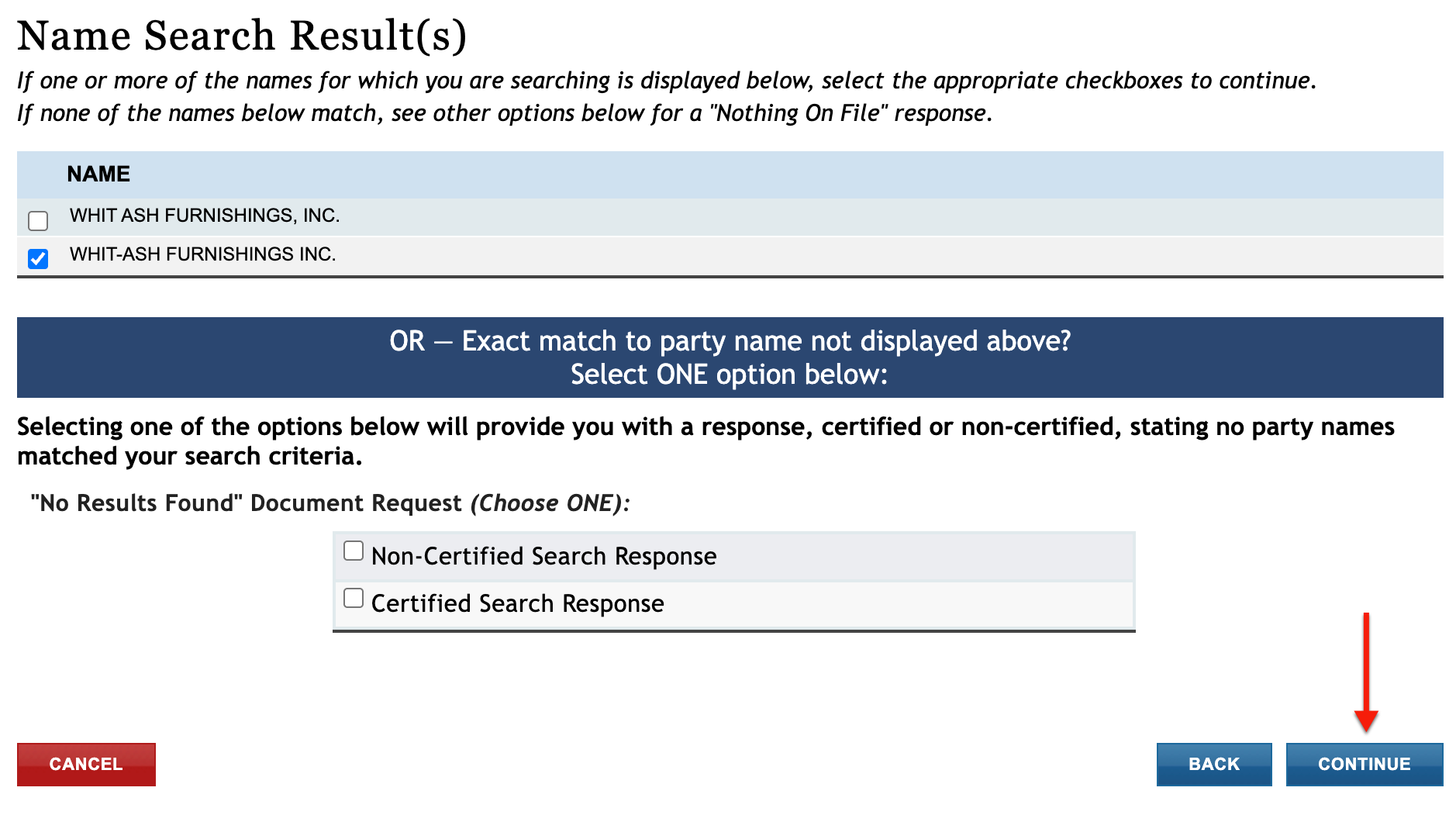
Progress to the next page by clicking on “Continue.” Keep in mind that when requesting certification, a separate fee will be necessary.
12. Review the Document Summary
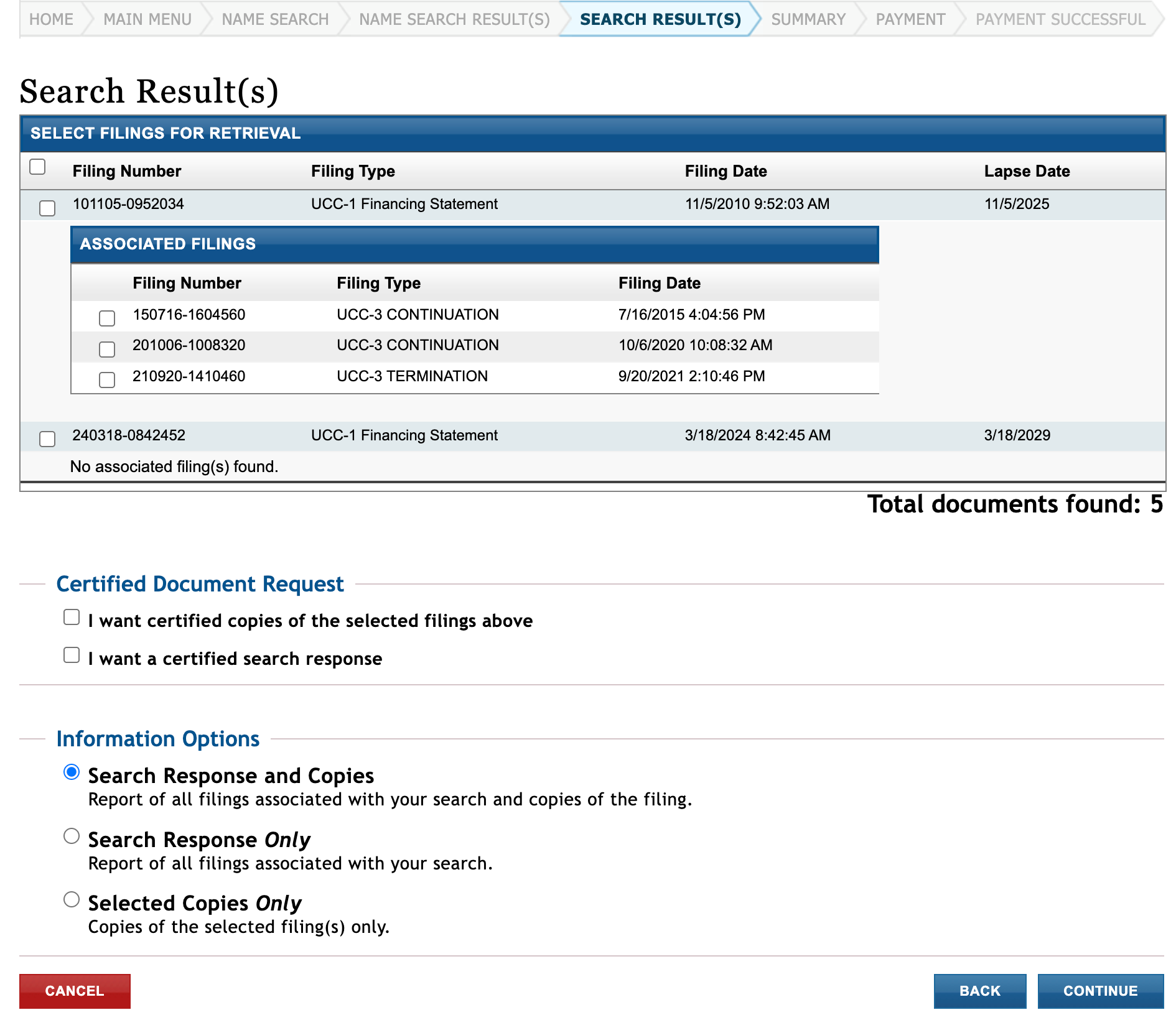
Review the filing chain on display for the entity you selected. While initial statements are available, any resulting paperwork is also viewable in a corresponding subsection.
- Search Results
- Filing Number
- Filing Type
- Filing Date
- Lapse Date
- Associated Filings
- Filing Number
- Filing Type
- Filing Date
- Certified Document Request
- I want Certified Copies of the Selected Filings Above
- I Want a Certified Search Response
- Information Options
- Search Response and Copies
- Search Response Only
- Selected Copies Only
- Cancel
- Back
- Continue
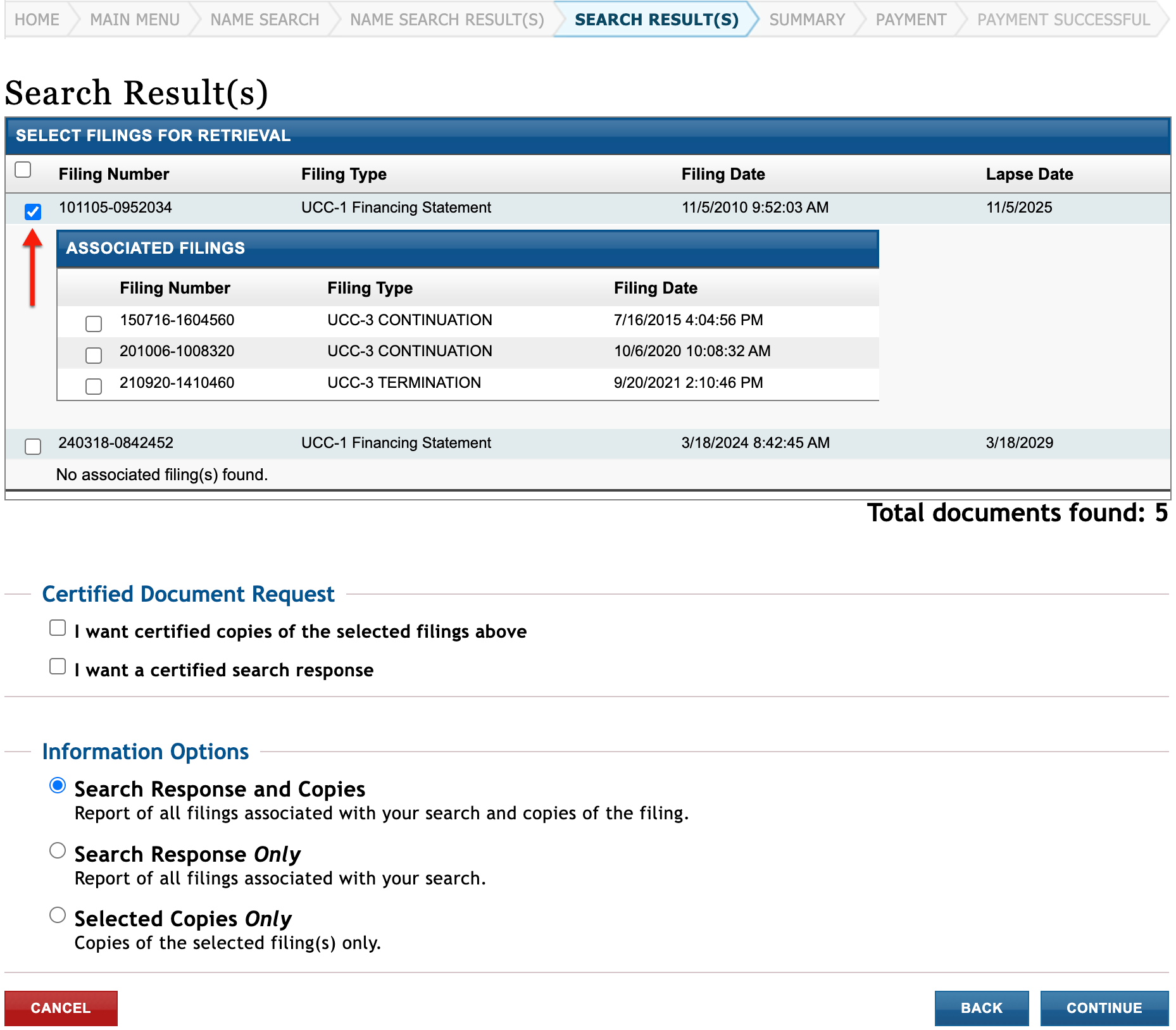
13. Choose a Filing of Interest
Place a checkmark in the box attached to any filing you intend to purchase copies of. You may select as many as necessary to accomplish your goals.
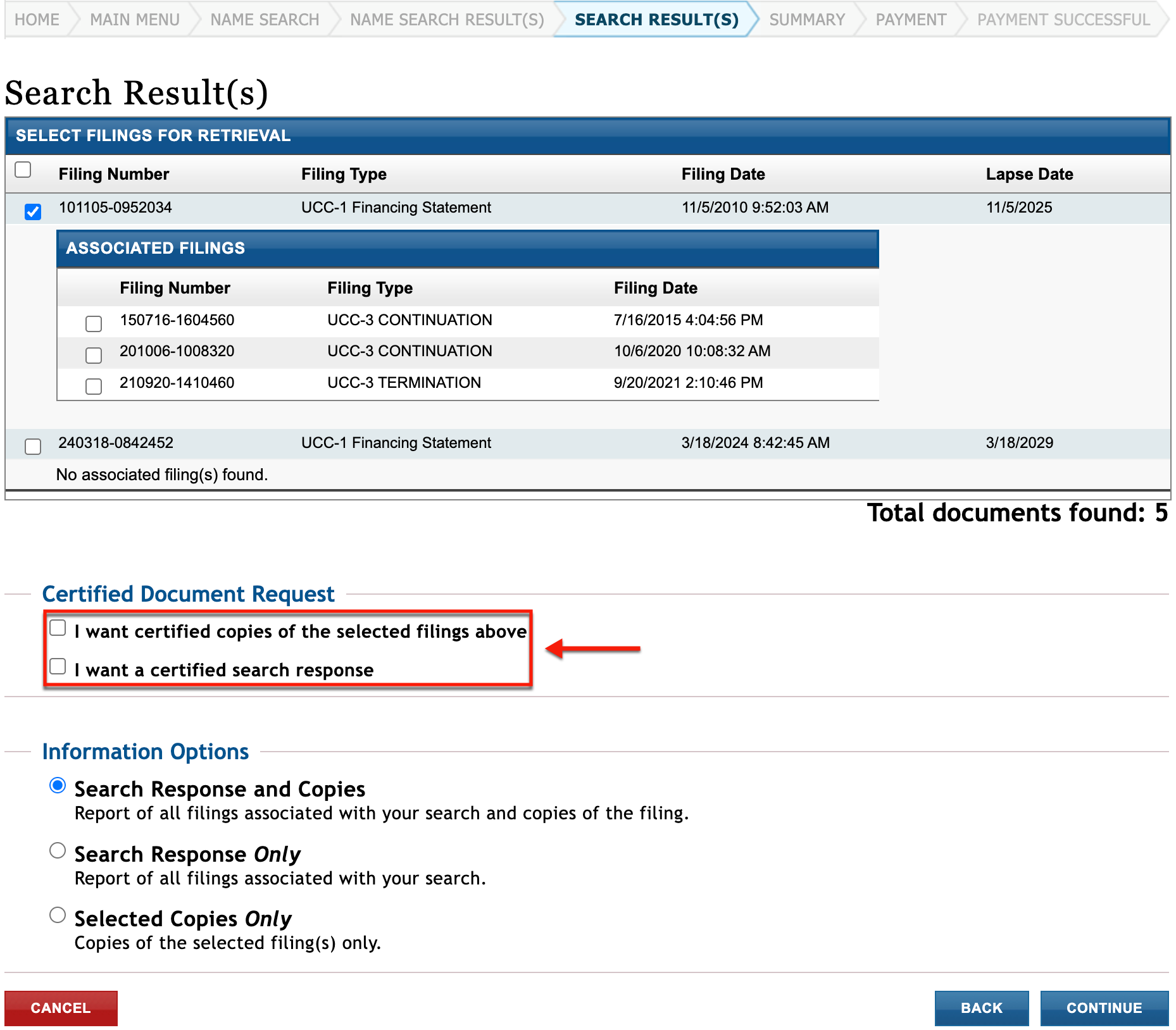
14. Decide Upon Certification (Optional)
Note that this tool offers to certify the search, the results, or both. This is not mandatory; however, to make a “Certified Document Request,” select the appropriate preference.
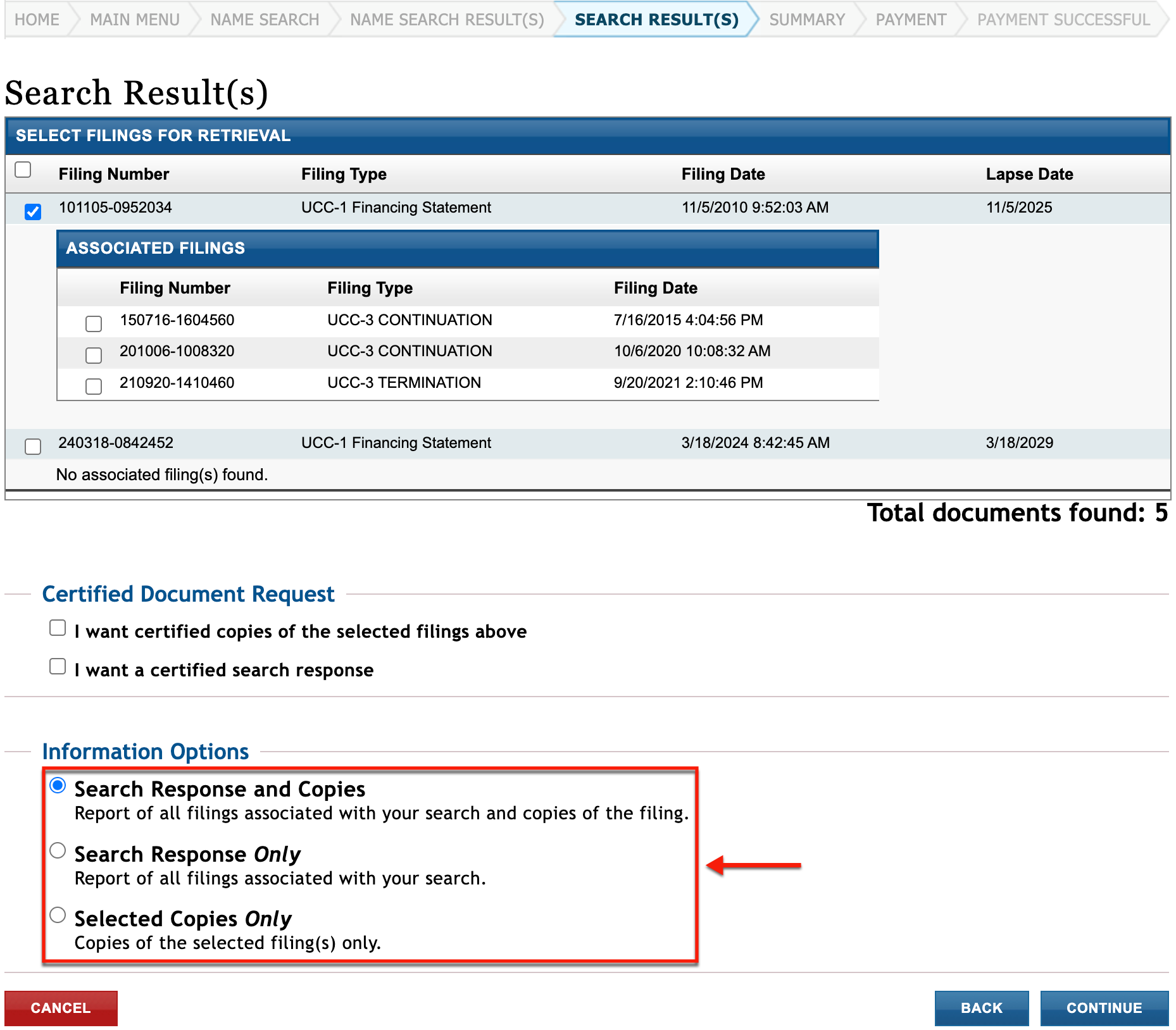
15. Decide on Information Options
Locate the “Information Options” to request service. For our goal, select the “Search Response and Copies” options. Otherwise, use this area to acquire either item without the other.
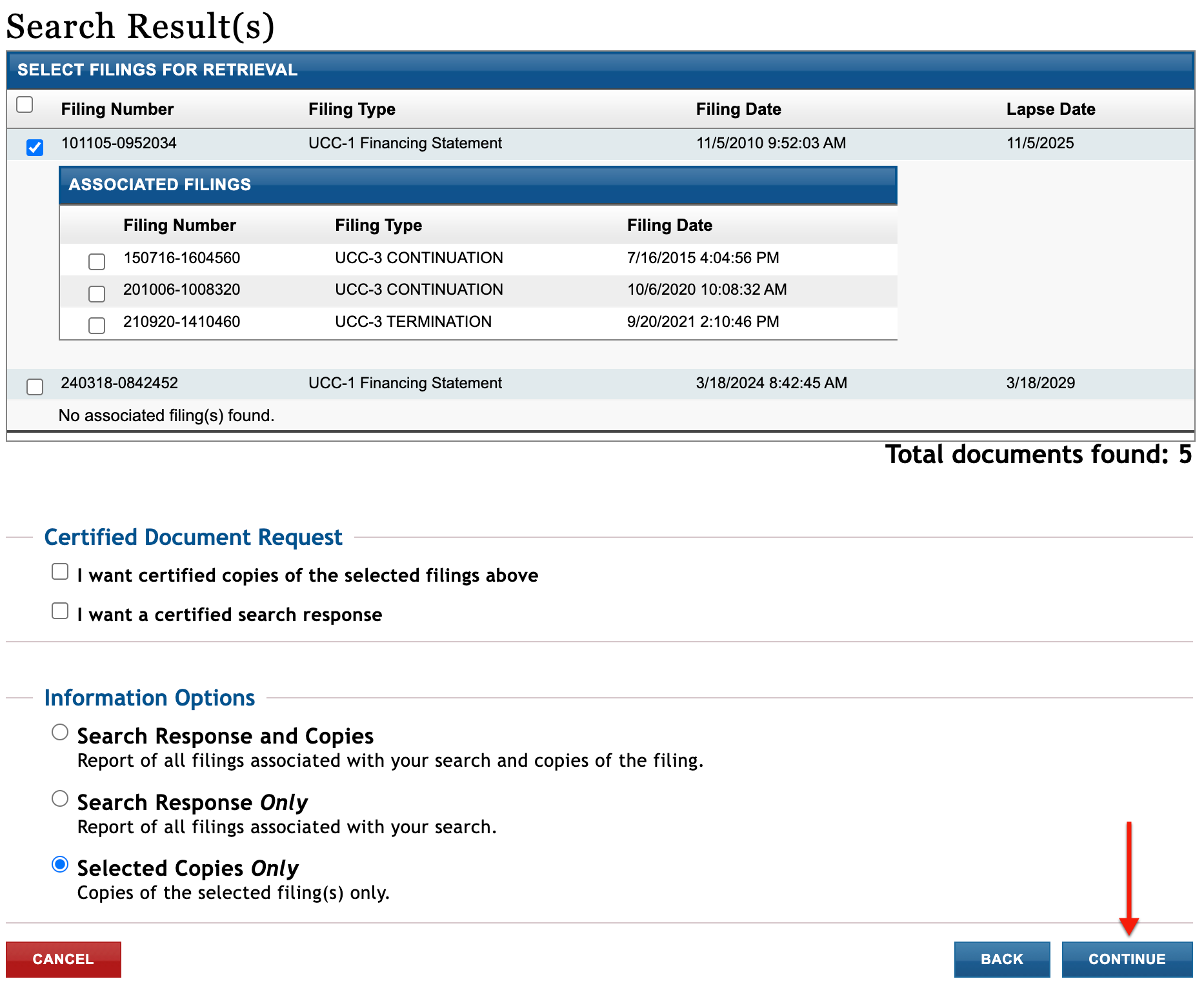
16. Continue to the Order Summary
Click on the “Continue” button to access the “Items Selected for Purchase” table. If applicable, you may navigate to a previous screen using the “Back” button.
17. Confirm the Purchase Information
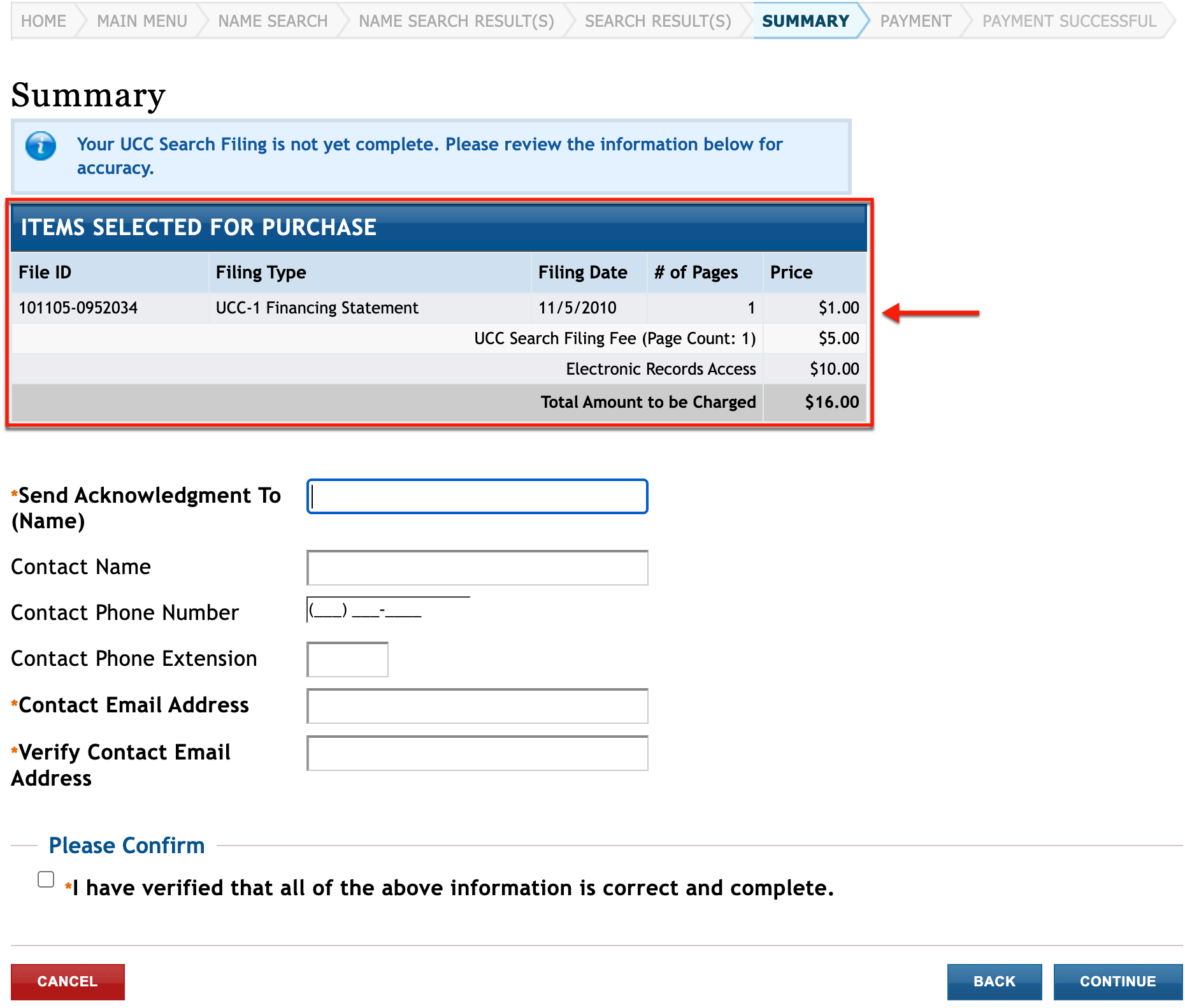
Examine the table summarizing the purchase. Make sure the content matches your goals.
- Summary
- Items Selected for Purchase
- File ID
- Filing Type
- Filing Date
- # of Pages
- Price
- Total Amount to be Charged
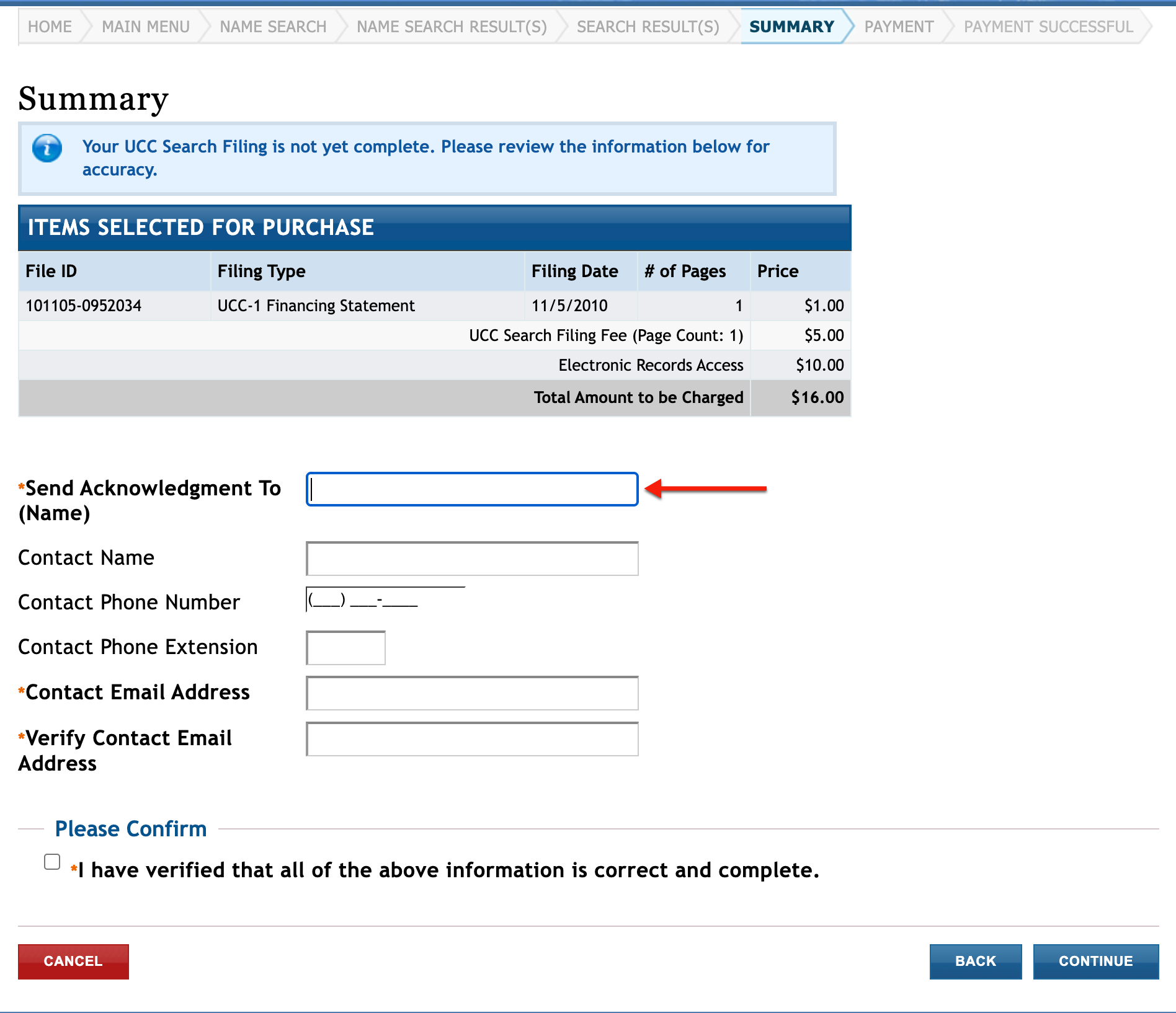
18. Present an Acknowledgment Party
Submit an individual’s full name to “Send Acknowledgment to” as the person who receives state notifications about this order. The contact’s name is acceptable, but this field is required.
- Send Acknowledgment To (Name)
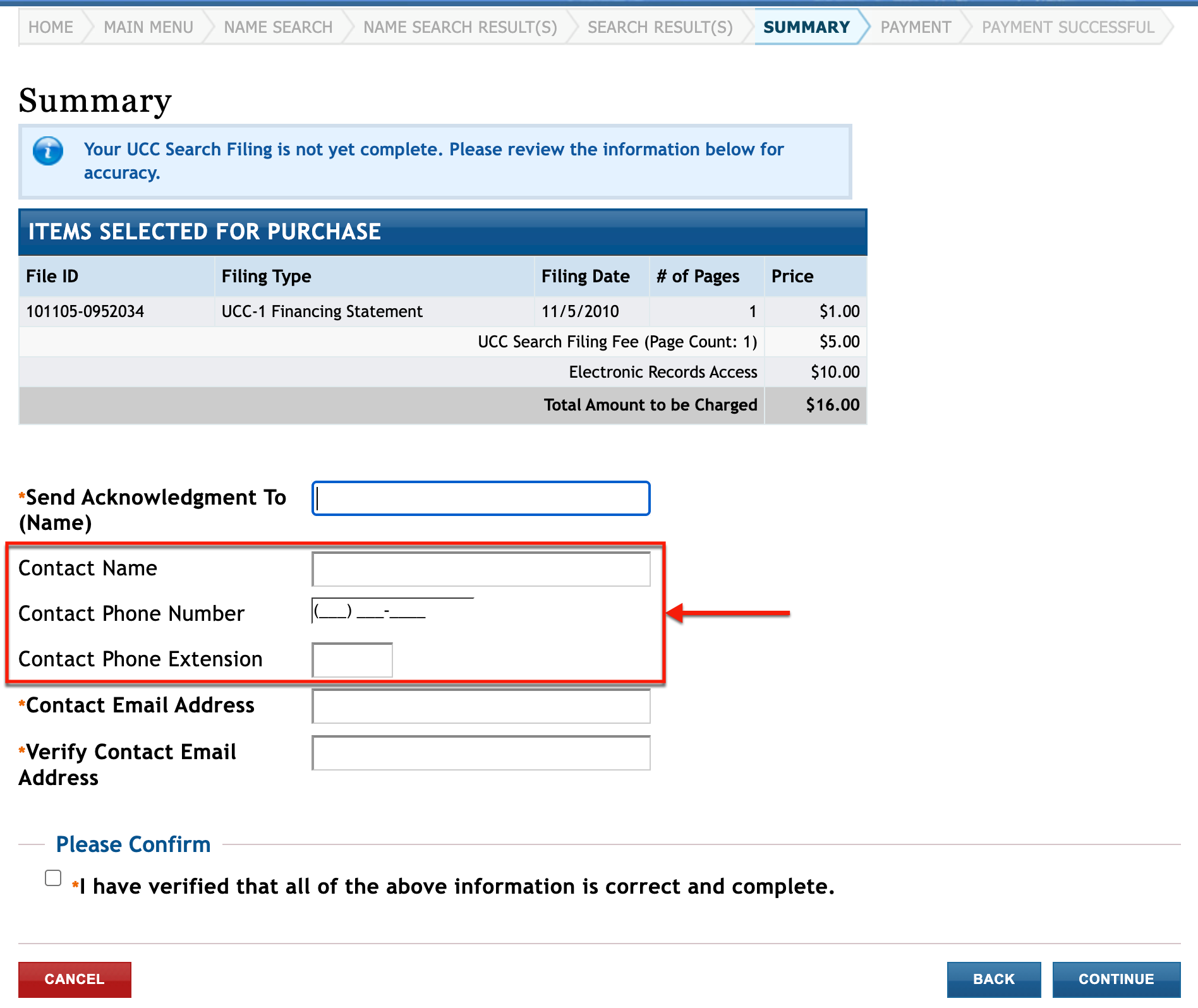
- Contact Name
- Contact Phone Number
- Contact Phone Extension
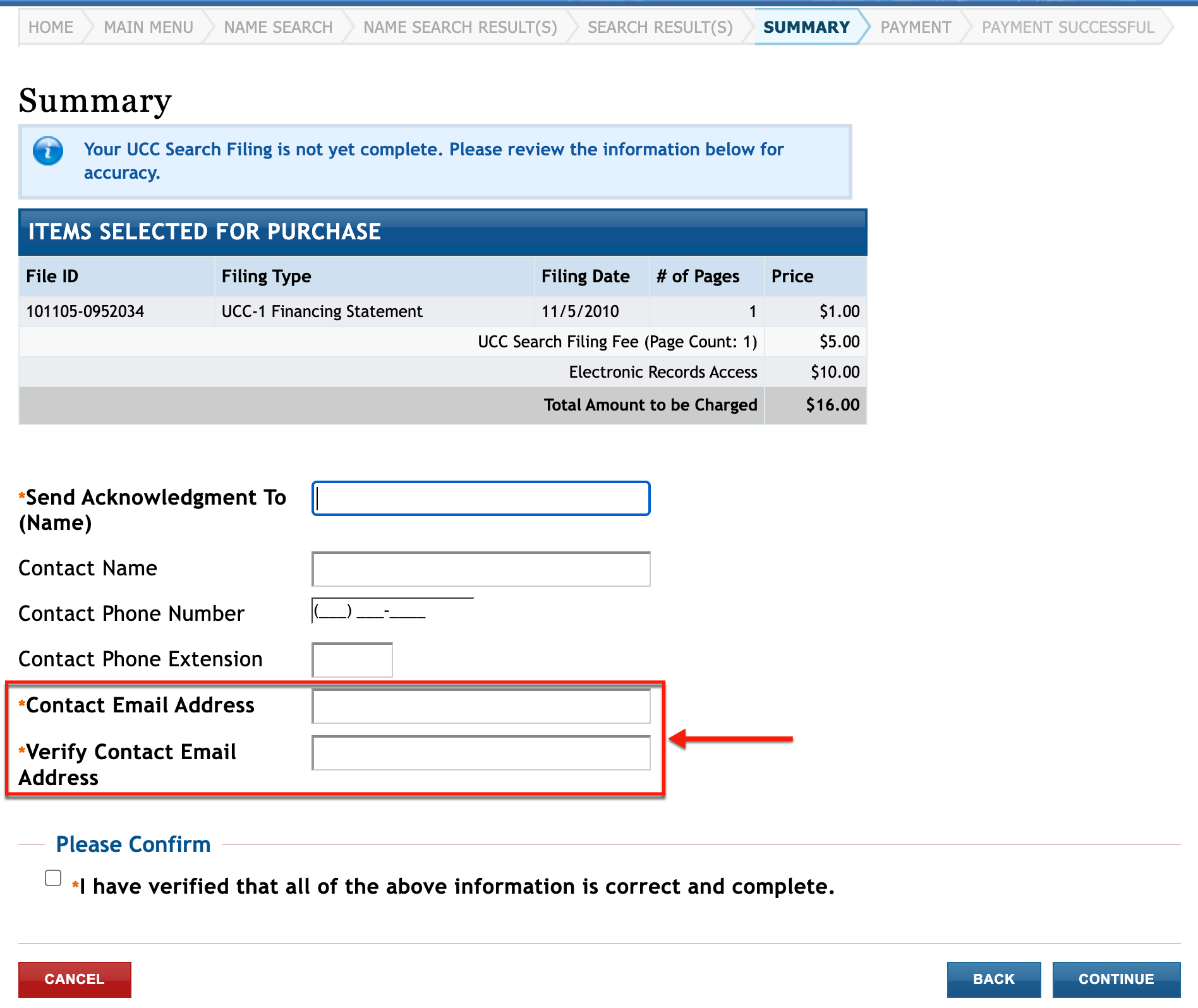
- Contact Email Address
- Verify Contact Email Address
19. Provide Contact Information
Several fields allow you to list a contact, which is especially useful if a company is behind this purchase. Supply the contact’s name, phone number, and phone extension if relevant.
20. Submit Email Information
This purchase requires a valid email to direct notifications and any relevant correspondence. Furnish this in the “Contact Email Address” and “Verify Contact Email Address” text boxes.
21. Verify the Acknowledgment and Contact Information
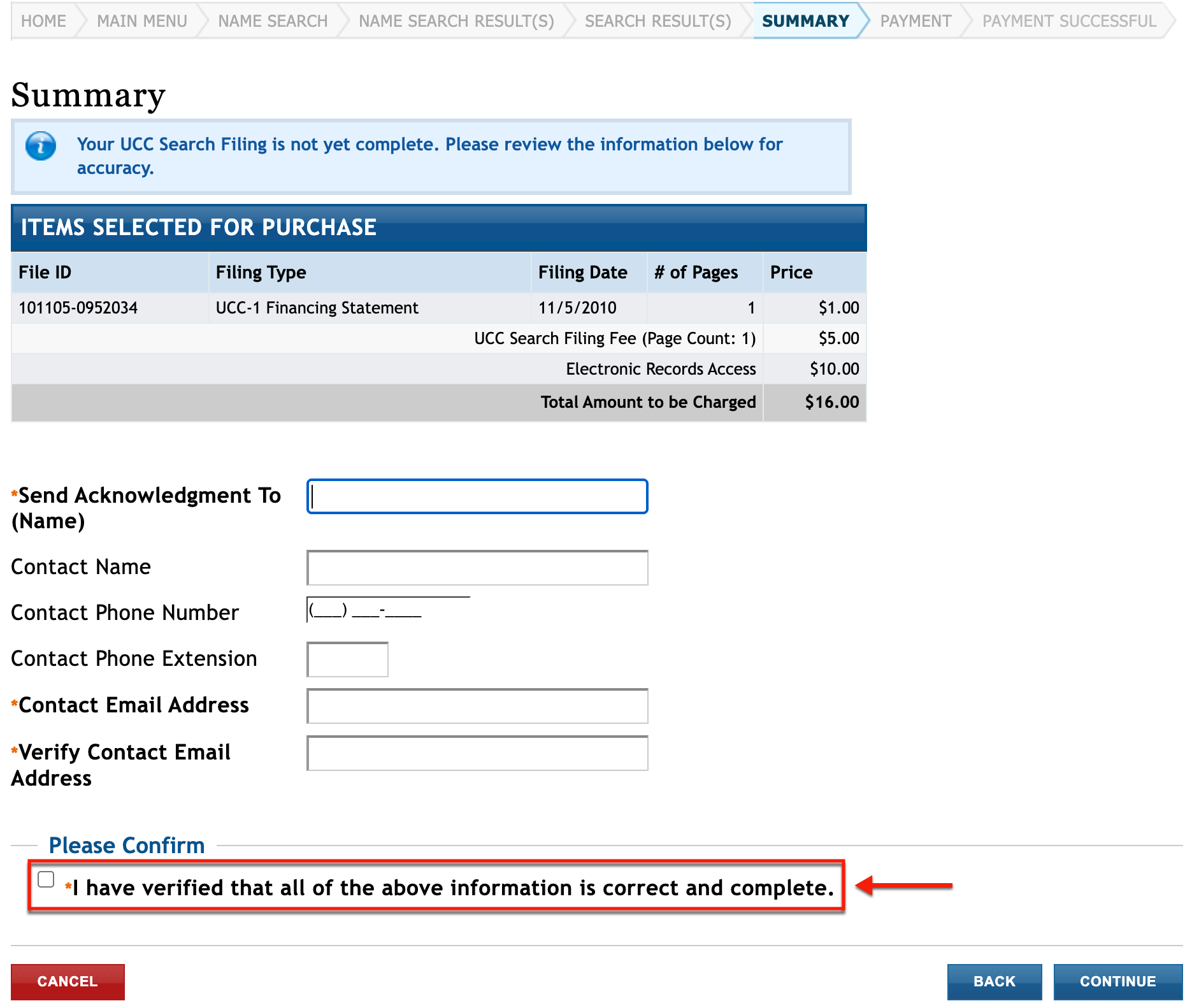
Click the checkbox under “Please Confirm” after reading the verification statement. Make sure the above information is fully accurate before continuing.
22. Continue to Payment
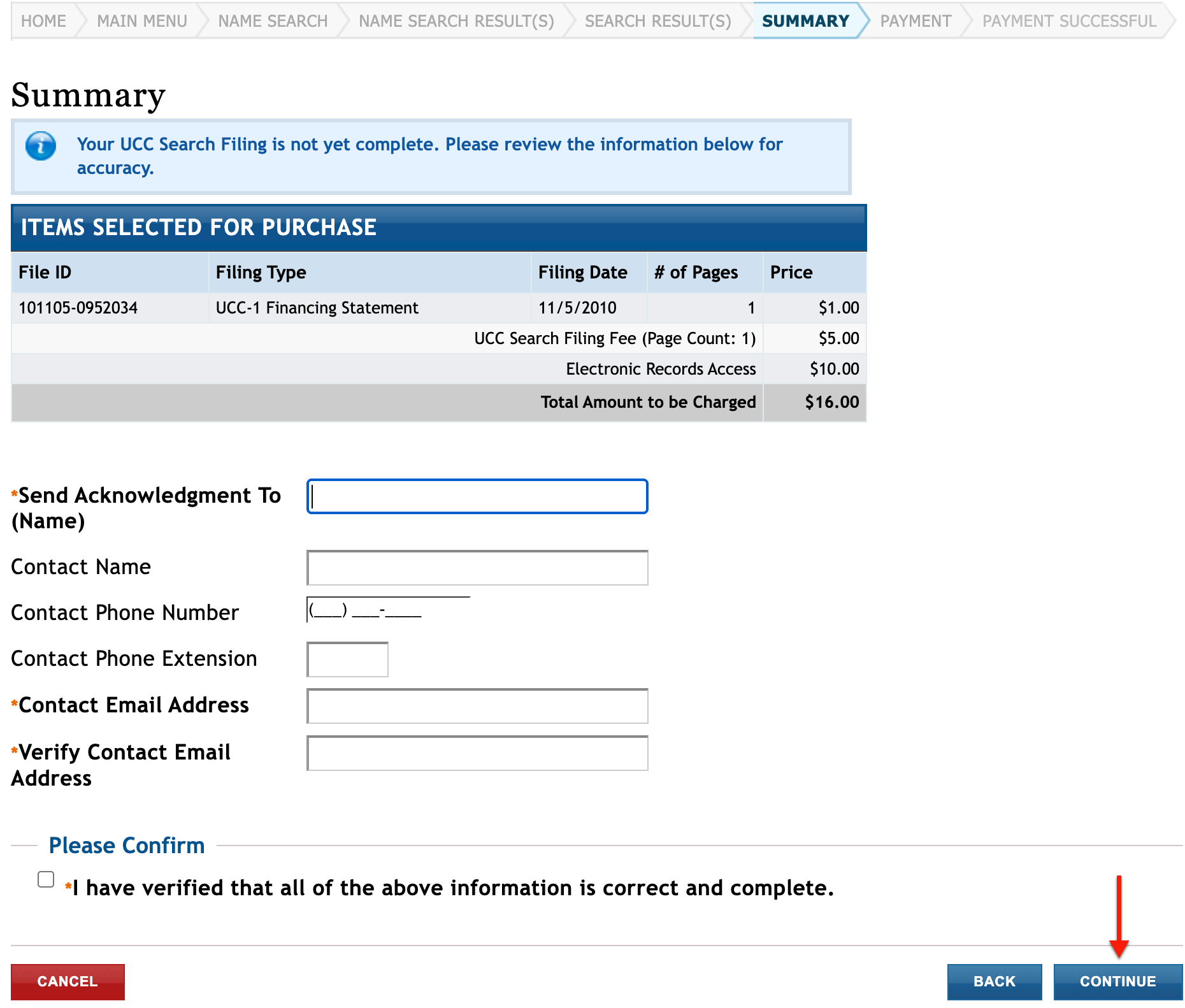
In order to complete this purchase, click “Continue.” The browser progresses to the payment area upon this selection.
23. Supply the Appropriate Payment Type
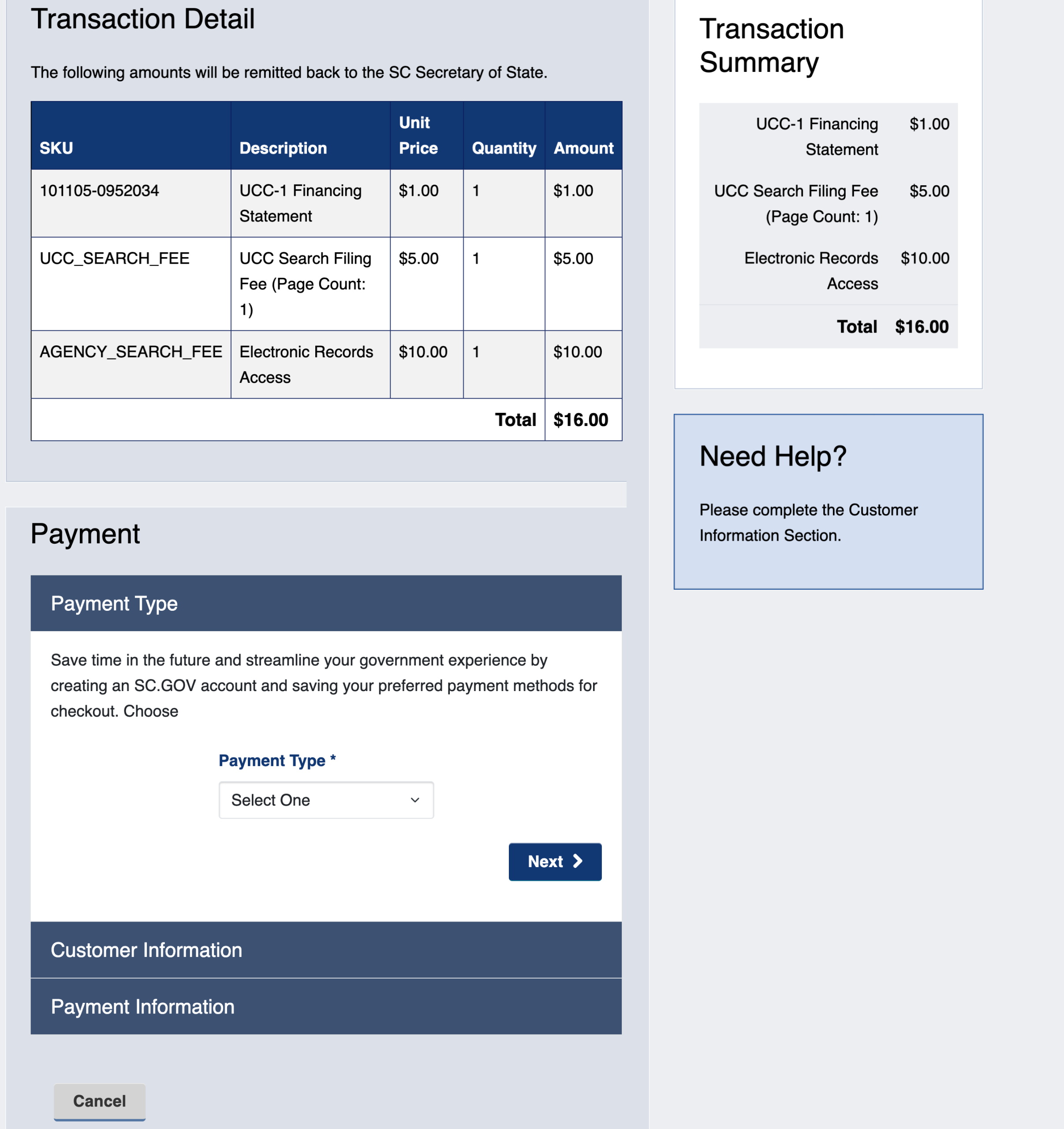
Review your order using the table and the sidebar. Select the way you prefer to pay for the order from the “Payment Type” drop-down menu. For our example, we shall use a credit card.
- SKU
- Description
- Unit Price
- Quantity
- Amount
- Payment
- Payment Type
- Next
24. Progress to the Order Review
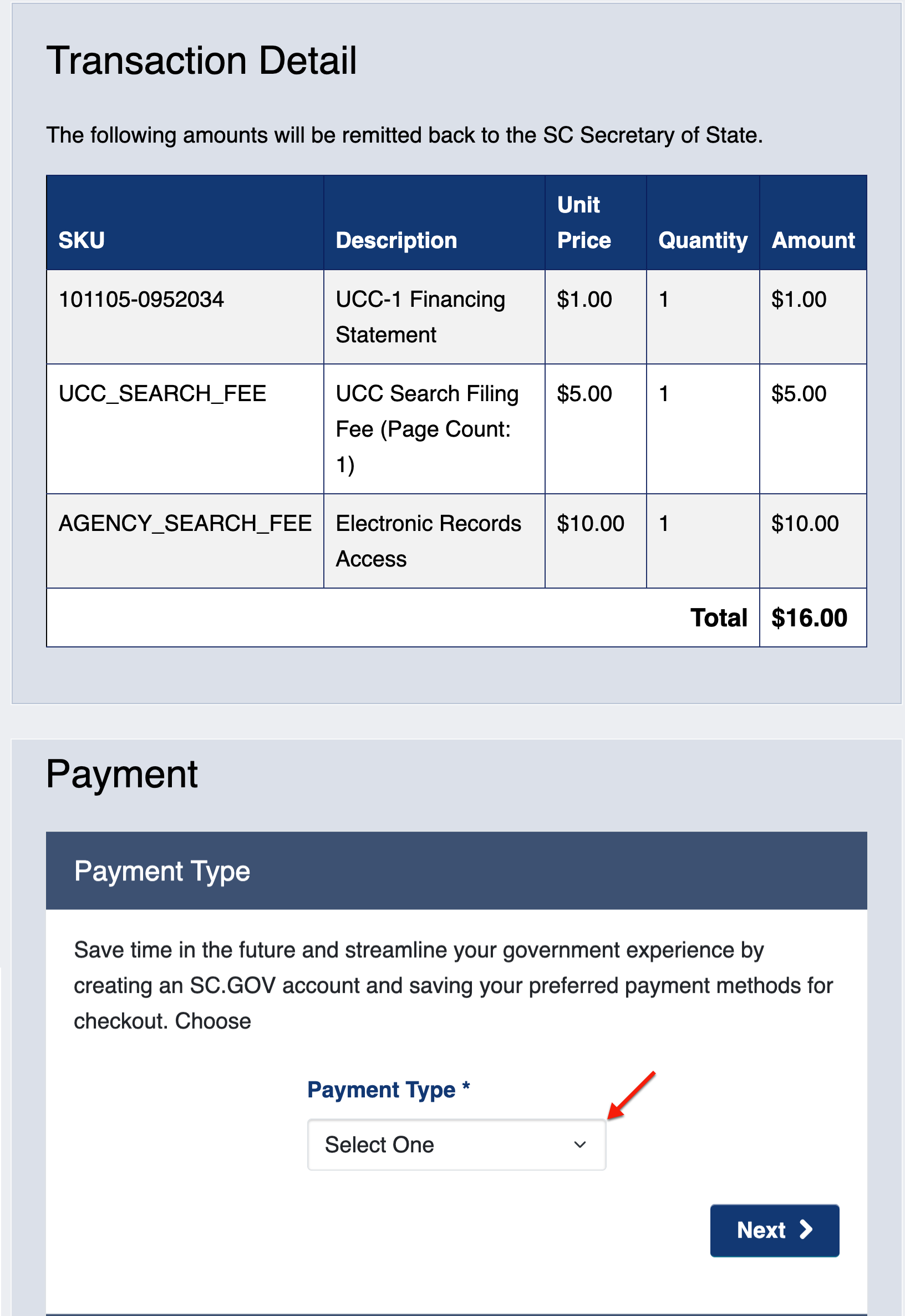
Click “Next” after defining your payment method. Prepare to submit the customer and payment information.
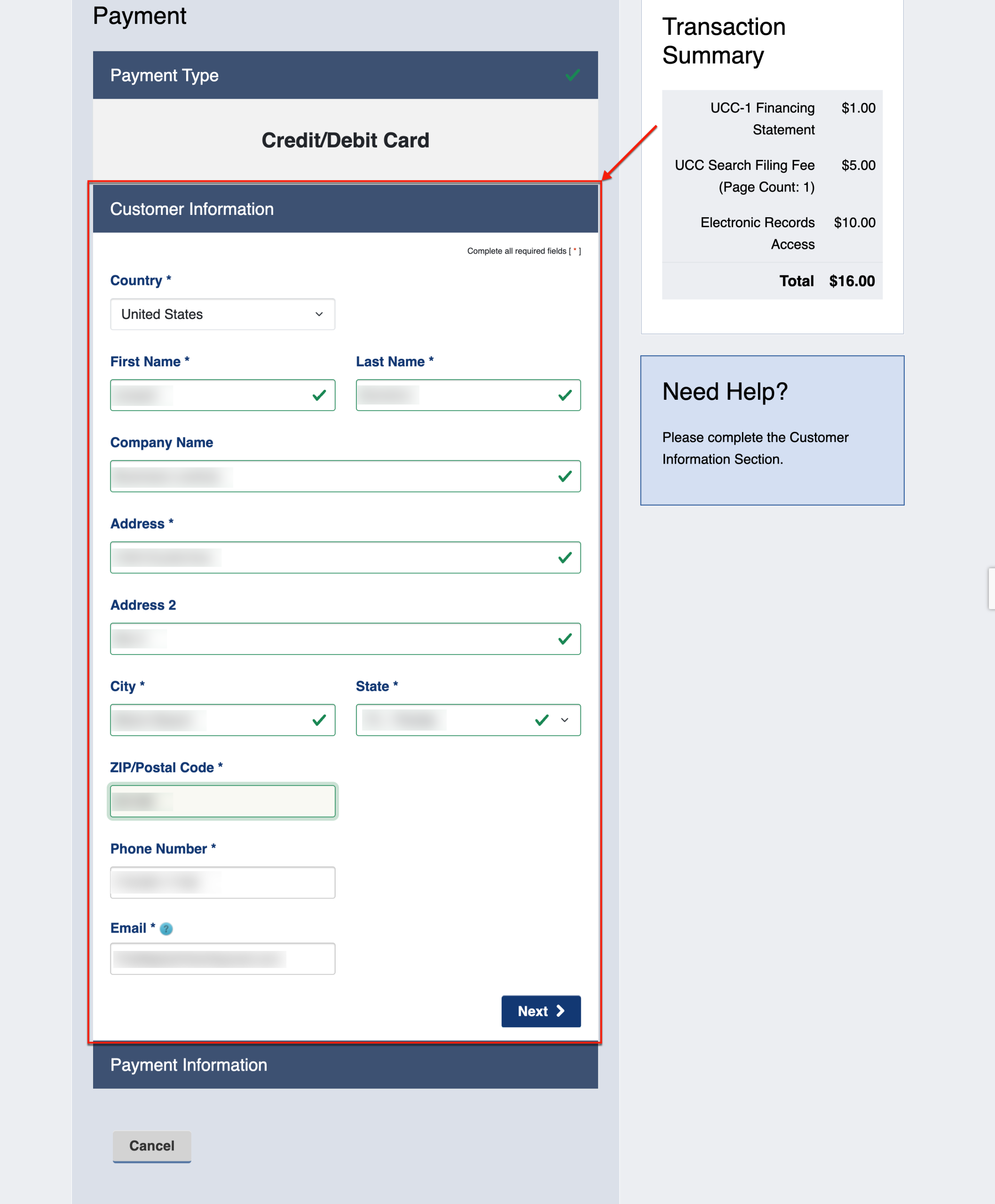
25. Supply the Customer Information
Submit the customer’s name, company (if applicable), address, phone number, and email address. Make sure your information is up-to-date and accurate.
- Customer Information
- Country
- First Name
- Last Name
- Company Name
- Address
- Address 2
- City
- State
- Zip/Postal Code
- Phone Number
- Next
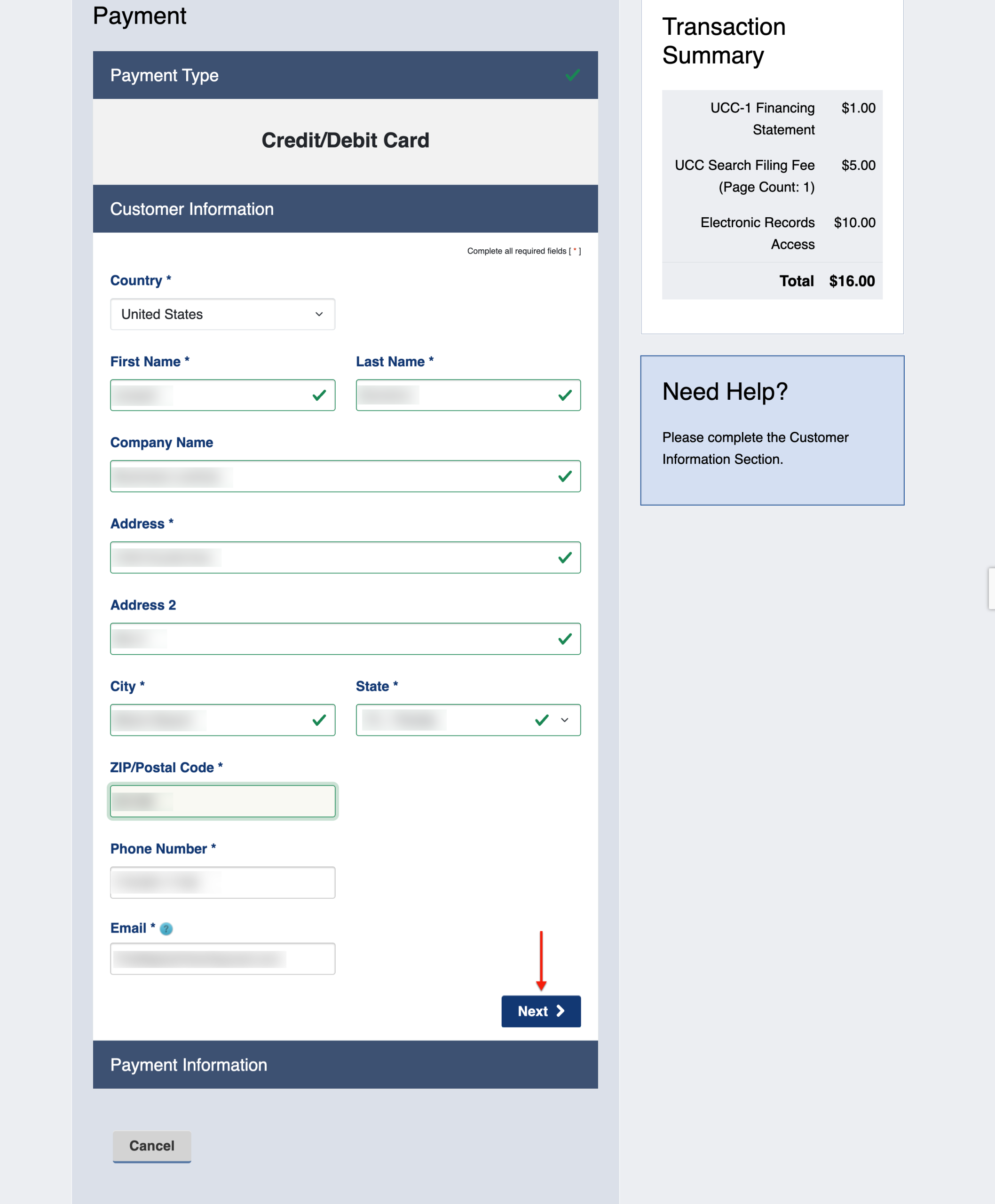
26. Proceed to the Purchase
Gather your payment materials. Click “Next” to supply the details for the purchase method.
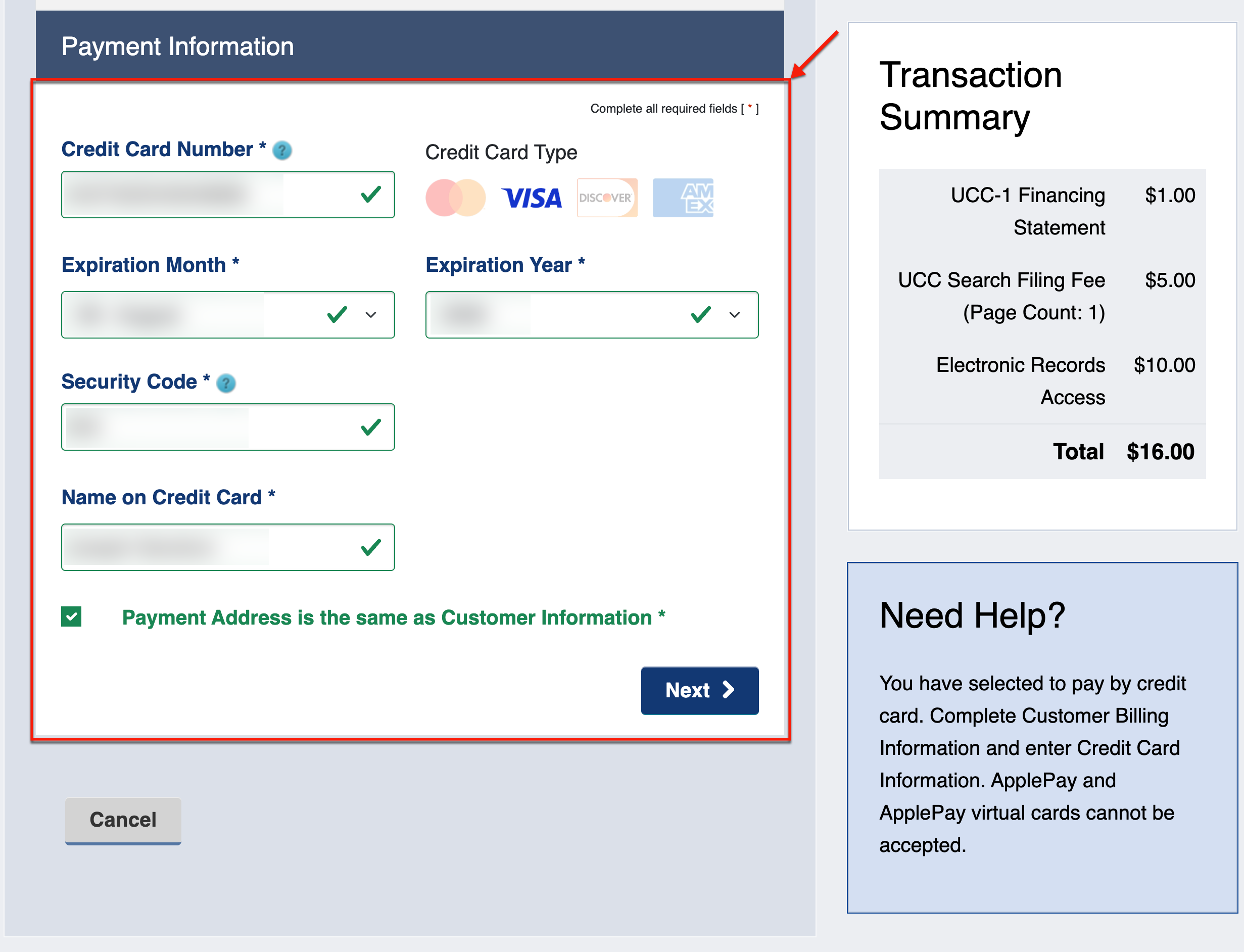
27. Pay for the Request
Present the credit card information (if paying by card). As a time saver, select the checkbox if the payer associated with this payment method is the same customer.
- Payment Information
- Credit Card Number
- Expiration Month
- Expiration Year
- Security Code
- Name on Credit Card
- Payment Address is the same as Customer Information
- Next
28. Continue to Payment Stage

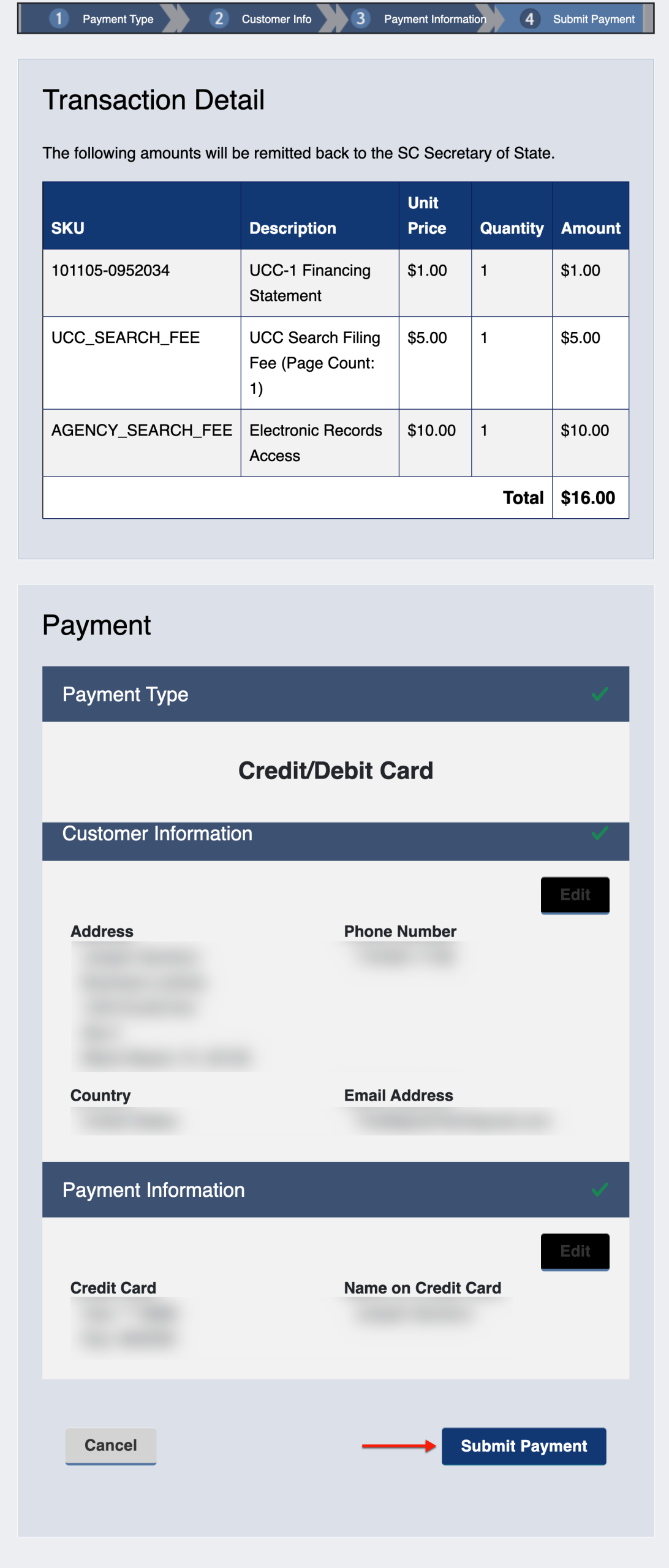
29. Verify the Accuracy of All Your Entries
Click on “Submit Payment” to instruct the query to proceed with your purchase.
- Transaction Detail
- SKU
- Description
- Unit Price
- Quantity
- Amount
- Total
- Payment
- Payment Type
- Customer Information
- Address
- Phone Number
- Country
- Email Address
- Payment Information
- Credit Card
- Name On Credit Card
- Submit Payment
- Submit Payment
30. Download Your Documents
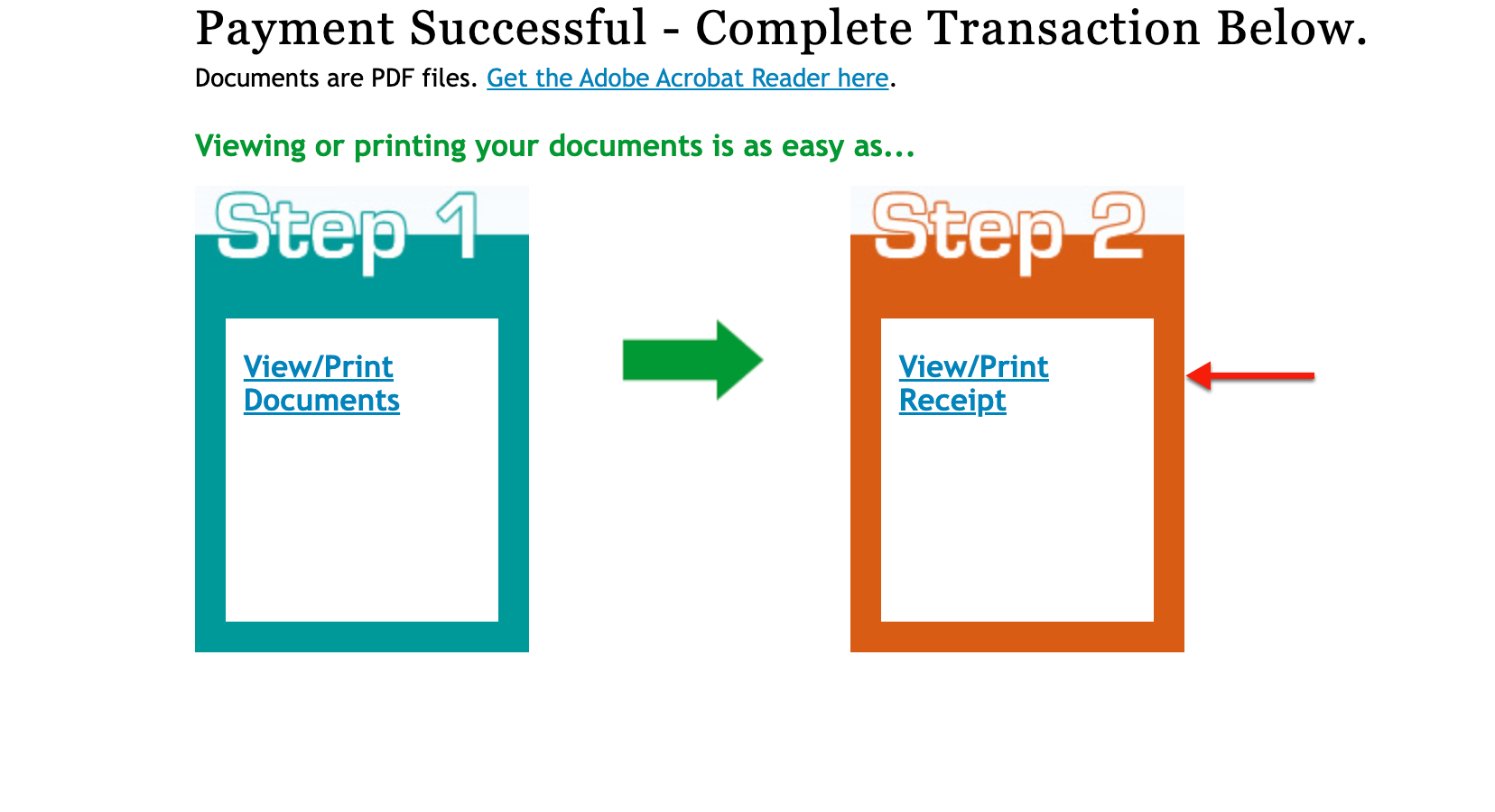
Once the transaction is complete, a payment confirmation appears. Select “View/Print Documents” to obtain and save your purchase material for review.
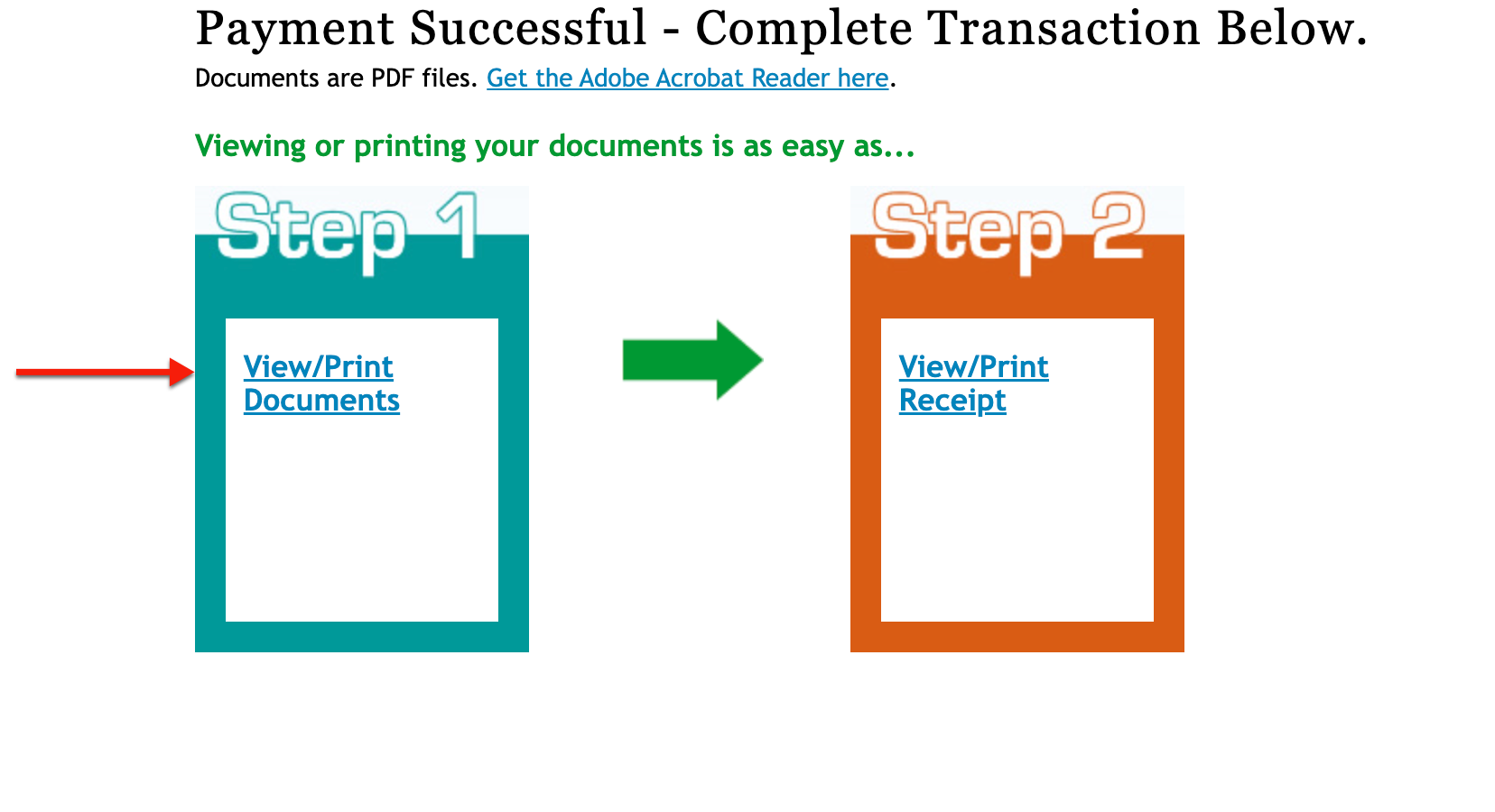
31. Obtain the Receipt
Click “View/Print Receipt” for a record of the transaction and the payment. Like the material purchased, this can be saved to your machine and printed at your convenience.